Guide
10 Essential Best Practices Data Visualization Experts Swear By in 2025
Unlock clarity and impact in your reports. Explore the top 10 best practices data visualization professionals use to tell compelling stories with data.
In a world saturated with data, the ability to present information clearly isn't just a skill; it's a strategic advantage. Raw numbers in a spreadsheet are often overwhelming and opaque, but a well-crafted visualization transforms complex datasets into clear, compelling stories that drive decisions. The difference between a confusing chart and an insightful one often comes down to a set of core principles. Mastering these best practices data visualization techniques is essential for anyone aiming to communicate effectively with data, from startup founders tracking growth to finance teams automating board reports.
This guide moves beyond generic advice to provide a comprehensive roundup of the 10 most impactful principles that data experts use. We will explore how to choose the right chart, use color with purpose, and tell a persuasive story with your data. You'll learn actionable techniques for everything from strategic labeling and annotation to ensuring your visualizations are accessible and easy to understand on any device. Each point is designed to be practical, helping you create visuals that are not just beautiful, but also intuitive, accurate, and powerful.
Ultimately, effective data visualization is about more than just presenting numbers; it's about crafting an experience for your audience. To truly transform data into actionable insights, understanding the user's perspective is key. Many of the concepts we'll cover, such as minimizing cognitive load and prioritizing clarity, are rooted in fundamental user experience design principles. By applying these best practices, you can ensure your audience doesn't just see the data; they understand it, trust it, and feel empowered to act on it. Whether you're building a dashboard for your team or a report for stakeholders, mastering these techniques will elevate your ability to communicate insights and inspire action.
1. Choose the Right Chart Type for Your Data
Selecting the appropriate chart is the cornerstone of effective data visualization. The right visual representation makes your data’s story immediately apparent, while the wrong one can obscure insights or even mislead your audience. This foundational practice involves matching your data’s characteristics and the specific message you want to convey with a chart type designed for that purpose. This is one of the most critical best practices in data visualization because it directly impacts comprehension and interpretation.
The goal is to reduce cognitive load, allowing viewers to grasp comparisons, trends, or relationships effortlessly. A simple framework can guide your decision:
- Comparison: Use bar or column charts to compare values across different categories.
- Composition: Use pie charts or stacked bar charts to show how individual parts make up a whole.
- Distribution: Use histograms or box plots to understand the spread and grouping of data points.
- Relationship: Use scatter plots or bubble charts to reveal correlations between two or more variables.
How to Implement This Practice
Start by clarifying the primary question you want your data to answer. Is it "which product line sold the most?" (comparison) or "how has our user base grown over time?" (trend/relationship).
For instance, The New York Times masterfully used line charts during the COVID-19 pandemic to illustrate trends over time, making complex data accessible. Similarly, Google Analytics defaults to bar charts for comparing website traffic sources, providing a clear, side-by-side view.
Pro-Tip: Before finalizing your choice, test a few different chart types with your dataset. Seeing the data in multiple formats can reveal which visualization tells the most accurate and compelling story for your audience.
For a deeper dive into this essential topic, you can learn more about how to choose the right charts for your data visualization and explore a comprehensive guide.
2. Maintain a High Data-Ink Ratio
Pioneered by statistician Edward Tufte, the principle of a high data-ink ratio is fundamental to creating clean, impactful visualizations. It dictates that the majority of "ink" on a graphic should be dedicated to displaying data, not decorative fluff. Eliminating chart junk like unnecessary gridlines, 3D effects, or heavy borders ensures your audience focuses on the message within the data, not the distracting container. This is one of the most respected best practices in data visualization because it prioritizes clarity and efficiency.
The goal is to maximize the information conveyed while minimizing the visual noise. A high data-ink ratio leads to visualizations that are easier to interpret, look more professional, and communicate their core insights without ambiguity. It’s about subtraction, not addition.
A simple framework guides this decluttering process:
- Data-Ink: The essential elements conveying data, like bars in a bar chart or points in a scatter plot.
- Non-Data-Ink: The decorative or redundant elements, such as background colors, gradients, or redundant labels.
- The Ratio: Strive to make the Data-Ink portion as large as possible relative to the total ink used.
How to Implement This Practice
Start by auditing every element in your chart. Ask yourself: "Does this component add new information or clarify the existing data?" If the answer is no, remove it. This forces a disciplined approach to design that puts the data's story first.
For example, publications like The Economist and the Financial Times are renowned for their minimalist charts. They often remove y-axis lines, lighten gridlines until they are barely visible, and use color only to encode data, not for decoration. Google Analytics also presents data with minimal clutter, using ample white space and clean lines to make metrics easily digestible for users.
Pro-Tip: Perform the "squint test" on your visualization. Squint your eyes and look at the chart from a distance. The main data patterns and takeaways should still be clearly visible. If they are obscured by other visual elements, your data-ink ratio is likely too low.
To truly master this concept, you can explore Tufte’s original work, which provides a foundational understanding of how to present data with integrity and clarity.
3. Use Color Strategically and Purposefully
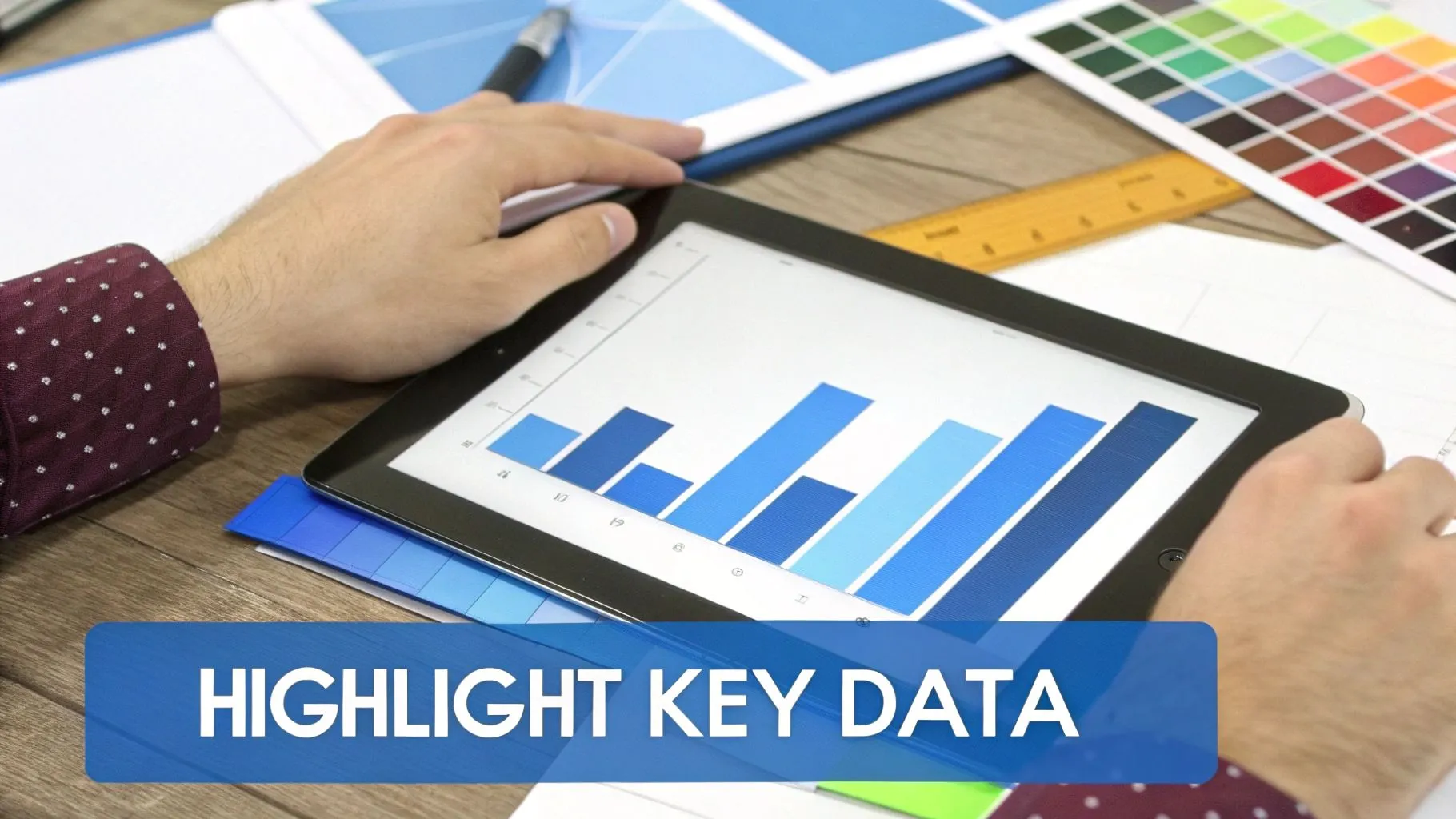
Color is a powerful tool in data visualization, capable of highlighting key insights, showing relationships, and guiding the viewer’s eye. However, when used without intention, it can just as easily create confusion or misrepresent data. Strategic color use means treating color as another dimension of your data, not as mere decoration. This core principle is one of the most impactful best practices in data visualization because it directly influences clarity, accessibility, and emotional response.
The primary goal is to use color to encode meaning. Whether grouping categories, showing intensity, or drawing attention to a critical data point, every color choice should serve a specific, analytical purpose. This requires an understanding of color theory, perceptual psychology, and accessibility standards.
- Categorical: Use distinct, easily distinguishable hues to represent separate groups (e.g., different product lines).
- Sequential: Use a gradient of a single color (from light to dark) to represent quantitative data that progresses from low to high.
- Diverging: Use a two-color gradient with a neutral midpoint to show data with a meaningful central value, like profit and loss.
How to Implement This Practice
Begin by defining what role color will play in your visualization. Is it to differentiate, to measure, or to alert? For example, news outlet FiveThirtyEight frequently uses a neutral color palette (like gray) for most of the data and reserves a single, bright accent color to highlight the most important finding. Similarly, climate scientists use carefully designed diverging palettes, like those from ColorBrewer, to represent temperature anomalies above and below an average.
This purposeful approach prevents the visual clutter that arises from using too many colors, a common mistake that can obscure the very insights you're trying to reveal. Misapplied color is a hallmark of ineffective charts, and you can see examples of what to avoid when you learn more about bad data visualization.
Pro-Tip: Always test your visualization in grayscale. If the chart is still readable and the primary message is clear without color, you have successfully used other visual cues (like position and size) effectively, and color is serving as a beneficial enhancement rather than a crutch.
4. Tell a Story with Data (Narrative Visualization)
Presenting charts and graphs is not enough; the most effective visualizations guide the audience through a coherent narrative. Narrative visualization transforms raw data from a static exhibit into a compelling story with a clear beginning, middle, and end. This practice involves sequencing visuals, using annotations, and providing context to lead viewers toward specific insights and a meaningful conclusion. Adopting this approach is one of the essential best practices in data visualization because it makes complex information more memorable, persuasive, and actionable.
The goal is to move beyond simply showing data to explaining what it means. A well-crafted data story builds a logical path for the audience, making the final takeaway feel inevitable and clear. A simple narrative framework often follows this structure:
- Establish Context: Start by setting the scene and explaining the "why" behind the data.
- Introduce the Conflict: Highlight a key finding, a surprising trend, or a problem the data reveals.
- Explain the Resolution: Present the primary insight or conclusion drawn from the data.
- Call to Action: Suggest the next steps or decisions that this insight should inform.
How to Implement This Practice
Begin with your single most important message or conclusion, and then work backward to build a story that leads your audience to it. Structure your visualizations to reveal information progressively, using annotations and headlines to direct attention to crucial data points.
For instance, The New York Times' interactive articles, such as those from 'The Upshot', are masters of this technique. They don't just display a map or chart; they guide the reader through it with scrolling text that highlights different aspects of the visualization, creating a powerful, narrative-driven experience. Similarly, the late Hans Rosling’s famous TED talks used animated bubble charts to tell the story of global development over decades, transforming statistics into an unforgettable performance.
Pro-Tip: Test your data story with someone unfamiliar with the subject matter. If they can easily follow the narrative and arrive at the intended conclusion without extra explanation, your visualization is a success.
For those looking to master this skill, Cole Nussbaumer Knaflic’s book, Storytelling with Data, provides a comprehensive guide on how to turn data into impactful stories.
5. Prioritize Clarity and Accessibility Over Aesthetics
While a visually stunning chart can capture attention, its true value lies in its ability to be understood by everyone. Prioritizing accessibility means designing visualizations for universal comprehension, ensuring that all viewers, regardless of ability, background, or context, can interpret the data. This foundational practice shifts the focus from purely aesthetic appeal to functional clarity, a core tenet of the best practices in data visualization.
The objective is to remove barriers to understanding. A beautiful chart that a colorblind user cannot decipher or a complex interactive that is unusable with a screen reader has failed its primary purpose. Accessibility is not an add-on; it is an integral part of effective design.
- Clarity: Ensure the message is direct and unambiguous.
- Inclusivity: Design for users with visual impairments, motor disabilities, and cognitive differences.
- Usability: Make sure the visualization is functional and easy to navigate across different devices and assistive technologies.
How to Implement This Practice
Start by integrating accessibility checks into your design workflow from the beginning, not as a final review. This means considering factors like color contrast, font size, and alternative text as you build the visualization.
For example, the BBC News data team adheres to strict accessibility guidelines, using patterns and textures in addition to color to differentiate data series in charts. Similarly, GitHub’s accessible data visualization components are built to comply with WCAG standards, providing clear, high-contrast themes and keyboard navigability. These organizations prove that accessibility enhances, rather than limits, great design.
Pro-Tip: Don't rely on color alone to convey information. Use labels, icons, or patterns to ensure your data is understandable without color vision. Tools like WAVE or Axe DevTools can help you audit your visualizations for common accessibility issues.
To further your understanding, explore the Web Accessibility Initiative’s resources on accessible charts and see how to make data more inclusive.
6. Provide Context and Reference Points
Presenting raw numbers without context is like showing a single frame of a movie; it lacks the necessary background to be truly understood. Providing context and reference points transforms isolated data points into meaningful insights, allowing your audience to gauge performance, significance, and relevance. This is one of the most impactful best practices in data visualization because it answers the critical follow-up question: "Is this number good or bad?"
The goal is to frame the data against a relevant benchmark, such as a target, a historical average, or an industry standard. This immediately orients the viewer, helping them draw accurate conclusions about whether the data is expected, surprising, or requires action.
- Targets & Goals: Show performance against predefined objectives.
- Historical Data: Compare current figures to past performance to identify trends.
- Benchmarks: Measure against industry averages or competitor data.
- Ranges: Use shading to indicate what is considered a healthy, warning, or critical range.
How to Implement This Practice
Start by asking, "Compared to what?" Identify the most relevant comparison that will help your audience interpret the visualization correctly. For a sales dashboard, this might be a reference line showing the quarterly target.
For instance, a financial dashboard showing actual revenue gains significant meaning when a subtle, gray dotted line indicates the forecasted revenue. Similarly, Gapminder's famous animated visualizations powerfully contextualize national statistics by comparing them across countries and over time, revealing global trends that would otherwise be invisible.
Pro-Tip: Use annotations sparingly but effectively to explain key reference points or significant deviations. A simple note like "Q3 target increased due to seasonal demand" can prevent misinterpretation and add a crucial layer of narrative to your chart.
For more on this topic, Cole Nussbaumer Knaflic’s book, Storytelling with Data, offers excellent guidance on using context to build compelling data narratives.
7. Minimize Cognitive Load Through Progressive Disclosure
Presenting every single data point at once can overwhelm an audience, causing them to disengage before they find the core message. Progressive disclosure is a technique that reveals information in stages, starting with a high-level overview and allowing users to drill down for more detail. This approach respects the viewer's cognitive limits, making complex datasets approachable and engaging. This is a crucial entry in any list of best practices in data visualization as it transforms dense dashboards into interactive, exploratory experiences.
The core idea is to guide the user's journey through the data, a concept popularized by Ben Shneiderman's mantra: "Overview first, zoom and filter, then details-on-demand." This layered approach ensures that viewers can quickly grasp the main takeaway while still having access to the granular data that supports it.
- Overview: Begin with a simplified chart showing the most critical trends or totals.
- Zoom and Filter: Provide interactive controls like filters, sliders, or clickable chart elements that let users focus on specific segments of the data.
- Details-on-Demand: Use tooltips, hover effects, or expandable sections to reveal specific data points or supplementary information without cluttering the initial view.
How to Implement This Practice
Start by designing your visualization with a clear hierarchy. Identify the single most important insight and make it the focal point of the initial view. Then, map out the interactive pathways a user might take to explore further questions. To enhance readability and reduce clutter, understanding and applying the effective use of white space in design is paramount for creating clean, scannable overviews.
For example, a Tableau Public dashboard might initially display a world map with sales by country. Clicking a country could then filter a bar chart below to show sales by product category within that specific region. Hovering over a bar could then trigger a tooltip with the exact sales figures and year-over-year growth. This guided exploration makes a massive dataset feel manageable and intuitive.
Pro-Tip: Ensure every interactive element has a clear purpose and a visual cue, such as a different color on hover or an icon. Guide your users by making the path to deeper insights obvious and inviting, and always provide a clear way to return to the previous view.
8. Use Proper Axes and Scaling
Establishing appropriate axes and scaling is fundamental to creating honest and accurate data visualizations. The way you set your axis ranges and scales can dramatically alter the perception of your data, either by revealing the truth or by unintentionally (or intentionally) misleading your audience. This practice involves making conscious decisions about baselines, scale types, and labels to ensure the visual representation faithfully reflects the underlying numbers. This is one of the most important best practices in data visualization because it upholds the integrity of your entire analysis.
The goal is to prevent distortion that can exaggerate or minimize trends, differences, or relationships. A well-scaled chart allows for fair interpretation, while a poorly scaled one can lead to flawed conclusions. Key decisions include:
- Baseline: Should the axis start at zero? This is crucial for bar charts, where the length of the bar represents its value.
- Scale Type: Is a linear scale sufficient, or does the data’s range require a logarithmic scale to show proportional change across orders of magnitude?
- Axis Range: Does the range encompass the entire dataset, or is it truncated to focus on a specific area of variation?
- Dual Axes: Are two different y-axes necessary, and if so, how can they be presented without causing confusion?
How to Implement This Practice
Begin by considering the nature of your data and the story you are telling. For bar charts comparing quantities, always start the y-axis at zero. Omitting the zero baseline can make small differences look enormous, a common data visualization pitfall famously critiqued by experts like Edward Tufte.
For example, when showing revenue growth from $10 million to $10.5 million, a y-axis starting at $9.5 million would make the growth appear monumental. An axis starting at zero would present a more accurate, modest increase. Conversely, scientific visualizations often use logarithmic scales to effectively display data spanning several orders of magnitude, such as earthquake intensity or pH levels, where each step on the scale represents a tenfold increase.
Pro-Tip: If you must truncate an axis, for instance, to show minor fluctuations in a stock price, clearly indicate the break with a visual cue like a jagged line. Transparency is key to maintaining trust with your audience.
For a deeper understanding of how scaling can be used and misused, you can learn more about the principles of graphical integrity and its impact on data interpretation.
9. Optimize for Target Platform and Device
A brilliant visualization can fail entirely if it is illegible or unusable on the device where your audience views it. Optimizing for the target platform is a critical practice that ensures your insights are delivered effectively, whether on a large desktop monitor, a smartphone, a printed report, or a presentation slide. This means designing with the specific constraints and capabilities of each medium in mind, from screen size and resolution to interactivity and performance. This is one of the most practical best practices in data visualization because it guarantees accessibility and a positive user experience.
The goal is to create a seamless experience, where the visualization feels native to its environment. A dashboard that requires extensive zooming and panning on a mobile device is a failed design, just as a complex interactive chart is useless in a static PDF.
- Desktop: Allows for high-density information, complex interactivity, and detailed tooltips.
- Mobile: Requires simplified views, touch-friendly controls, and fast load times. Vertical layouts are often preferred.
- Print: Must be static and fully comprehensible without interactivity. High contrast and clear labels are essential.
- Presentation: Needs to be clear from a distance with large fonts and a focused message for each slide.
How to Implement This Practice
Adopt a "mobile-first" mindset. Start by designing the core visualization for the smallest screen, ensuring the primary message is clear. Then, progressively enhance the experience for larger screens by adding more detail, secondary data, or advanced interactive features.
For instance, The New York Times excels at this, creating interactive articles that fluidly adapt from a rich, multi-panel desktop experience to a streamlined, scrollable story on mobile. Similarly, modern BI tools like Tableau and Google Data Studio include responsive layout options that automatically adjust dashboards for different device sizes.
Pro-Tip: Always test on real devices. Browser emulators are helpful but cannot fully replicate the touch experience, performance, or rendering quirks of an actual smartphone or tablet. Ensure touch targets for buttons or filters are at least 44x44 pixels to be easily tappable.
For a comprehensive guide on this crucial topic, you can learn more about how to design dashboards for mobile users and explore specific techniques.
10. Annotate and Label Clearly and Thoroughly
A visualization without clear labels is like a map without a legend; it shows a picture but fails to provide direction. Effective annotation and labeling transform a chart from a mere collection of shapes and colors into a self-contained, understandable narrative. This practice involves adding titles, axis labels, legends, data sources, and contextual callouts to guide the viewer’s interpretation and eliminate ambiguity. This is a fundamental aspect of best practices in data visualization because it ensures your message is received exactly as intended, without external explanation.
The goal is to answer the viewer's implicit questions before they even have to ask them. A well-annotated chart clarifies what the data represents, its units, its origin, and why specific points are significant. This builds trust and empowers the audience to draw accurate conclusions on their own.
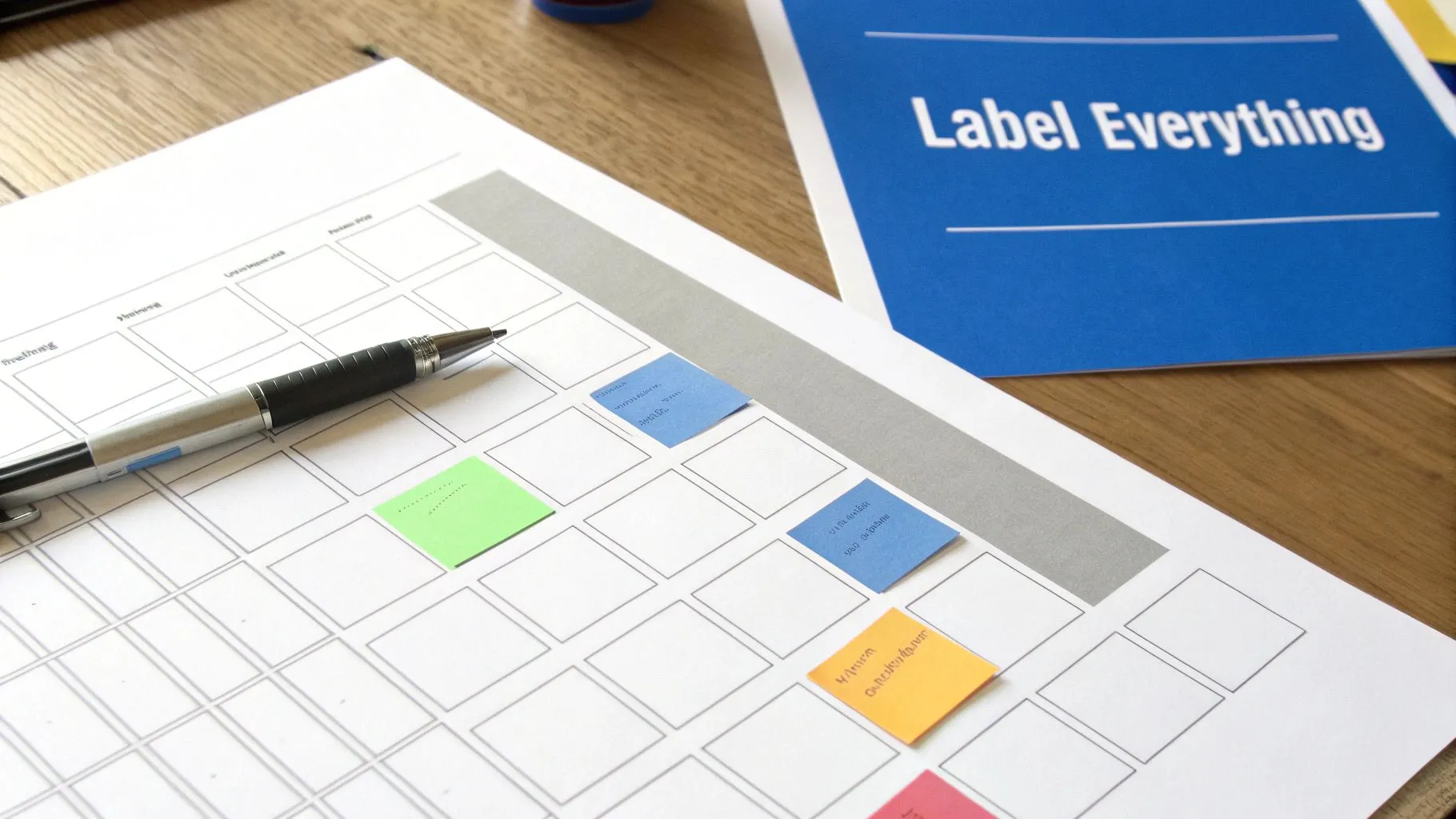
A simple framework for effective annotation includes:
- Titles and Subtitles: Write a title that summarizes the main finding (e.g., "Q3 Revenue Grew 15% Year-Over-Year"), not just a generic description (e.g., "Q3 Revenue").
- Axis and Data Labels: Clearly label both axes with the metric and its unit (e.g., "Revenue in USD Millions"). Directly label data points or series where it aids clarity, removing the need for a separate legend.
- Callouts and Annotations: Use text or arrows to highlight key events, outliers, or significant changes in the data that provide crucial context.
- Source and Notes: Always cite your data source and include a date. Add a footnote for any important caveats or methodological details.
How to Implement This Practice
Start by imagining you are presenting your chart to someone with zero prior context. What information would they need to understand it completely? This mindset shifts your focus from simply displaying data to communicating a story.
For example, the Financial Times and The Economist are masters of this practice. Their charts often feature descriptive headlines, explanatory subtitles, and carefully placed annotations that explain spikes or dips, such as "Recessionary Period" or "New Product Launch," providing instant context. Similarly, Vox's video explainers frequently use text overlays and callouts to break down complex charts for a broad audience.
Pro-Tip: After creating your visualization, show it to a colleague for 15 seconds and then ask them to explain the main takeaway. If they struggle, your labeling and annotations need to be clearer and more direct.
To effectively integrate this into your workflow, you can learn more about how to plan your data visualization from the start to ensure clarity is a priority, not an afterthought.
Comparison of 10 Data-Visualization Best Practices
| Principle | Implementation 🔄 (complexity) | Resources ⚡ (requirements) | Expected outcomes ⭐📊 | Ideal use cases 📊 | Key advantages 💡 |
|---|---|---|---|---|---|
| Choose the Right Chart Type for Your Data | Low–Medium 🔄 — needs chart knowledge | Low ⚡ — basic tools; some time to test | ⭐⭐⭐⭐ — clearer comparisons & trends | Reports, dashboards, exploratory analysis | 💡 Align chart to message; reduce cognitive load |
| Maintain Data-Ink Ratio | Medium 🔄 — design judgment required | Low ⚡ — time for refinement, design skill | ⭐⭐⭐⭐ — cleaner visuals; faster comprehension | Print reports, professional dashboards | 💡 Remove non‑data elements; use negative space |
| Use Color Strategically and Purposefully | Medium–High 🔄 — color theory & accessibility | Medium ⚡ — palettes, testing tools, accessibility checks | ⭐⭐⭐⭐ — stronger hierarchy; better emphasis | Public-facing visuals, multivariate charts | 💡 Use colorblind palettes; reserve accents for emphasis |
| Tell a Story with Data (Narrative Visualization) | High 🔄 — writing, sequencing, design | High ⚡ — time, multimedia, development | ⭐⭐⭐⭐⭐ — high engagement; guides action | Feature articles, explainers, presentations | 💡 Start with key insight; structure context→data→action |
| Prioritize Clarity and Accessibility Over Aesthetics | Medium 🔄 — accessibility expertise | Medium ⚡ — testing, alt text, dev adjustments | ⭐⭐⭐⭐ — broader reach; fewer errors | Public dashboards, compliance reporting | 💡 Use legible text, contrast, and provide data tables |
| Provide Context and Reference Points | Medium 🔄 — sourcing benchmarks; layout tradeoffs | Medium ⚡ — benchmark data, annotations | ⭐⭐⭐⭐ — data becomes interpretable & actionable | KPI dashboards, health/finance metrics | 💡 Ask "Good compared to what?"; annotate benchmarks |
| Minimize Cognitive Load Through Progressive Disclosure | High 🔄 — interactive architecture | High ⚡ — interactive tech, UX testing | ⭐⭐⭐⭐ — supports exploration; reduces overwhelm | Large datasets, interactive dashboards | 💡 Offer overview first; details on demand; preserve context |
| Use Proper Axes and Scaling | Medium 🔄 — statistical judgment | Low–Medium ⚡ — correct config and labeling | ⭐⭐⭐⭐ — prevents misinterpretation; builds trust | Time series, comparisons, scientific charts | 💡 Include units; justify non‑zero or log scales clearly |
| Optimize for Target Platform and Device | Medium–High 🔄 — responsive design work | Medium–High ⚡ — dev, testing across devices | ⭐⭐⭐⭐ — improved UX and retention across devices | Mobile/web dashboards, embedded interactives | 💡 Design mobile‑first; test on real devices; simplify for small screens |
| Annotate and Label Clearly and Thoroughly | Low–Medium 🔄 — writing and layout care | Low ⚡ — time for copy and placement | ⭐⭐⭐⭐ — self‑contained visuals; reduced ambiguity | Journalism, shared reports, dashboards | 💡 Write titles that answer the question; include sources and units |
Putting Principles into Practice for Lasting Impact
Mastering the art and science of effective data visualization is not a one-time achievement; it's a continuous process of refinement, learning, and application. Throughout this guide, we have explored the essential pillars of creating compelling visual narratives, moving beyond basic chart creation to a more strategic and thoughtful approach. The journey from raw data to actionable insight is paved with deliberate choices, and the principles we've discussed are your map and compass.
By now, you understand that selecting the right chart is about matching data relationships to visual encoding, not just picking what looks good. You recognize the power of maximizing the data-ink ratio, a principle that champions clarity by removing every non-essential visual element. This intentional simplicity ensures your audience's attention is focused squarely on the data's message, not on decorative distractions. These foundational concepts are crucial for anyone serious about implementing best practices in data visualization.
From Theory to Tangible Results
The true value of these best practices emerges when they are integrated into your daily workflow, becoming second nature. Strategic color usage transforms a confusing chart into an intuitive guide, drawing the eye to critical patterns and outliers. When you commit to telling a story with your data, you elevate your role from a mere reporter of facts to an influential guide, leading your audience through a logical narrative that culminates in a clear conclusion.
This commitment extends to ensuring your work is universally understood. Prioritizing accessibility and providing clear context are not afterthoughts; they are ethical obligations that guarantee your insights are available to everyone, regardless of their ability or background knowledge. Likewise, meticulous labeling, proper axis scaling, and clear annotations are the cornerstones of honest and transparent communication. Without them, even the most beautiful visualization risks being misinterpreted or, worse, misleading.
Making Best Practices Your Standard Operating Procedure
Integrating these diverse principles may seem daunting, but the key is to approach it incrementally. Start by focusing on one or two areas in your next project.
- For your next quarterly report: Concentrate on telling a compelling story. Structure your visualizations to build a narrative arc, starting with a high-level overview and drilling down into the specific data points that support your key message.
- For a new dashboard: Prioritize minimizing cognitive load. Use progressive disclosure to present information in layers, allowing users to explore details on demand without being overwhelmed by a sea of data upfront.
- When sharing a quick analysis: Double-check your axes, labels, and annotations. Ensure every element is clear, concise, and adds necessary context, leaving no room for ambiguity.
The ultimate goal is to make your visualizations so intuitive they become almost invisible, serving as a seamless conduit between complex data and human understanding. When the design is flawless, the audience doesn't notice the design; they only see the insight. This is the hallmark of truly effective data communication and the lasting impact you can achieve by consistently applying these best practices for data visualization. By embedding these techniques into your organization's analytics culture, you empower every team, from product to finance, to move faster, make smarter decisions, and unlock the full potential of their data.
Ready to empower your entire team to build insightful, clear, and actionable visualizations without the technical hurdles? Querio is an AI-powered analytics platform that automates the application of these best practices, allowing anyone to ask questions in plain English and receive beautifully optimized charts in seconds. Turn your organization's data curiosity into a competitive advantage by visiting Querio to learn more.