Business Intelligence
Customer-Facing Dashboards: 7 Design Rules That Matter
Seven rules for customer-facing dashboards: prioritize decisions, use consistent metrics, show data timing, ensure accessibility, and enforce tenant security.

I judge a customer-facing dashboard by one test: can you understand your data and decide what to do next without help? Start with the customer’s decision - not the charts. For example, 75,000 requests used out of 100,000 means 75% consumed, but customers also need the billing period, data update time, and allowed next steps.
I use these seven rules to review the whole experience:
- Customer goals: Put the decision and next action first.
- Visual hierarchy: Show status before trends and detailed records.
- Metric consistency: Use the same definitions in cards, charts, exports, and APIs.
- Predictable navigation: Label filter scope and preserve context during drill-downs.
- Data timing: Show when data was updated, and separate loading, delayed, empty, and error states.
- Accessible layout: Test keyboard use, screen readers, contrast, zoom, and small screens.
- Customer-specific access: Enforce account and role boundaries on the server and test every data path.
These rules are checks that work together, not competing priorities. I treat untested behavior as unverified, assign each defect an owner, and retest the fix. My starting point: one usage workflow, with cross-customer exposure and misleading numbers addressed before visual polish.
::: @figure 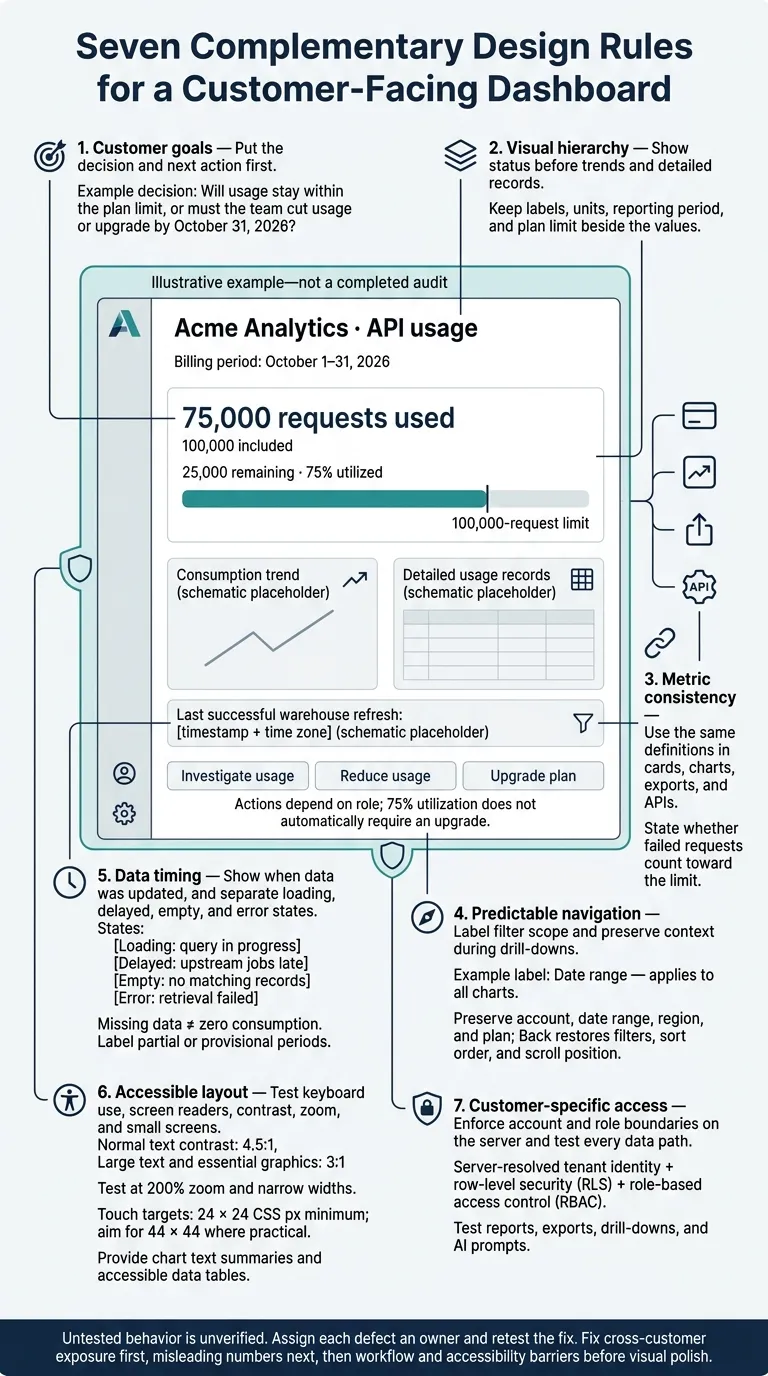 {Customer-Facing Dashboards: 7 Design Rules}
:::
{Customer-Facing Dashboards: 7 Design Rules}
:::
Top Dashboard Design Examples and Best Practices
::: @iframe https://www.youtube.com/embed/T7kU-Vi-07o :::
Start With the Customer’s Decision
For Acme Analytics, define the customer account, signed-in role, decision, and allowed action before choosing charts. Here, the customer is the account, and the signed-in user is an operations manager tracking API usage and cost. Show only Acme’s authorized data, with actions that fit the user’s role: reduce traffic, contact developers, or upgrade.
A developer needs endpoint-level volume. An account administrator also needs billing, plan, and upgrade controls. The customer’s decision should guide every chart, label, and action.
State that decision plainly: Will usage stay within the plan limit, or must the team cut usage or upgrade by October 31, 2026?
Acme Analytics · API usage
Billing period: October 1–31, 2026
75,000 requests used of 100,000 included
25,000 remaining · 75% utilized
Show current consumption first. Place any projected month-end total below it, label it as an estimate, and state the time window used. Include the actual refresh timestamp and time zone so customers can tell how current the total is. “75% used” alone doesn’t tell them whether the remaining requests will be enough.[1][2]
Separate monitoring from investigation. A progress bar with a labeled 100,000-request limit shows how close the account is to its limit. Drill-downs explain what drives consumption. Use Investigate usage for daily totals and breakdowns by endpoint, project, or API key. Keep the account scope, billing period, and metric definitions the same as users drill down.[6]
Match each action to the user’s authority. Reduce usage should lead to the highest-volume sources, where the team can check for repeated requests or polling. Upgrade plan should open the authorized plan change flow. Direct users without that permission to their account administrator. Don’t force an upgrade just because utilization has reached 75%.[2]
With the decision path clear, use a KPI dashboard layout and reading order to make those priorities easy to follow.
1. Prioritize the Customer’s Goal
Make every prominent metric help customers spot a problem, compare an option, or take action. Keep internal-only KPIs out of the primary view.[8][7][10][11]
For an API-usage dashboard, the top metric should be requests used versus plan limit, not raw traffic or internal health scores.
A clear customer goal makes the rest of your dashboard choices easier to justify.
Check your priorities against support tickets, product-usage data, and customer interviews. Ask what brought customers to the dashboard, what they need right away, and what action they plan to take. Rank those tasks by frequency, urgency, and business impact.[7][5][11]
Use progressive disclosure: show the most important options first, then let customers request specialized ones. Information they need often should stay visible.[12]
Test the dashboard without explaining it. Give representative customers realistic scenarios in a timed usability test, and ask them to identify the status, the issue, and the next action. Start with a 5–10-second benchmark. Record wrong answers and requests for help. Then remove distracting KPIs or move them out of the primary view, and test again.[7] Next, make the reading order obvious.
2. Make the Reading Order Clear
Show status first, trends second, and detailed records last. Once you know what decision the customer needs to make, arrange the screen so the answer comes before the details. Customers should know whether they need to act before reviewing individual events.[7][14][9]
Use size, spacing, and contrast to group related information. Keep each value next to its label, unit, and comparison. Separate unrelated groups with whitespace, and make export controls and record IDs less prominent. Nielsen Norman Group identifies close placement as a signal that elements belong together. Clear grouping can show relationships more reliably than color alone.[4]
Give every top-line metric context: what it measures, the period it covers, and what it’s compared with. Place that context - including the relevant limit - beside the metric.[7][15] Save strong color for meaningful exceptions, and add a text label so color isn’t the only way to understand the message.[13]
For the API-usage dashboard, use a line chart with explicit date and unit labels to show consumption trends, and a table for exact values or record-level review. When comparing cumulative consumption with the plan limit, include a labeled reference line and show the gap directly.[2][15]
Check that the mobile layout and keyboard navigation follow the same sequence as desktop. Customers should see the status, reporting period, and any required action in the first screenful, then move through trends to detailed records.[15][16] For that hierarchy to work, every metric must mean the same thing everywhere.
3. Use Consistent Metric Definitions
A metric must mean the same thing in every view. Document its formula, population, denominator, units, time window, exclusions, owner, and lineage.[1][17]
For usage measured against a plan limit, explicitly state whether failed requests count toward the limit.[1][17]
Show the definition once, then apply the same approved logic to cards, charts, exports, and APIs. Lock the calculation into the warehouse model once the definition is set.[1][17]
Keep metric logic in governed warehouse models, not per-chart formulas, and centralize it in a semantic layer. This gives customers the same number in every chart, export, and drill-down.
For example, define usage calculations in dbt models on Snowflake or BigQuery rather than rebuilding them in each chart.
Querio’s inspectable SQL, Markdown, and Python context files sync with a dbt repository. Teams can check the definition and transformation logic instead of trusting an unexplained number.[1][2]
Before release, compare every view using the same customer filters and time window. Trace mismatches through lineage before changing the display. Record definition changes and annotate affected charts so customers don’t confuse a logic change with a business change.[1][17]
Run the same check across the card, drill-down, export, and API response: does each use the approved definition? This consistency supports the next rule - predictable filters and navigation.
4. Keep Filters and Navigation Predictable
Say exactly what each control changes, and show active filters beside the results. Filters should help customers continue their current decision, not force them to start over.[18][19][20]
“Date range - applies to all charts” or “Plan type - applies to this chart.”
Once customers know what each control affects, set defaults that match their most common task:
Last 30 days, current account, and All products.
Show the account and time zone beside the filters. If a selection returns no records, leave the selections visible and offer a direct fix.[5][24]
“Remove region filter.”
Keep context intact during drill-downs and Back navigation. Preserve the date range, account, region, and plan so customers can investigate without losing track of their decision. Back should restore their filters, sort order, and scroll position. “Reset all filters” should return to documented defaults. “Clear date range” should change only dates - not currency, units, or time zone.[21][22][24]
Keep date, currency, and time-zone formats consistent across views:
October 11, 2026, 9:30 AM EDT and $1,250.50 USD.
Show the time zone when date boundaries matter:
“Time zone: America/New_York”
For slow queries or several pending selections, use an “Apply filters” button. Make pending changes easy to distinguish from applied filters, and show loading feedback without moving keyboard focus. Customers need to know whether results have finished loading before they act. WCAG 2.2 requires consistent navigation and status messages that screen readers can announce.[23][25]
Test whether customers understand what each control affects, which filters are active, and what Back or Reset will do. Also check whether they can tell how current the data is and whether it is still loading.
5. Show Data Timing and Loading States
Filters tell customers what they’re looking at. Timing tells them whether they can trust the number yet. A successful query doesn’t mean the data is current or complete. Live queries still rely on ingestion and transformation jobs finishing on time. Distinguish event time, warehouse refresh time, and query time. Place the data’s age next to the metric and its refresh status in a metric details panel. This transparency is a core part of AI insight generation, ensuring users understand the lineage of their data.[1][3][17]
Label open periods partial or provisional while late-arriving records are still processing. Show known gaps directly on the dashboard.[2][17]
For example, flag pending refunds rather than burying them in a tooltip.
Never turn missing data into zero consumption. Give each state a clear meaning: loading means the query is in progress; delayed means upstream jobs are late; empty means no records match; and error means retrieval failed. Show stale, partial, or failed states directly on the metric.[1][2]
Show these states on the usage total, not only in a tooltip.
Querio’s live warehouse connections don’t remove upstream delays. Display the last successful warehouse refresh, the documented refresh expectation, and a named owner for each model. Flag failed jobs instead of suggesting the schedule is guaranteed. Make that timing information easy to read in the layout.[1][17]
Once customers know the data is current, the layout must make that status easy to read on any screen.
6. Make Layouts Accessible and Responsive
Accurate, up-to-date data won’t help if customers can’t use the dashboard. Start with WCAG 2.2 Level AA, then test actual customer tasks using a keyboard and screen readers such as NVDA or VoiceOver. Automated scans alone can’t show whether customers can read usage, compare it with a plan limit, change the period, and download results.
Give every interactive control an accessible name, a logical tab order, and visible focus that nothing obscures. Use native semantics where possible. When a dialog opens, move focus into it. When it closes, return focus to the control that opened it. Avoid keyboard traps.
Don’t rely on color or hover alone, and don’t put the only explanation in a tooltip. Pair status colors with clear text. Normal text generally needs 4.5:1 contrast; large text and essential graphical elements generally need 3:1. Help customers read usage, limits, and trends with a chart text summary and an accessible data table. Give the table a caption, proper row and column headers, units, and the same filters as the chart.[28][29]
Test at 200% zoom and narrow widths. Stack cards in reading order, keep metric labels and actions visible, and keep filter labels attached to their controls. For wide tables, provide a labeled horizontal-scroll region or a mobile-friendly view rather than shrinking the text. Touch targets should meet the 24 × 24 CSS pixel minimum; aim for 44 × 44 where practical.[30][27][31]
Include people with disabilities in task testing when possible. Record where they lose context, can’t reach a control, or need help completing the main action. Assign someone to fix each failure. A clean automated scan doesn’t prove the dashboard is usable.
7. Enforce Customer-Specific Data Access
Even readable, responsive dashboards fail if they show the wrong customer’s data. Resolve tenant identity on the server - not from a customer ID sent by the browser. Reject requests when tenant context is missing or invalid.
Enforce row-level security (RLS) for multi-tenant SaaS and role-based access control (RBAC) in the warehouse or lakehouse so access restrictions follow the data through every compute path[1]. Use the semantic layer to keep exports, drill-downs, and AI queries tied to the same governed definitions[1]. Test those rules across every customer-facing entry point.
Querio’s row-level security and OAuth-based permission inheritance don’t replace application authentication or tenant-mapping tests. Before release, test different customer accounts and confirm that every access path blocks cross-customer requests - including reports, exports, drill-downs, and AI prompts.
Review a Usage Dashboard Against All 7 Rules
As of October 11, 2026, this dashboard is unverified. No public demo, customer dashboard, screenshots, or test results were provided. The table below records evaluation criteria; it is not a completed audit.
Use the Acme-style usage dashboard as the reference: current consumption, remaining allowance, data refresh timing, and tenant-scoped access.
Before testing, record the product name, URL or internal dashboard ID, version, and review date. Include the tenant, account role, date range, filters, browser, and viewport dimensions. Note which states you inspected: populated, loading, empty, partial-data, error, and no-permission. Save screenshots or recordings where permitted.
| Rule | What to inspect | Strong implementation | Design flaw to flag | Observed evidence | Score | Remediation owner |
|---|---|---|---|---|---|---|
| 1. Customer’s goal | Can customers find current usage, plan limit, remaining allowance, and the next action? | Current usage, plan limit, remaining allowance, and reset date appear together. | A usage total has no limit or unit. | Not provided | not verified | Product |
| 2. Reading order | Follow account context → usage → limit → trend → action. | Primary values stand out; supporting details follow. | Equally prominent cards compete for attention. | Not provided | not verified | UX |
| 3. Metric definitions | Compare the card, drill-down, and authoritative export or invoice using identical filters. | Definitions, exclusions, units, and rounding match; child rows reconcile with totals. | “Requests” includes different events across surfaces. | Not provided | not verified | Analytics |
| 4. Filters and navigation | Change dates and environments; drill down, go back, and reset. | Every affected widget updates, and active filters stay visible. | A chart changes, but its summary card does not. | Not provided | not verified | Front-End Engineering |
| 5. Timing and states | Check warehouse refresh time separately from page-load speed; trigger each data state. | Refresh time and cadence are clear; partial data is labeled, and missing data differs from zero. | Usage loads fast but is stale, partial data has no label, or empty results appear as zero. | Not provided | not verified | Data Engineering |
| 6. Accessibility and layout | Test keyboard access, screen-reader output, contrast, narrow screens, and 200% zoom. | Focus is visible, content is readable, charts have alternatives, and warnings do not rely on color alone. | Values are clipped, tooltips are inaccessible, or status relies only on color. | Not provided | not verified | Accessibility and Front-End Engineering |
| 7. Customer-specific access | Examine authorized cross-tenant test results for API, export, search, count, aggregate, and direct-record paths. | Every tested path respects tenant and role boundaries. | A response exposes another tenant’s records or totals. | Not provided | not verified | Security Engineering |
Mark a criterion pass when recorded tests support it, needs work when behavior is unclear or incomplete, and fail when observed behavior violates the rule. Use not verified for criteria you have not tested.
For each finding, attach a correction, priority, owner, and retest condition. Reconcile metric discrepancies against an authoritative surface. To check data age, use the newest underlying record timestamp - not just query duration.[34]
Accessibility evidence should include measured contrast: at least 4.5:1 for normal text and 3:1 for large text and applicable UI components, alongside interaction tests.[5] Treat unverified authorization as an open security gap.[32][33]
Use the checklist below to turn each not-verified item into a fix and retest.
Customer Dashboard Review Checklist
Use this checklist to turn review findings into fixes you can test.
-
Customer decision and usage: Describe the task in one sentence. Then ask a customer to name the next action without coaching. Check that consumption, allowance, remaining capacity, and overage have separate labels. Test billing-period month-end and time-zone boundaries so the review stays tied to an actual customer decision.
-
Definitions and inspectable logic: Trace each key number to its definition, source, owner, joins, exclusions, grain, rounding, and tenant filters. Check that sampling doesn't prevent detail rows from reconciling with totals.
-
Filters, timing, and states: Test global and local filters together. Confirm that drill-downs and permitted exports preserve meaning. Explain whether changes apply immediately or require an Apply button click, whether results are cached, and whether drill-downs may take longer. Test delayed ingestion separately from slow queries.
-
Accessibility and permissions: Test readability at 400% zoom and keyboard-accessible alternatives to hover details. Check removed and restricted users across direct requests, cached responses, and background jobs. A removed user must not retain access through a previously opened page or saved link. Enforce least privilege at the server or data layer.
-
Defects and acceptance tests: For every failed check, record reproduction steps and expected behavior, name an owner, define a measurable acceptance test, and save retest evidence. Fix cross-customer exposure first, misleading numbers next, then workflow and accessibility barriers before visual polish. Rerun affected tests after changes to models, queries, permissions, or interface code - not just after UI redesigns. Tie each fix to the actual failure, not a cosmetic update.
Fix the Interface and Data Governance Together
When a review flags a failure, trace the cause before assigning the fix. Slow performance, for example, can start in the interface, warehouse, or pipeline. Assign ownership to the layer that failed: UX handles labels, filters, and hierarchy; data governance handles metric definitions; analytics engineering handles joins; data engineering handles data freshness; and security handles tenant isolation. Product defines the decision, threshold, and required action.[1][2][3]
Use that same division to distinguish unclear metrics from stale or incorrect data. Show customers a plain-language metric definition and freshness status beside the number. Give analysts the source, transformation path, definition, owner, and refresh status. This helps separate confusing values from incorrect ones without sending customers to support.[1][2]
Querio’s governed context layer stores approved metrics, joins, and trusted queries. Human approval determines what becomes shared context for self-serve analytics. With inspectable, editable SQL and Python, analysts can check the calculation itself instead of guessing from a chart.
Live warehouse connections don’t fix late-arriving data. Data engineering still owns freshness SLAs.[17]
Test accessibility and authorization separately. Validate keyboard access on its own, and enforce tenant identity and row-level security server-side so customers can act safely on their own data.[26]
Conclusion: Help Customers Understand and Act
The seven rules work together: goals define the answer, hierarchy and definitions make it easy to read, and up-to-date data, accessibility, and access controls help customers act safely.
After scoring the checklist, review one usage workflow - not every customer experience dashboard at once. Fix data exposure and defects that disrupt decisions before polishing the visuals. Start with discrepancies that have caused customers to back out of an action.[1]
Test without coaching. Can customers tell current usage apart from the plan limit, see when the data was last updated, and choose what to do next? Measure time to first validated answer and support requests.[1] The test passes when customers can read the dashboard, trust the data, and act without help.
FAQs
::: faq
How do I set data freshness targets for customer dashboards?
Match data refreshes to users’ decisions: use real-time updates for operational tasks and daily refreshes for executive reporting [1]. Inventory your data sources, then build ingestion pipelines with reliable refresh behavior you can monitor [2].
Label the dashboard’s data as real-time, daily, or delayed so users can check how current it is before acting [2][3]. :::
::: faq
How should I communicate metric changes to customers?
If a metric’s definition, calculation, or data source changes, note the change directly on the dashboard or chart. Explain the reason so customers don’t have to guess.
Keep metric definitions in one governed semantic layer. Version and document each change before it goes live, and clearly label experimental or uncertified metrics. Add a “why this number” panel that shows the underlying logic, data lineage, and when the data was last updated. :::
::: faq
How do I measure whether dashboard changes reduce support requests?
Track tickets related to data inquiries and compare their volume with usability test results. If users still need to submit a data-team ticket for follow-up questions, the workflow is the bottleneck. Use micro-feedback buttons or user interviews to pinpoint the pain points behind those support requests.
Organizations that focus on usability testing and design changes guided by users often see a 20% drop in support calls. :::