Business Intelligence
How to Connect Claude to PostgreSQL: MCP Setup in 10 Minutes
Live SQL access in minutes using a local MCP server and read-only credentials, with quick fixes for common connection errors.

You can connect Claude to PostgreSQL in about 10 minutes if you use a local MCP server, a read-only database user, and the right Claude config.
Here’s the short version: I’d set up a PostgreSQL MCP server, connect it through Claude Desktop or Claude Code, use a SELECT-only user, and then test the link with 3 simple prompts. The article also covers the main setup paths, common errors like connection refused and SSL required, and when a direct setup stops being enough for team reporting.
If I wanted the fastest first pass, I’d do this:
- Install or run the PostgreSQL MCP server with Node.js 18+ or Bun
- Use a PostgreSQL connection string like
postgresql://user:password@host:5432/db - Add the server under
mcpServersin Claude’s config file - Restart Claude fully so the MCP tools load
- Check for
list_tables,describe_table, andrun_sql - Test with:
- “List all tables in the database”
- “Show me the first 5 rows of [table]”
- “How many records were added in the last 30 days?”
One rule matters most: use read-only credentials. In practice, that means a separate user with database connect, schema usage, and table select permissions only. That cuts risk and makes review easier.
A few setup facts stand out:
- Port
5432is the default PostgreSQL port - Node.js 18+ is required in the example flow
- The guide’s validation flow uses 3 prompts
- Setup options covered: 4
- Fastest route: local stdio + environment variables
- Lower-safety route: direct connection string in config
Connect PostgreSQL to Claude Code in 3 Mins (Full Setup Tutorial)
::: @iframe https://www.youtube.com/embed/Hizp7jLsAqQ :::
Quick Comparison
| Setup option | Setup time | Safety level | Best fit |
|---|---|---|---|
| Local stdio + env vars | Fastest | High | Solo testing and first-time setup |
| Remote MCP connector | Medium | High | Shared access for teams |
| Direct connection string | Fast | Low | Short-term local testing |
| Governed layer | Slowest | Highest | Repeat reporting across teams |
The core idea is simple: get Claude talking to live Postgres data without pasting schemas or exporting CSVs. This allows you to auto-generate SQL directly from natural language. From there, the main job is keeping access locked down and making sure query results stay consistent over time.
What you need before you start
Now that the target setup is clear, pull together the tools and login details first.
Required tools and access
Before you start, you need four things: Claude Desktop or Claude Code, a reachable PostgreSQL server, a PostgreSQL MCP server, and Node.js 18+ or Bun. That’s the minimum setup to get Claude querying live PostgreSQL data in about 10 minutes.
Have these details ready:
| Detail | Description |
|---|---|
| Host | IP address or hostname of your PostgreSQL server |
| Port | Usually 5432 |
| Database | The specific database name Claude should access |
| Username | A dedicated read-only user, such as claude_mcp_user |
| Password | A strong, one-of-a-kind password for that user |
| SSL mode | Often required for cloud-hosted databases |
Check network reachability now. Make sure the machine running the MCP server can connect to PostgreSQL. If your database sits behind a firewall or VPC, allowlist the host or use an SSH tunnel.
Start with a read-only database role
Use a dedicated read-only role, not owner or admin credentials. Set up a separate user with SELECT-only access. This is your first control for live warehouse access, and it makes security approval much easier.
A low-privilege role also lowers the chance that Claude gets pushed into doing more than it should.
Once access is locked down, the next step is picking the fastest MCP setup.
Choose your PostgreSQL MCP setup
::: @figure 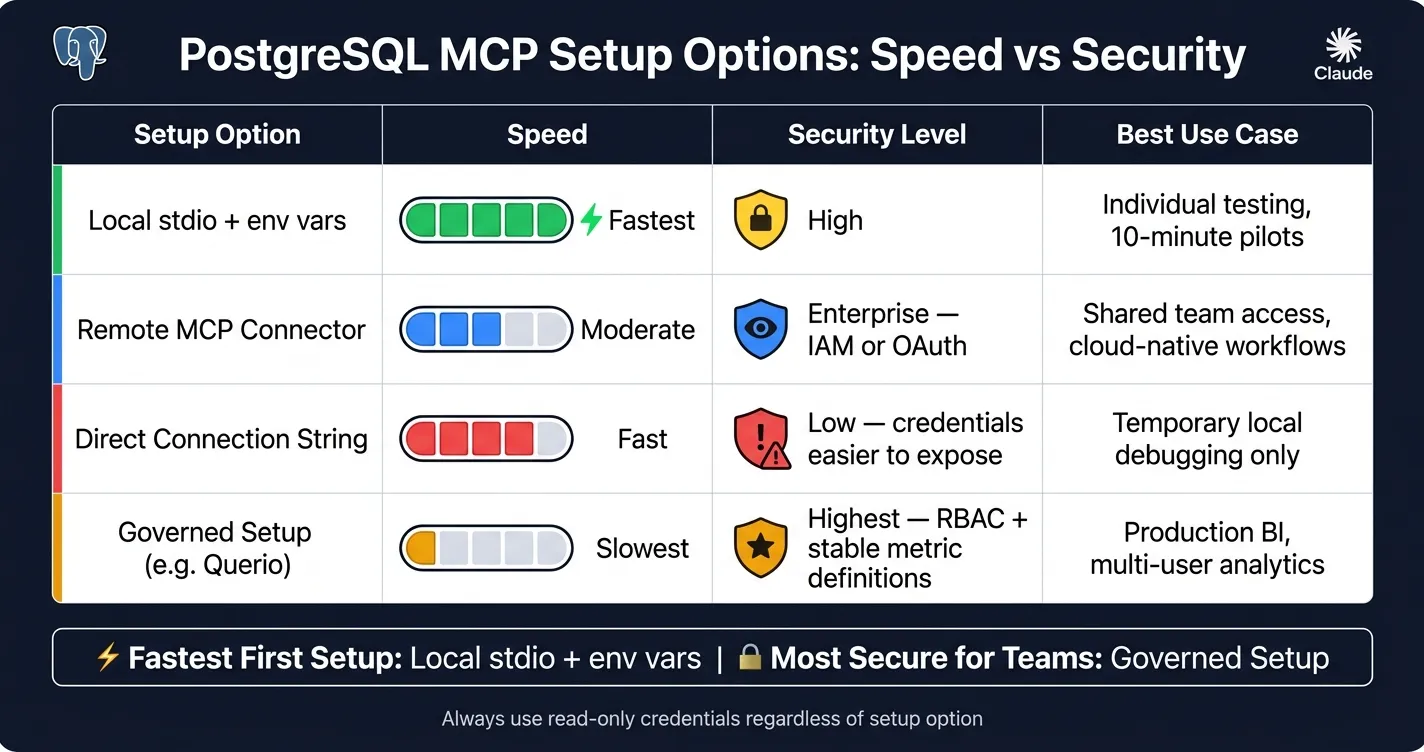 {PostgreSQL MCP Setup Options: Speed vs Security Comparison}
:::
{PostgreSQL MCP Setup Options: Speed vs Security Comparison}
:::
Claude can connect to PostgreSQL in a few different ways. For a first pass, though, the quickest route is usually local stdio with environment variables.
The fastest path to a first working connection
If you want a working test in about 10 minutes, go with a local stdio MCP server in Claude Desktop and pass credentials through environment variables. Use a development database, or limit access to a single read-only production schema. That keeps setup simple and makes the first connection easier to test.
Here’s the simplest way to compare your options for that first working connection.
Comparison table: PostgreSQL MCP setup options
| Setup | Speed | Security | Best use case |
|---|---|---|---|
| Local stdio + env vars | Fastest | High | Individual testing, 10-minute pilots |
| Remote MCP connector | Moderate | Enterprise - requires IAM or OAuth | Shared team access, cloud-native workflows |
| Direct connection string | Fast | Low - credentials are easier to expose or reuse | Temporary local debugging only |
| Governed setup | Slowest | Highest - RBAC + stable metric definitions | Production BI, multi-user analytics |
One catch: if you don’t have shared metric definitions, Claude may generate different SQL from one session to the next.
Next, install the PostgreSQL MCP server, add it to Claude Desktop, and test it with a read-only Postgres role.
Install the PostgreSQL MCP server and register it in Claude
Install the MCP server and set your credentials
This step turns the local stdio setup into a working Claude-to-Postgres connection. In plain English: Claude starts the MCP server with npx, and the server reads your Postgres credentials from either a connection string or environment variables.
First, make sure you're on Node.js 18 or later:
node --versionThen run the PostgreSQL MCP server with npx. Bun works too.
Use this PostgreSQL connection string format:
postgresql://<username>:<password>@<host>:<port>/<database>
Add the server to Claude and restart
Open your Claude Desktop config file. On macOS, it's here:
~/Library/Application Support/Claude/claude_desktop_config.json
On Windows, use:
%APPDATA%\Claude\claude_desktop_config.json
Add this entry under the mcpServers key:
{
  "mcpServers": {
    "postgres-server": {
      "command": "npx",
      "args": [
        "-y",
        "@modelcontextprotocol/server-postgres",
        "postgresql://mcp_user:strong_password@localhost:5432/mydb"
      ]
    }
  }
}
If you want tighter security, don't leave secrets in the connection string. Put them in env variables like PGHOST, PGPORT, PGUSER, and PGPASSWORD.
After that, quit Claude Desktop completely and open it again. A full restart matters here. Then start a new conversation and check for these three tools:
list_tablesdescribe_tablerun_sql
If those show up, the server loaded the way it should. Once Claude shows the tools, move on to live SQL tests.
Create a restricted PostgreSQL user
Using the read-only role from above, create a dedicated service user with the least access possible. That keeps Claude limited to governed, read-only analytics instead of giving it the keys to the whole database.
CREATE USER mcp_user WITH PASSWORD 'strong_password';
GRANT CONNECT ON DATABASE my_database TO mcp_user;
GRANT USAGE ON SCHEMA public TO mcp_user;
GRANT SELECT ON ALL TABLES IN SCHEMA public TO mcp_user;
ALTER DEFAULT PRIVILEGES IN SCHEMA public GRANT SELECT ON TABLES TO mcp_user;
ALTER DEFAULT PRIVILEGES makes sure new tables stay readable for this user too.
"Read-only credentials. Always. Create a dedicated user with SELECT-only access. Non-negotiable, and it makes security sign-off easy." - Rami Abi Habib, Founder, Querio [2]
With the server registered and the read-only role in place, test three prompts to confirm access.
Test the connection, fix common errors, and plan next steps
Run three prompts to verify the connection
With Claude registered and the read-only role in place, the next step is simple: test the full path from end to end. Run these three prompts in order:
- "List all tables in the database." If you see table names, schema access is working.
- "Show me the first 5 rows of [your_table_name]." A good response returns actual row values, not an error or an empty result.
- "How many records were added in the last 30 days in [your_table_name]?" This checks that Claude can generate and run a real aggregate query.
If the query runs but the number looks off, look at timezone handling and renamed columns. A short Markdown note on your key tables and known quirks can prevent most false mismatches [2].
Fix the errors most likely to block setup
If one of those checks fails, use the table below to narrow down the issue fast.
| Error | Root Cause | Quick Fix |
|---|---|---|
connection refused |
Port 5432 blocked by firewall | Open port 5432 or allowlist your client IP |
password authentication failed |
Wrong credentials in config | Double-check the connection string and credentials in config |
permission denied for table |
Missing schema or table privileges | Reapply the database, schema, and table SELECT grants for mcp_user [1] |
| MCP tools not showing in Claude | Server didn't load after restart | Confirm JSON syntax in config, then fully quit and reopen Claude Desktop |
SSL connection required |
Managed Postgres enforces SSL | Append ?sslmode=require to your connection string |
| Empty table list | Missing USAGE on schema |
Run GRANT USAGE ON SCHEMA public TO mcp_user; [1] |
From a one-off MCP setup to a governed analytics workflow
Once the connection works, the next call is about how you'll use it. For a solo project or a quick data check, direct access is often enough. But for a data team doing repeat analytics, things can get messy fast. Claude infers metric logic again each session, so results can shift from one run to the next.
| Direct MCP Connection | Governed MCP Layer (Querio) | |
|---|---|---|
| Best for | Fast first setup; one-off queries | Stable metric logic; multi-user analytics |
| Metric consistency | Low - LLM infers logic per session | High - defined once in semantic layer |
| SQL transparency | Warehouse logs only | Inspectable and editable in notebooks |
| Setup complexity | Low | Moderate - requires semantic definitions |
Querio connects live to PostgreSQL and other warehouses with encrypted read-only credentials, produces every answer as inspectable SQL in a reactive notebook, and stores metric definitions alongside your dbt project. For teams that need the same metrics in Claude and in the warehouse, the next move is a governed semantic layer with editable SQL and notebook-based review.
FAQs
::: faq
Can I use Claude Code instead of Claude Desktop?
Yes. You can use Claude Code or any MCP-compatible client instead of Claude Desktop, as long as it supports the Model Context Protocol.
The MCP server acts as the link between Claude and PostgreSQL. Just make sure your client is configured to connect to the same MCP server endpoint. :::
::: faq
Do I need SSL for my PostgreSQL connection?
Encrypted, read-only connections aren’t just for a local PostgreSQL setup. They’re a standard security move in most cases.
For Claude through an MCP server, the bigger issue is least-privileged access. In plain English: give the system only the access it needs, and nothing more.
That usually means:
- use read-only roles
- grant access only to the schemas that are needed
- turn on query logging
- run the MCP server inside your own infrastructure
- use a dedicated service user with limited permissions
- apply statement timeouts
That approach helps cut risk without making the setup much harder to manage. :::
::: faq
When should I move from direct MCP access to a governed setup?
Move from a direct MCP connection to a governed setup when you need consistent metrics, inspectable SQL, or self-service access for non-technical users.
Direct access is great for testing. It’s fast, simple, and easy to spin up. But over time, it can create metric drift and uneven logic as the AI keeps rediscovering your schema and business rules.
A governed layer puts joins, business logic, and trusted metrics in one place. That means results stay standardized, reproducible, and ready for audit. :::