Business Intelligence
How to Connect Claude to Your Data Warehouse with MCP (Step-by-Step, 2026)
MCP setup to let Claude query your warehouse safely—read-only roles, query limits, OAuth fixes, and governed metrics.

Yes - I can connect Claude to a data warehouse in one evening if I keep the setup read-only, limit access by schema, and test with a small set of SQL tools.
Here’s the short version: I need an MCP server between Claude and my warehouse, a dedicated service identity, and strict limits on what Claude can query. The safest starting point is Snowflake, BigQuery, Redshift, or Postgres with read-only access, query tagging, row limits, and statement timeouts. If I want the same KPI logic every time, I should put a governed layer like Querio in the middle.
In plain English, the flow looks like this:
- Claude asks a question
- MCP turns that request into tool calls
- The warehouse returns live results
- I review the SQL before trusting the answer
A few points matter most up front:
- Do not use write access by default
- Do not reuse a human user’s login
- Keep Claude’s tools limited to
list_tables,describe_table, andrun_sql - Give the agent its own compute resource to control spend and avoid slowdowns
- Check discovery first, then test query execution
- Validate answers against a trusted source like dbt, Looker, or Hex
If I compare setup paths, the split is simple:
| Setup path | Best for | Main tradeoff |
|---|---|---|
| Direct MCP to warehouse | Fast first setup | Metrics can vary by session |
| Governed MCP layer | Stable metric logic and reviewed SQL | More setup work |
For permissions, the article’s core point is straightforward:
- Snowflake: service user, RSA key pair, read-only role
- BigQuery: service account plus Job User, Data Viewer, and Read Session User
- Postgres/Redshift: read-only user or group with schema-level access
There are also a few common failure points I’d check early:
- OAuth redirect mismatch
- Missing schema-level access
- Bad RSA public key setup in Snowflake
- Missing default warehouse
- BigQuery roles set too narrowly for discovery
One fact stands out: the setup is not just about connection. It’s about control, logging, and stable SQL behavior once more users start asking questions.
So if I want a safe version of “Claude queries my warehouse,” this article boils it down to three steps: lock permissions first, expose only read-only tools, and verify every first query against numbers I already trust.
Plan Your Architecture and Permissions Before You Connect Anything
::: @figure 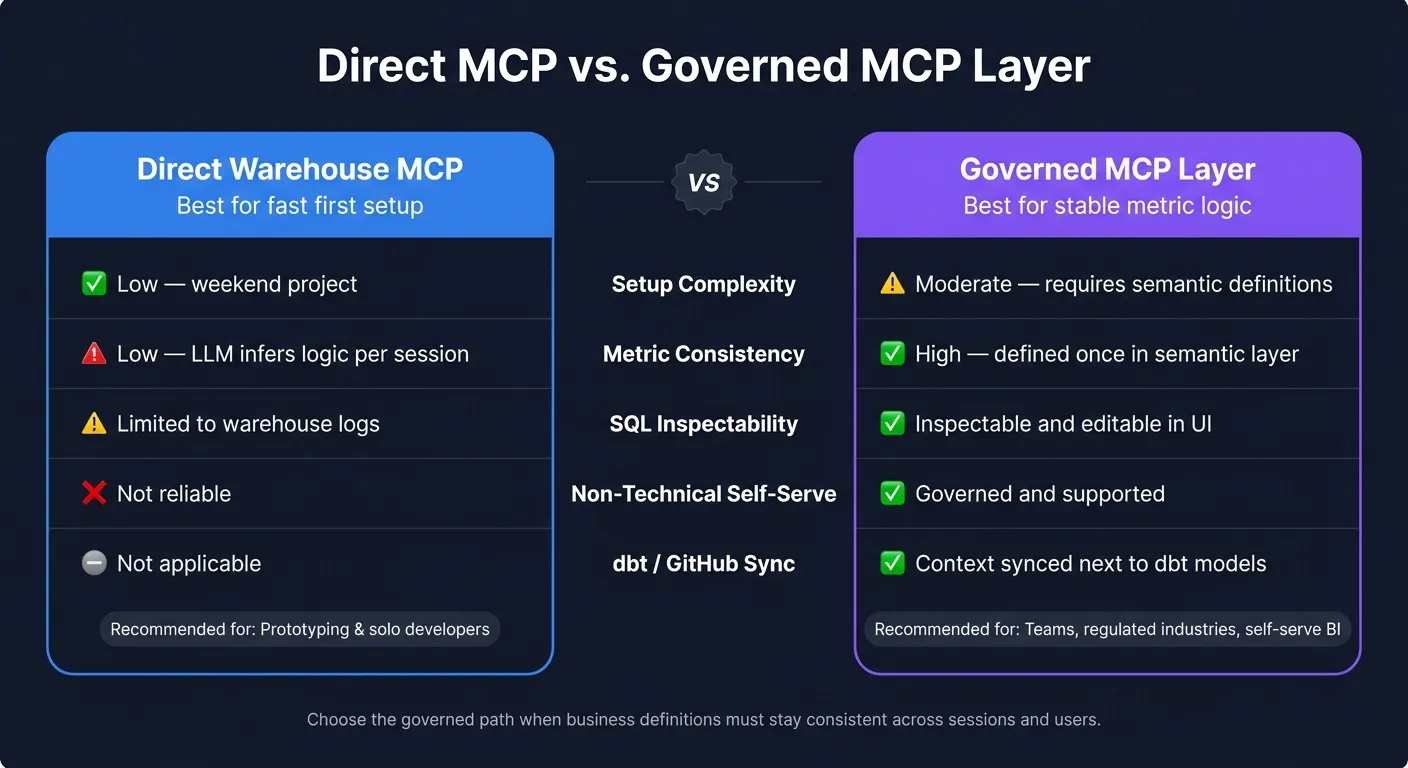 {Direct MCP vs. Governed MCP Layer: Which Setup Is Right for You?}
:::
{Direct MCP vs. Governed MCP Layer: Which Setup Is Right for You?}
:::
Before you connect Claude to anything, lock down the architecture and permissions first.
That means deciding how requests will move, who can run them, and which warehouse resources Claude can touch. Each step in that path is a place where security, access, or cost can go sideways if you haven't mapped it out in advance.
The two biggest controls to set before launch are least-privilege access and a separate warehouse or project for agent workloads.
Give Claude a dedicated read-only role that only covers the schemas it needs. If you're working in finance or healthcare, keep that agent traffic on a separate warehouse or project from production pipelines and analyst dashboards. Shared compute can turn one bad query into a cost spike and a slower dashboard refresh.
Two more controls are easy to miss, but they matter a lot in regulated setups: query tagging and statement timeouts.
Tag every agent-generated query with a clear, consistent label. That makes it much easier to track AI-driven spend and watch performance on its own. Also set a hard timeout and a row limit so Claude can't run forever or pull back more data than it should.
Direct MCP vs. Governed Layer
There are two practical ways to set this up.
The first is a direct MCP connection. In plain English, Claude connects straight to Snowflake or BigQuery through an MCP server. It's fast to set up and a simple place to start.
The second option adds a governed MCP layer. Here, Claude calls an MCP endpoint that routes through a semantic layer like Querio. Metric definitions, column descriptions, and business logic live in one place and sync to GitHub next to your dbt models. The SQL is inspectable and editable in the UI, so you're not dealing with a black box. Non-technical users can self-serve without having to learn schema names.
Use the governed layer when you need stable metric definitions, inspectable SQL, and self-serve that stays under control.
| Feature | Direct Warehouse MCP | Governed MCP Layer (Querio) |
|---|---|---|
| Setup complexity | Low - weekend project | Moderate - requires semantic definitions |
| Metric consistency across sessions | Low - LLM infers logic per session | High - defined once in semantic layer |
| SQL inspectability | Limited to warehouse logs | Inspectable and editable in UI |
| Non-technical self-serve | Not reliable | Governed and supported |
| dbt / GitHub sync | Not applicable | Context synced next to dbt models |
Choose the governed path when business definitions need to stay the same across sessions and users.
How to Set Up Roles, OAuth, and Cost Controls
The permission model is pretty much the same across warehouses: create a dedicated agent role, give it the minimum access it needs, and never reuse a human user's credentials.
For Snowflake, create a TYPE = SERVICE user with RSA key-pair authentication. No passwords. Then assign a dedicated read-only role with USAGE on the specific warehouse and database, plus SELECT on the schemas you want to expose. Use GRANT SELECT ON FUTURE TABLES IN SCHEMA so the role keeps working as new tables show up [1].
For BigQuery, assign:
- BigQuery Job User at the project level so it can run queries
- BigQuery Data Viewer at the dataset level for read access
- BigQuery Read Session User at the project level for data retrieval [2]
Keep that access limited to only the datasets the agent needs, not the whole project.
| Warehouse | Role / Permission | Auth Method |
|---|---|---|
| Snowflake | Dedicated read-only role scoped to schema | RSA key-pair |
| BigQuery | Job User + Data Viewer (dataset-level) + Read Session User | JSON service account key |
| Postgres | Read-only user, specific schemas | Username/password or IAM |
Rotate secrets on a schedule, and don't leave long-lived static credentials sitting in production. After the role, auth, and cost controls are in place, you can set up the MCP server for Snowflake, BigQuery, or whichever warehouse you're using.
sbb-itb-284a532
Set Up the MCP Server for Snowflake, BigQuery, or Another Warehouse
Next, apply those permissions inside the MCP server and expose only the tools Claude needs. Keep the tool set tight: list_tables, describe_table, and run_sql. All three should be read-only.
Snowflake: Run an MCP Server with Key-Pair Auth and a Read-Only Role
Start with a dedicated service user, such as CLAUDE_SVC, with TYPE = SERVICE so it can't be used for interactive logins. Register the RSA public key on that user, then attach the read-only role you already scoped for the MCP server. Point that role at the target warehouse, database, and schema.
For the MCP server, use a separate warehouse for agent-driven queries. That makes auditing and cost control much easier. It also helps to set a short timeout, cap the row count, and tag queries so AI-driven activity is easy to separate from human work.
BigQuery: Run an MCP Server with a Service Account
In Google Cloud, create a dedicated service account and download its JSON key. Use that account with project-level query access and dataset-level read access.
Start by checking discovery, not execution. Grant BigQuery Data Viewer at the dataset level, not the table level, so the server can read INFORMATION_SCHEMA for schema discovery [2]. Before you turn on query execution, make sure the server can see the right datasets and tables.
"Large Language Models (LLMs) often lack domain-specific schema understanding, leading to misinterpretations of user queries." - Google Cloud Documentation [6]
Redshift and Postgres: Deploy a Custom MCP Server with Safe SQL Tools
Redshift and Postgres often need a custom MCP server connected with read-only credentials. In Postgres, grant CONNECT on the database, USAGE on the target schema, and SELECT on the tables you want to expose. In Redshift, use a dbuser in a read-only group.
The server setup will vary a bit, but the guardrails stay the same. Keep the tool surface small, and enforce query timeouts in both systems.
| Warehouse | Auth Method | Minimum Read-Only Permissions |
|---|---|---|
| Snowflake | RSA key-pair / OAuth | USAGE on the warehouse, database, and schema; SELECT on current and future tables and views in the target schema [1] |
| BigQuery | Service account JSON key / OAuth | BigQuery Job User, BigQuery Data Viewer on specific datasets, BigQuery Read Session User [2] |
| Redshift | IAM / credentials | dbuser with read-only group membership [5] |
| Postgres | Username/password | CONNECT, USAGE, SELECT [4] |
Once the server can discover schemas and run read-only queries, connect Claude and test the first end-to-end request.
Connect Claude to the MCP Server and Test End-to-End
You now have a read-only MCP server. The last step is to connect Claude as the client. If your MCP server is running and permissions are locked down, add the endpoint in Claude and make sure the connection works from start to finish.
Add the MCP Server in Claude and Complete Authentication
In Claude's settings, open the Integrations or MCP Servers panel and add a custom server. Enter the URL of your running MCP server, which is the endpoint you set up earlier. Then sign in with OAuth or the warehouse credential method you already set up.
Use each user's own identity so permissions stay tied to their warehouse role.
After sign-in, Claude should show the tools your MCP server exposes: list_tables, describe_table, and run_sql. If those tools don't appear, fix the endpoint before you test any queries. Once Claude shows the tools, start with discovery, then move to a query.
Run Your First Query and Validate the Output
Start with list_tables: "List the tables in the analytics schema." This checks discovery without reading row data. If Claude returns the right table names, schema discovery is working.
Then move to a business question. A solid first test for a SaaS data team is: "Show me the MRR trend for the last 6 months." Claude will generate SQL for your users, run it through run_sql, and return the result set. Read the SQL before you trust the answer. SQL can be valid and still be wrong because of a bad join or filter.
Check the output against a source you already trust, such as a dbt model, a Looker dashboard, or a Hex notebook. If the numbers don't match, inspect the SQL and fix the logic before using the result.
Add Governance with Querio and Fix Common Setup Failures
When and How to Use Querio for Context, Live Queries, and Inspectable SQL/Python
Once the direct connection works, add governance before more people start using it. Use Querio when Claude needs to return the same metric definition every time. Querio puts a governed MCP layer between Claude and your warehouse, so joins, metrics, and trusted queries stay in sync.
Here’s the workflow change in plain English: Claude asks, the MCP endpoint routes the request through Querio’s governed context layer, the warehouse responds, and governance standardizes the output. Joins, metric definitions, and trusted queries live as files your team can review and approve. That way, definitions don’t drift as the warehouse gets bigger.
"Wire your warehouse and context files to MCP once, and when a better model ships next year, you swap the model and keep everything else. It keeps your governance in one place instead of re-implemented per tool." - Rami Abi Habib, Founder [3]
The day-to-day impact is simple: every answer Claude returns is backed by real, inspectable SQL or Python in a reactive notebook with editable SQL/Python. It’s not a black box. Non-technical users can self-serve with the same approved definitions your data team uses. Querio also keeps the connection live, so those governed definitions still run against current warehouse data.
How to Fix OAuth Errors, Permission Failures, and Bad SQL
Most setup failures come down to identity, schema access, or warehouse defaults.
| Issue | Root Cause | Fix |
|---|---|---|
| OAuth redirect mismatch | Redirect URI in the provider doesn't match your app | Update the redirect URI in the Snowflake or GCP console to match your MCP server's exact callback URL |
| Snowflake auth failure | RSA public key is not registered correctly on the service user | Use RSA key-pair authentication, and register the public key on QUERIO_SVC without the BEGIN PUBLIC KEY and END PUBLIC KEY headers [1] |
| Missing schema discovery | Permissions are only at the table level | Grant USAGE on the schema in Snowflake, or BigQuery Data Viewer at the dataset level so the connector can read INFORMATION_SCHEMA [2] |
| Default warehouse missing | Default warehouse not set for the service user | Run ALTER USER QUERIO_SVC SET DEFAULT_WAREHOUSE = <your_warehouse> in Snowflake [1] |
| No rows returned | Service account is missing required BigQuery roles | Add BigQuery Job User, BigQuery Data Viewer, and BigQuery Read Session User at the project level [2] |
Fix these problems before rolling the connection out to other users.
If Claude writes the wrong SQL, edit the notebook cell and fix the metric definition before saving it as trusted. Also make sure the OAuth redirect URIs match exactly, grant USAGE on the compute resource and data objects, set an initial row limit, and leave audit logging on.
FAQs
::: faq
Do I need a separate warehouse for Claude?
No. You can connect Claude to your current warehouse - like Snowflake, BigQuery, Redshift, or PostgreSQL - through an MCP server.
It uses a read-only connection to query live data right where it lives. That means no data copies, no ETL, and no extra storage. Your main warehouse also stays in control for security and governance. :::
::: faq
What should I validate before trusting Claude’s SQL?
Make sure Claude uses verified, consistent business definitions instead of making up logic from raw data patterns.
Also check that the SQL matches your organization’s governed metrics, like your standard formulas for MRR or churn. This works best when those definitions live in a semantic layer with clear business glossaries and table relationships. :::
::: faq
When should I use a governed MCP layer?
Use a governed MCP layer when you need consistent metrics, secure data access, and auditable lineage across your organization.
Without it, AI querying raw warehouse tables can return inconsistent results. Why? Business logic like revenue or customer lifetime value often lives in different places and gets defined in different ways. A governed MCP layer puts those definitions in one place and applies role-based access controls, so answers follow your company’s official rules. :::