Business Intelligence
How to Connect Claude to Snowflake with MCP (2026 Guide)
Connect Claude to Snowflake via MCP using OAuth or a service account, enforce read-only roles, and validate SQL.

You can connect Claude to Snowflake in one sitting: point Claude to a Snowflake MCP server, sign in with OAuth or a service account, and keep access limited to a read-only Snowflake role. If you do only those three things right, Claude can query live data without getting broad warehouse access.
I’d keep the setup focused on four checks:
- Use a dedicated warehouse for Claude so query costs and timeouts stay separate
- Limit access to a curated schema such as dbt marts, not raw tables
- Choose the right auth path: OAuth for per-user logs, service account for shared use
- Test in order:
list_tables,describe_table, then one small SQL question
Here’s the short version of what matters:
- OAuth fits teams that need per-user audit history in
QUERY_HISTORY - Service accounts fit shared assistants, but only with RSA keys, rotation, and a tight role
- Claude should have
USAGEon the warehouse, database, and schema, plusSELECTon current and future tables/views - Before you trust an answer, ask Claude to show the SQL it used
- Most failures come from the wrong endpoint, auth setup, or role scope
If your team is in SaaS, healthcare, or finance, this setup matters even more. Audit logs, scoped roles, and row/column protections are not optional when Claude is querying production data.
::: @figure 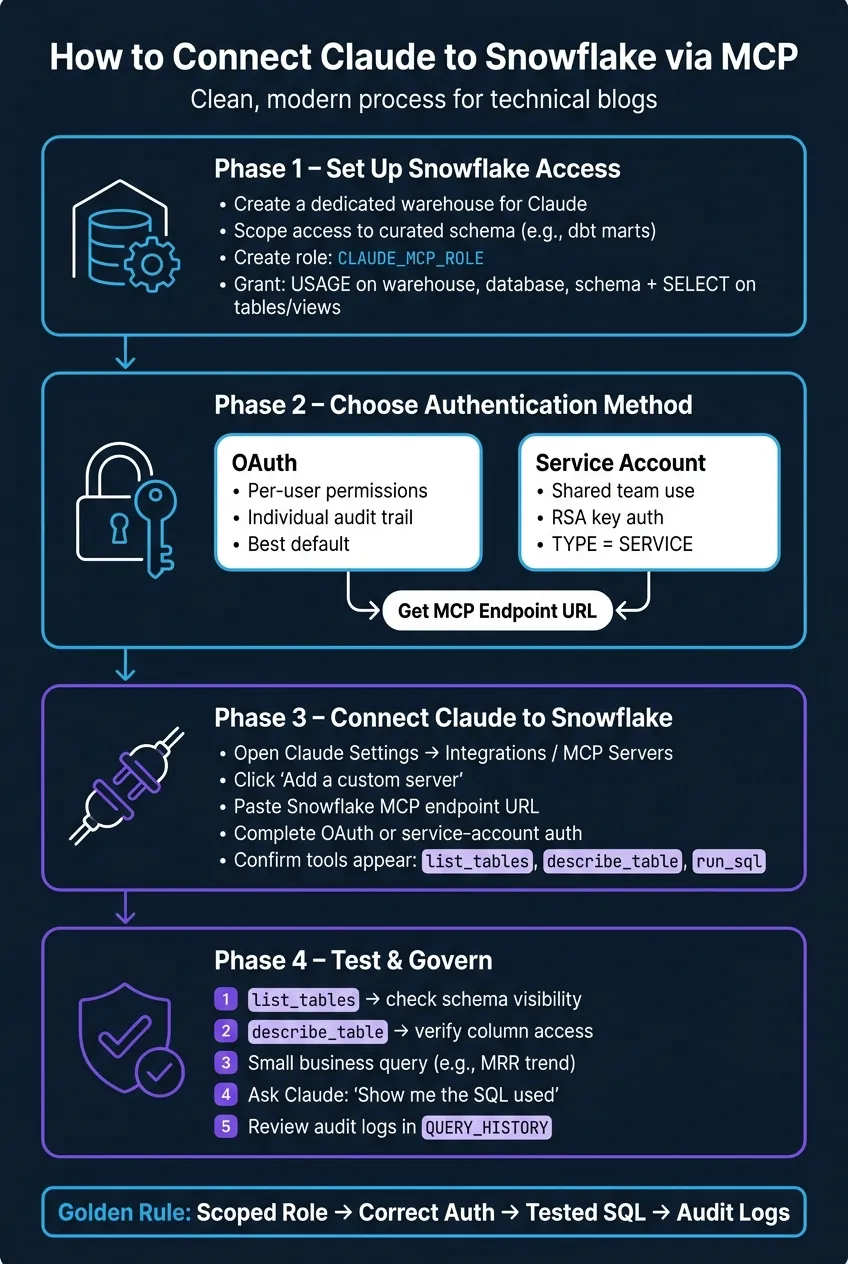 {How to Connect Claude to Snowflake with MCP: Step-by-Step Setup}
:::
{How to Connect Claude to Snowflake with MCP: Step-by-Step Setup}
:::
Talk to Your Data with Claude AI + Snowflake (via MCP Server) – It’s Game-Changing
::: @iframe https://www.youtube.com/embed/6Gniaj2fHXI :::
Quick comparison
| Topic | What I’d do |
|---|---|
| Access scope | Use one read-only role like CLAUDE_MCP_ROLE |
| Data scope | Start with curated analytics schemas only using warehouse-native data analysis tools |
| Compute | Put Claude on a dedicated warehouse |
| Best default auth | OAuth |
| Shared team use | Service account with TYPE = SERVICE and RSA keys |
| First tests | list_tables → describe_table → small business query |
| Final check | Review the SQL before using the result |
A simple rule guides the whole setup: scoped role, correct sign-in method, small test queries, and audit review. That’s the path I’d use before letting Claude touch live Snowflake data.
Set up Snowflake for MCP access
Pick the warehouse, database, and schema Claude can access
Use a dedicated warehouse for Claude. That gives you a clean way to set its own statement timeouts, track Claude query costs on their own, and keep Claude away from production workloads.
For the schema, start with a curated dbt mart layer instead of raw data or the whole database. That usually makes life much easier. Before Claude starts querying, document the key tables, row grain, deprecated objects, and any known traps in the schema.
Then lock that scope down with a read-only role.
Grant read-only access with the correct Snowflake role
Create a dedicated role such as CLAUDE_MCP_ROLE and grant only the minimum access needed.
| Object Level | Permission Required | Purpose |
|---|---|---|
| Warehouse | USAGE |
Lets Claude use compute resources to run queries |
| Database | USAGE |
Lets Claude see and access the database container |
| Schema | USAGE |
Lets Claude list and describe objects within the schema |
| Tables and views | SELECT |
Lets Claude read data and perform analysis |
| Future tables and views | SELECT |
Keeps access current as new dbt models deploy |
Grant SELECT on current and future tables and views in the target schema.
For service-account access, create the user with TYPE = SERVICE and assign CLAUDE_MCP_ROLE. Set a default warehouse on the user so Claude can connect without extra prompts. It also helps to apply a query tag to the service user or role, so AI-driven queries appear separately in Snowflake account usage logs.
Once the access scope is set, the next step is choosing how Claude will sign in.
Get the Snowflake MCP server URL
Snowflake gives you two paths for the MCP server endpoint: Snowflake Managed MCP and Snowflake Labs OSS MCP.
| Feature | Snowflake Managed MCP | Snowflake Labs OSS MCP |
|---|---|---|
| Setup Time | Fast (managed endpoint) | Moderate (self-hosted deployment) |
| Infrastructure | None (managed by Snowflake) | Requires provisioning (VPC/on-prem) |
| Auth Method | Native Snowflake roles/OAuth | Manual config of roles/scopes |
| Best For | Governed Snowflake analytics | Custom or regulated environments |
Copy the MCP endpoint URL now. You’ll use it in the next step for OAuth or service-account auth.
Choose the authentication method Claude will use
Now that Snowflake access and the MCP endpoint are ready, the next step is choosing the identity Claude will use to sign in. This choice matters more than many teams first assume, especially in healthcare, finance, and SaaS, where audit logs and access reviews are part of daily work.
Use OAuth for user-level permissions
OAuth is the best default when each person on your team should query Snowflake with their own permissions. Claude uses the signed-in user’s Snowflake roles - nothing more. So if an analyst can’t view a schema on their own, Claude can’t view it either.
Use OAuth when each analyst needs their own Snowflake permissions and their own audit trail. Every query in Snowflake’s QUERY_HISTORY ties back to a real person, not a shared service user. For teams with strict compliance needs, that per-user record is often a must-have.
The downside is setup. You’ll need to manage OAuth tokens and redirect URIs for each user, which takes more work than using one shared credential.
Use a service account for shared team workflows
Use a service account for shared assistants or automated reporting that should run under one read-only identity. The main rule here is simple: keep access narrow. Give it one dedicated read-only role, and nothing beyond what Claude needs.
Create the user with TYPE = SERVICE, use RSA key-pair authentication, and remove the BEGIN/END PUBLIC KEY headers before you register the public key in Snowflake. You’ll also want a plan for regular key rotation and secret management.
OAuth vs. service account
| Feature | OAuth (User-Level) | Service Account (Shared) |
|---|---|---|
| Who authorizes | Individual end-user | Admin / data team |
| Permission inheritance | Inherits user's specific Snowflake roles | Uses a single, dedicated role |
| Auditability | Per-user logging in QUERY_HISTORY |
Tied to one service identity; needs external mapping to identify the human prompter |
| Maintenance | Managing OAuth tokens and redirect URIs | RSA key rotation and secret management |
| Best use case | Individual analysts, per-user audit trails | Shared team assistants, automated reporting |
| Primary trade-off | Higher per-user setup complexity | Risk of over-permissive shared access |
For most governed analytics teams, OAuth is the safer default. A service account can still make sense for a tightly governed shared assistant, but only if key rotation and role scope stay under close control.
Once you’ve made that choice, finish the connector setup in Claude. Then add the MCP connector and run a read-only test query.
Add the Snowflake MCP connector in Claude and test it
Add the connector in Claude
Open Claude settings and go to the Integrations or MCP Servers panel. Click "Add a custom server", paste your Snowflake MCP server URL, and give the connection a name you'll spot right away. Then finish authentication with the OAuth or service-account method you picked earlier. When Claude shows list_tables, describe_table, and run_sql, the connection is live.
If you're using Claude Desktop, add the server in claude_desktop_config.json at ~/Library/Application Support/Claude/ on macOS. If you're connecting to remote MCP servers with OAuth or Streamable HTTP, run mcp-remote locally as the proxy.
Run a basic test and a business question
Start small before you touch live data. A low-risk prompt is the safest way to check that everything works.
Ask Claude: "List the tables in the analytics schema." That checks schema visibility without pulling any rows.
Next, ask: "Describe the [Table Name] table." This makes sure Claude can read column names and data types the right way.
If both checks work, move to a business question. For example: "Show me the MRR trend for the last 6 months." Claude will write and run SQL against your Snowflake warehouse. Then compare the output with a dbt model, Looker dashboard, or Hex notebook. If the numbers line up, you're in good shape.
Check the SQL and permission behavior
After Claude gives you an answer, ask: "Show me the SQL used for the last answer." Then review the joins and filters before you use the result for anything important.
If the connector or test query fails, the next section covers the most common fixes.
Fix connection issues and lock down production use
Fix common connection problems
Most setup failures come down to endpoint, auth, or role scope. If Claude fails the table or SQL test, isolate the break point before you open up more access. Use the same checks - list tables, describe table, and a test query - to figure out whether the problem is the endpoint, auth, or role scope.
| Issue | Root Cause | Fix |
|---|---|---|
| "Connection refused" or timeout | The MCP endpoint is unreachable | Check that the MCP server is running and that Claude can reach the endpoint |
| OAuth authorization fails | The OAuth setup or consent isn't correct | Re-check the OAuth configuration and re-authorize the connection |
| Warehouse unavailable | The selected warehouse isn't available for queries | Choose the intended warehouse and make sure it can run queries |
| Missing read access | The Claude role doesn't have access to the database, schema, or tables it needs | Grant the role the needed read-only access |
| Schema not visible | The role has warehouse access but not schema access | Grant schema-level access to the role |
| Wrong default role | Claude is connecting with a broader role than intended | Set the connection to use the scoped read-only role |
| Expired OAuth consent | The token expired and needs to be refreshed | Re-authorize the connection in Claude |
If the results look off, inspect the SQL and compare it with your documented model logic. That one step can save a lot of guesswork.
Apply least privilege, audit trails, and change control
Once the connection works, lock that same role and warehouse down for production use. Claude's role should read only what it needs and nothing more.
Use a dedicated read-only role scoped to specific schemas, and apply row-level and column-level protections for sensitive data. Then review query history and audit logs to confirm what Claude ran and which role it used before you expand access. You also need a documented list of approved use cases, so there's a clear line around the questions Claude should not answer from production data.
It also helps to create a short Markdown file for Claude with:
- Your 10 key tables
- Row definitions
- Deprecated objects
- Known data traps
This cuts down on schema mistakes before Claude runs production questions.
Conclusion: a short path to a governed Claude-to-Snowflake workflow
A governed Claude-to-Snowflake workflow is simple: scoped role, correct auth, tested SQL, and audit logs. The connection is ready only when it is scoped, observable, and reproducible. After that, expand access only once audit logs and approved use cases are in place.
FAQs
::: faq
Do I need Snowflake Managed MCP or a self-hosted MCP server?
No. You can use either a managed or self-hosted MCP server, depending on your operational needs.
A managed setup is faster to launch and comes with less overhead. Self-hosting makes more sense if you need strict data residency, internal network control, or specific security compliance.
Either way, Claude can connect to your existing Snowflake warehouse with a read-only service account. That means no extra warehouse copies and no ETL. :::
::: faq
How do I choose between OAuth and a service account?
Use OAuth when each query should follow the person’s current warehouse permissions and be linked to that person for clearer auditing.
Use a service account when you want a simpler, central setup through a dedicated read-only agent role. Either way, keep access read-only and limit it to the warehouses and schemas you actually need. :::
::: faq
What should I do if Claude returns the wrong Snowflake data?
Don’t treat the output like a black box. Read the generated SQL and check for logic mistakes, like the wrong join, a bad filter, or a condition that quietly changes the result set. Then compare the output against a source you trust, such as a dbt model, Looker dashboard, or Hex notebook.
If the SQL is off, fix it before you save the insight. And if the same mistakes keep popping up, write down your metric definitions, preferred joins, and known data traps in a version-controlled context file or a governed semantic layer that Claude can use as a reference. :::