Business Intelligence
How to Use AI in SQL Server: The Complete Guide
Enforce read-only access, approved schemas, and deterministic query validation to use AI over SQL Server safely and reliably.

You can use AI with SQL Server safely if you do three things: keep access read-only, limit the AI to approved tables and metric rules, and validate every SQL query before it runs.
That’s the core idea. SQL Server stays the source of truth. The AI sits on top, turns plain-English questions into T-SQL, runs queries through a controlled connection, and returns inspectable SQL, a short summary, and charts based on the same result set. If you skip guardrails, the setup can drift into bad joins, wrong KPI logic, and large scans. If you put guardrails in place, AI can help with dashboard Q&A, anomaly checks, and scheduled reporting.
Here’s the short version:
- I use read-only access with scoped roles instead of broad database access.
- I give the AI approved schema context such as table notes, join rules, and metric definitions.
- I validate every query to allow
SELECTonly, block unsafe objects, and enforce row and time limits. - I keep outputs visible and editable so analysts can check the SQL before trusting the answer.
- I use one of three setup patterns: direct connector, middleware/API, or MCP-based context.
A few hard rules matter most:
- No
INSERT,UPDATE,DELETE,DROP,ALTER, or multi-statement batches - Default date filters such as the last 30 days
- Query timeouts around 30–60 seconds
- Row caps like 10,000 default rows, with review for large result sets
- Full audit logs with SQL text, user, UTC timestamp, runtime, and row count
| Setup pattern | Best for | Main tradeoff |
|---|---|---|
| Direct connector | Testing and internal use | Less control |
| Middleware / API | Team analytics use | More setup |
| MCP with governed context | Production BI and self-serve | Stronger rules, more planning |
If I had to sum up the whole article in one line, it would be this: AI in SQL Server works best when the model is boxed into approved data, approved logic, and approved query paths.
SQL MCP Server: Bringing AI Agents to Your SQL Data
::: @iframe https://www.youtube.com/embed/geK_ijU0YC8 :::
What AI in SQL Server looks like in production
In production, SQL Server remains the system of record. The AI layer sits on top as a governed layer that turns plain-English questions into SQL, then returns the SQL, a summary, and charts.
That AI layer - whether it's Azure OpenAI, Claude, or ChatGPT - lives above SQL Server. It translates a user's question into SQL, runs that query through a controlled connection, and sends back inspectable SQL, plain-English summaries, and charts. That separation matters. It lets teams use AI in production without handing it open access to the warehouse.
What AI can actually do on top of SQL Server
In day-to-day use, the most reliable AI workflows on top of SQL Server tend to fall into a few buckets.
Dashboard Q&A is usually the first use case. A finance analyst might ask for total revenue by region for Q3 2026. The AI writes the SQL, runs it against live SQL Server data, and returns both the query and a plain-English summary.
Recurring KPI checks are another strong fit. A nightly job calculates MRR, average order value, and churn, then passes those results to the AI layer and compares them with historical baselines there. The model turns that into a summary using U.S. date and currency formats and flags anything that needs attention. If an alert fires, the AI can suggest follow-up questions an analyst can run right away.
Anomaly investigation is often where AI helps the most, especially with messy schemas. Instead of having an analyst hand-write joins across five tables, the AI drafts the exploratory SQL, the analyst reviews it, and the work moves faster. The same setup also works across Snowflake, BigQuery, and Redshift.
These workflows only hold up when schema metadata and metric definitions are governed.
Where SQL Server ends and the AI layer begins
SQL Server handles storage, permissions, and query execution. The AI layer lives in an application or middleware tier and does four jobs: interpret the natural-language question, use schema metadata and business context to write SQL, execute that SQL through a scoped connection, and format the result. [1][2]
| Layer | Tool Examples | Responsibility |
|---|---|---|
| Data | SQL Server, Azure SQL | Storage, security, query execution |
| Logic/Modeling | dbt | Transformations, metric definitions |
| Semantic | Looker semantic layers, dbt Semantic Layer | Metric and join definitions |
| AI/Inference | Azure OpenAI, Claude | Natural-language interpretation, SQL generation |
| Application | Querio, ThoughtSpot, Hex | Governed delivery, inspectable SQL, self-serve |
The core rule is simple: the AI layer never gets unrestricted access. Production systems limit the AI to SELECT statements, log every generated query, and rely on curated schema descriptions so the model can't discover tables it shouldn't know about. Azure SQL guidance also recommends that AI services connect through application-layer authentication instead of connecting straight to the database. [2][3]
Next, we'll show how to connect that AI layer safely.
How to connect an AI assistant to SQL Server
::: @figure 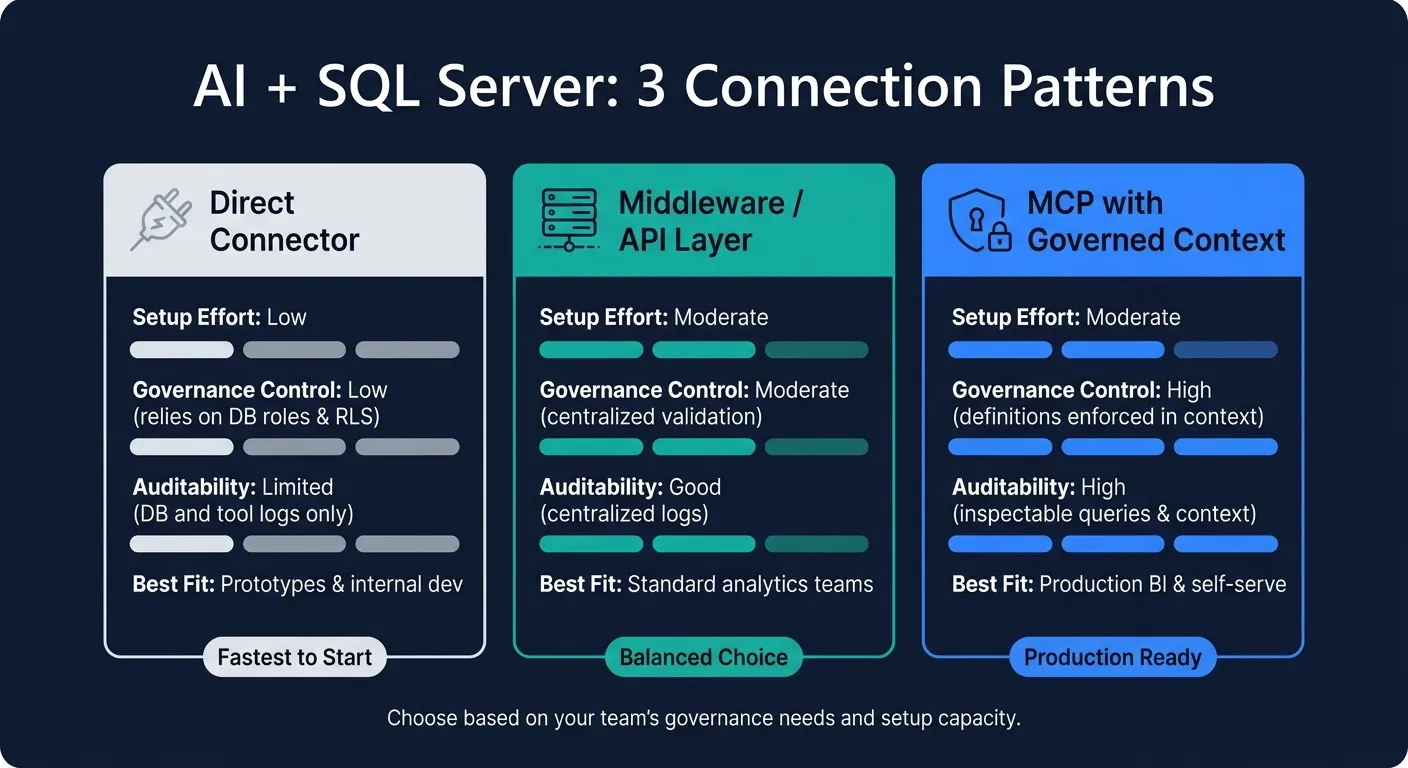 {AI + SQL Server: 3 Connection Patterns Compared}
:::
{AI + SQL Server: 3 Connection Patterns Compared}
:::
This section turns that architecture into a working connection pattern. In practice, connecting AI to SQL Server comes down to three choices: connection pattern, permissions, and context.
Direct connector, middleware, or MCP: which connection pattern fits your team
Each connection pattern makes a different tradeoff between setup speed and production-grade control.
A direct connector is the fastest path. The AI product connects to SQL Server or Azure SQL through a database driver and a connection string with Encrypt=yes and TrustServerCertificate=no. Governance depends on database roles, row-level security, auditing, and whatever logging the AI tool exposes. This usually fits internal prototypes and developer testing.
A middleware or API layer puts a service - built in .NET, Python, or Node - between the AI assistant and the database. The AI calls the middleware over HTTPS. Then the middleware handles Entra ID authentication, connection pooling, query validation, and audit logging before any query reaches SQL Server.
MCP (Model Context Protocol) is an open, standardized protocol for connecting LLMs to trusted enterprise data with strict privacy controls. Instead of making the agent rediscover the schema every time, MCP starts it with approved metric definitions and join rules.
| Pattern | Setup Effort | Governance Control | Auditability | Best Fit |
|---|---|---|---|---|
| Direct connector | Low | Low - relies on DB roles and RLS | Limited - mostly DB and tool logs | Prototypes, internal dev |
| Middleware / API layer | Moderate | Moderate - centralized validation | Good - centralized logs | Standard analytics teams |
| MCP with governed context | Moderate | High - definitions enforced in context | High - inspectable queries and context | Production BI and self-serve |
The next step is simple: make that connection read-only and limit what the AI can see to approved schemas.
Set up read-only SQL Server access with scoped permissions
The goal here is straightforward. Give the service account access to only the tables you approve.
Microsoft's least-privilege guidance points to the same setup: create a custom role, grant SELECT on specific schemas, and add the service principal to that role. Here's the pattern for Azure SQL:
CREATE ROLE ai_readonly;
CREATE USER [ai-service-principal] FROM EXTERNAL PROVIDER;
GRANT SELECT ON SCHEMA::analytics TO ai_readonly;
ALTER ROLE ai_readonly ADD MEMBER [ai-service-principal];
For on-prem SQL Server, use a SQL login with the same scoped-role setup. Avoid assigning db_datareader directly. It gives read access to every table in the database, including tables the AI should never touch.
If you're working in finance or healthcare, tighten things further. Add Row-Level Security and data masking, expose only aggregated or de-identified views, and use Always Encrypted for the most sensitive fields. No SSNs, account numbers, or PHI.
Authentication should use Microsoft Entra ID instead of SQL logins whenever possible. Register the AI assistant or middleware as an Entra ID application, map it to the ai_readonly role, and enforce Conditional Access policies to control where and how it can sign in. For on-prem SQL Server in a hybrid setup, federate Active Directory with Entra ID and use integrated authentication for the service account.
Permissions make the connection safe. Context is what makes the SQL useful.
Add business context so the AI writes better SQL
Business context helps the SQL line up with your metric definitions and join rules - including revenue, churn, and cohort definitions.
The most dependable context package includes:
- Table descriptions
- Explicit join rules between fact and dimension tables
- Metric definitions encoded in SQL
- Time-grain defaults
- Example queries that show how your team usually slices data
Store table descriptions, metric definitions, and join rules in version-controlled files synced with dbt. That way, every session starts from the same approved definitions instead of drifting over time.
Teams can copy this pattern without changing their warehouse setup. Add a /context directory to your dbt repo with Markdown files for table descriptions, SQL files for metrics and joins, and a curated schema summary that lists only analytics-approved tables. Then wire your AI assistant to read from that directory on each request.
With connection, permissions, and context in place, the next step is to generate and validate SQL safely.
How to generate, validate, and run SQL safely
Next, you need to generate SQL safely before anyone runs it. The key idea is simple: treat AI-written SQL as untrusted input until it clears deterministic validation. A warning in the prompt helps, but it doesn't decide what gets executed.
Write prompts that constrain scope, metrics, and time windows
Good prompts put tight guardrails around the job. They limit what tables, metrics, and date ranges the AI can use. They also spell out what the model must not invent, like extra joins, made-up tables, or off-book transformations.
A system prompt for an analytics team might look like this:
You generate T-SQL for SQL Server using only the tables and metrics listed in the approved catalog below. Format dates as MM/DD/YYYY in explanations and YYYY-MM-DD in SQL literals. Default all analyses to the last 30 days unless the user specifies otherwise. Do not write cross-database joins unless the join is explicitly defined in the join catalog. Display all monetary values in USD using the format $1,234.56.Then pair that with a metric catalog. For example: `total_revenue_usd` = SUM(fact_orders.order_total_usd) WHERE order_status = 'Completed'. Add a join catalog too, with approved relationships like fact_orders.customer_id → dim_customers.customer_id.
That setup stops the AI from making up KPI logic or wandering into join paths that don't exist in your schema. Prompts narrow the problem. Validation decides whether the query can run.
Validate AI-generated SQL before it runs
Every AI-generated query should go through a validation pipeline before it reaches SQL Server. This is where you catch the stuff that wrecks BI answers: bad joins, drifting metrics, invented schema, the wrong SQL dialect, and missing date filters.
At a minimum, check:
- Statement type: allow only
SELECT; blockINSERT,UPDATE,DELETE,DROP,ALTER,TRUNCATE, and multi-statement batches. - Table and schema inspection: statically verify that every referenced table is on your approved list. Queries touching
dbo.payrollor any table outside theanalyticsschema should be blocked automatically. - Row limits: default to
TOP 10000; block or escalate queries expected to exceed100,000rows. [4][6] - Syntax validation: run the query through
SET NOEXEC ONin SQL Server to catch T-SQL syntax errors before actual execution. - Cost and risk scoring: flag queries with no
WHEREclause, broadCROSS JOINs, or missing partition filters, and route them to a manual approval queue.
It also helps to enforce query timeouts of 30–60 seconds at the application layer [5] and use Resource Governor limits on the SQL Server side. That way, one runaway scan doesn't slam the rest of the workload.
And log everything: the full SQL text, user identity, timestamp in UTC, execution duration, row count returned, and which validation checks passed or failed. For regulated teams, that audit trail matters a lot.
| Failure Mode | Technical Cause | Validation Fix |
|---|---|---|
| Fan trap | One-to-many join without pre-aggregation | Enforce approved join paths from join catalog |
| Metric drift | AI improvises KPI logic | Require metric names from approved catalog only |
| Invented schema | Model guesses missing table or column names | Bind every reference against INFORMATION_SCHEMA |
| Dialect drift | SQL written for the wrong engine | T-SQL syntax check via SET NOEXEC ON or linting |
| Missing date filter | No time window applied to large fact tables | Required predicate check; default to last 30 days |
Once a query clears validation, the next step is making sure people can inspect what it did.
Return answers as inspectable SQL, summaries, and charts
A plain-language answer by itself isn't enough. If you can't see the SQL behind it, you can't verify the metric definition, confirm the date range, or check which orders were left out.
Every AI-generated answer should show the underlying SQL in an editable pane. That gives analysts a direct way to inspect joins, tweak filters, and run the query again in SQL Server.
The summary should point back to the query in plain English. For example:
Based on the following SQL,
total_revenue_usdfor Q1 2026 (01/01/2026–03/31/2026) was $4,872,340, calculated using only completed orders.
Charts should come from that same result set, not from a separate cached snapshot. If the summary says one thing and the chart comes from somewhere else, you're asking for trouble.
In Querio, answers appear as editable SQL and Python in a reactive notebook, and charts update from the same result set. Those same guarded outputs power the dashboard, anomaly, and reporting workflows below.
Common AI workflows for SQL Server teams
Once AI can safely generate SQL, you can put it to work in three high-value workflows: dashboard Q&A, anomaly investigation, and scheduled reporting. The SQL stays the same governed SQL in each case. What changes is how the answer gets delivered.
| Workflow | Trigger | Output | Best fit |
|---|---|---|---|
| Dashboard Q&A | User question in Slack, Teams, or BI tool | SQL, result table, plain-English answer | Analysts and business users checking live metrics |
| Anomaly investigation | Alert or threshold breach | Drill-down SQL, segmented findings, unknowns flagged | Data teams triaging unexpected changes |
| Scheduled reporting | Time-based or threshold-based trigger | Automated summary delivered to Slack or Teams | Recurring KPI reviews and business digests |
Dashboard Q&A and self-serve metric checks
The fastest win is simple: let business users ask plain-English questions against approved analytic views that already power your official dashboards. A sales leader might ask for MRR by segment compared to last quarter. Or they may want to know which regions are driving pipeline growth this week. The assistant queries an approved view, returns the SQL, and shows the result in the same response.
This tends to work well when the answer uses the same metric definitions as the warehouse model - defined once in your governed layer, not made up on the fly for each question. That keeps AI-generated answers in line with what Looker, ThoughtSpot, Hex, or your dbt-backed semantic layer already shows.
The same governed setup also fits nicely in Slack and Teams. People can ask follow-up questions without leaving the audit trail. In Querio, every Q&A response opens a live notebook behind the scenes, so the underlying SQL is always open for inspection.
Anomaly investigation and root-cause analysis
This workflow starts with an alert. The AI assistant is pointed at the relevant SQL Server tables or views and asked to investigate. A SaaS team might break a bookings drop by region and segment. A healthcare team might break a denial spike by payer, procedure, and denial code.
The key here is simple: tell the model to report evidence, not causes. It should call out missing logs or policy changes as unknowns. That keeps the AI in the right lane as a triage tool - showing what the data says, not guessing why it happened.
You can use this same pattern anytime an alert needs a fast, evidence-based drill-down.
Scheduled reports and automated analysis workflows
The third workflow is about automatic delivery of trusted answers on a schedule. Daily KPI summaries, Monday morning business reviews, and automatic investigations triggered by thresholds can all run against live, read-only SQL Server data and send results straight to Slack or Teams.
A typical daily job queries a KPI view, compares current results with prior periods, and posts a short summary. If a threshold breaks, an anomaly investigation can trigger on its own, bundle the SQL and findings into a message, and send it to the right team. In Querio, these run as scheduled automations over governed SQL Server connections, with every generated query logged for audit. That lets analysts spend more time on deeper investigation.
What works reliably when using AI with SQL Server
Production reliability comes down to five controls: read-only access, scoped permissions, curated schemas, governed metric definitions, and inspectable outputs. The model itself isn’t the reason this works. The guardrails are. Those guardrails keep dashboard Q&A, anomaly investigation, and scheduled reporting tied to one source of truth.
Start with access, because overly broad credentials can undo every other safeguard. Use a dedicated read-only principal, and send queries to a secondary replica with ApplicationIntent=ReadOnly when your setup supports it. In practice, pointing the assistant to a curated bi or analytics schema with a small set of well-documented views works far better than exposing hundreds of raw tables and asking it to guess joins. That also helps keep live warehouse answers safe without getting in the way of self-serve use.
Then lock the logic to approved metric definitions. This matters because SQL can run without errors and still give you the wrong answer. Revenue is a good example. A query might look fine on the surface, but still return the wrong number if it pulls from raw order tables instead of a view like vw_financial_revenue that removes test accounts and refunds. Set those rules once, make them clear, and instruct the AI to use them every time. That’s what makes AI-generated SQL dependable when business logic is governed.
Traceability is the last piece. Log the query text, result hash, narrative, and user request together so each answer can be checked later. In Querio, every answer opens in a live notebook with editable SQL, which gives analysts a way to verify numbers after the fact and gives engineers a clean path to debug anything that looks off. That’s how traceability turns into production trust.
FAQs
::: faq
How do I start safely with AI in SQL Server?
Start with least-privilege access and tightly controlled context. Set up a dedicated, read-only service account for the AI. Don't reuse human credentials, and give it SELECT access only to the exact schemas it needs.
Keep write access blocked. Enforce Row-Level Security and column masking. And instead of exposing raw tables, share only the metadata the AI needs, like certified views and schema descriptions. :::
::: faq
What should I give the AI besides table names?
Besides table names, give the AI a governed semantic layer that acts as the source of truth for your business logic. If you hand the model a raw, undocumented schema, it has to guess how tables connect and what fields mean. That’s where things can go off the rails.
Include a business glossary that maps everyday language to SQL expressions, along with documented table joins, canonical KPI definitions, and schema metadata such as column descriptions and tags. Those tags help the model tell apart similar fields and spot sensitive PII before it uses the wrong column or exposes data it shouldn’t. :::
::: faq
How do I stop bad SQL before it runs?
Put AI behind governed, read-only warehouse access and a semantic or metrics context layer. Then add a validation gate before anything runs: schema checks, an EXPLAIN dry run, row-count checks, and human review for high-risk requests.
It also helps to require SQL inspectability. In plain English, the SQL should be easy to review or edit before approval. That gives analysts and data teams a clear way to catch bad joins, wrong filters, or logic that looks off.
On top of that, run regression tests against a trusted set of question-to-expected-result cases. If the AI answers a known question and drifts from the expected result, you’ll spot it before it causes trouble. :::