Business Intelligence
How to Embed Dashboards in Your SaaS Product
Embed secure, branded dashboards in your SaaS with SSO, row-level security, and performance optimizations for real-time user insights.

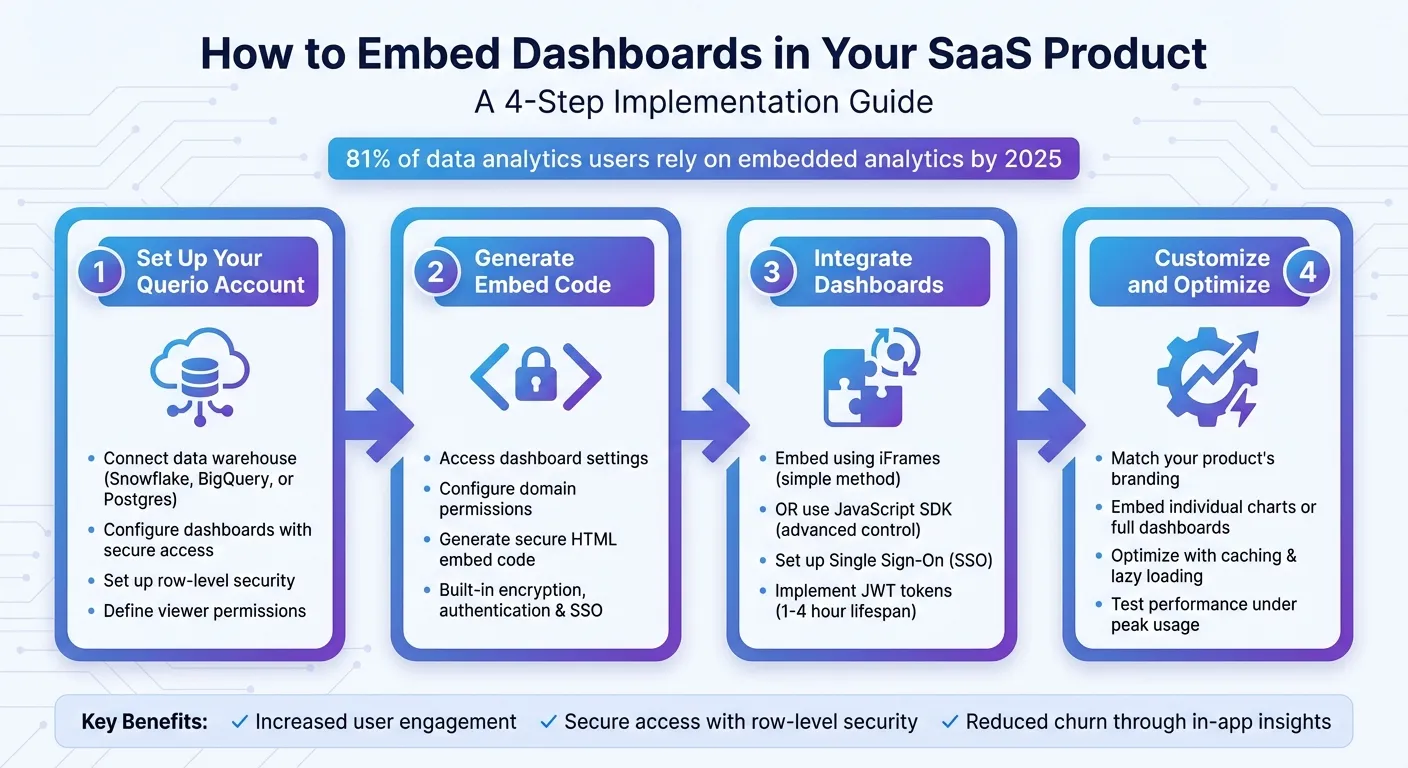
Embedding dashboards into your SaaS product lets users access real-time data insights without leaving your platform. This improves engagement, reduces churn, and helps customers make informed decisions. By 2025, 81% of data analytics users rely on embedded analytics, making it a must-have feature for SaaS platforms.
Here’s how you can do it:
- Set Up Your Querio Account: Connect a data warehouse (Snowflake, BigQuery, or Postgres) and configure dashboards with secure, user-specific access.
- Generate Embed Code: Use Querio’s settings to create secure embed codes with encryption, authentication, and SSO.
- Integrate Dashboards: Embed dashboards into your app using iFrames or Querio’s JavaScript SDK for more control.
- Customize and Optimize: Match dashboards to your branding and improve performance with techniques like caching and lazy loading.
Key Benefits:
- Users engage more by accessing insights directly in your app.
- Features like row-level security and SSO ensure secure, tailored access.
- Querio’s tools simplify setup, making analytics accessible even for non-technical users.
Follow these steps to deliver actionable insights seamlessly within your SaaS platform.
Step 1: Set Up Your Querio Account for Dashboard Embedding
Before embedding dashboards into your SaaS product, it’s important to make sure your Querio environment is properly configured. This ensures your data connections are secure, dashboards are ready for sharing, and users only see the information they’re permitted to access. Think of this as laying the groundwork for embedding while ensuring secure, personalized insights for your users.
What You Need Before Starting
To get started, your Querio account must include Embedded Analytics and a connected data warehouse. Supported options include Snowflake, BigQuery, or Postgres, all of which should use read-only, encrypted connections to keep your data safe.
You’ll also need at least one dashboard ready for embedding. This dashboard should pull live data from your connected warehouse and display the metrics your users care about most. Haven’t built a dashboard yet? No problem - Querio’s drag-and-drop builder makes it easy to create charts and KPIs that address your users’ key questions.
Configure Your Dashboard for Embedding
Once your dashboard is ready, the next step is to set up row-level security using Querio's semantic layer. This allows you to define data access rules for individual users. For multi-tenant platforms, include a tenant_id or orgId in each embed request to automatically filter the data shown.
Use the semantic layer to establish table joins, define business metrics, and set security rules - all in one place. These rules are applied automatically whenever a user requests a dashboard. Additionally, configure viewer permissions to control how users interact with the dashboard. For example, you can decide whether they can apply filters, export data as CSV or PNG files, or drill into more detailed views. These settings ensure your embedded dashboards deliver the right user experience while safeguarding sensitive information.
Step 2: Generate the Embed Code in Querio
Once your dashboard is securely set up, the next step is to create the code that integrates analytics into your SaaS tech stack. This embed code acts as the bridge, linking your Querio dashboard to your SaaS application and enabling live analytics.
Access the Embed Settings
Start by navigating to your Querio workspace and selecting the dashboard you want to embed. Open the settings for that dashboard, where you can customize how it will appear and manage access permissions. For example, you can specify which domains are authorized to host the dashboard and set up any required authentication protocols. After finalizing these settings, save your changes before moving on.
Generate a Secure Embed Code
With the settings saved, Querio will generate an HTML embed code tailored to your configuration. This code comes with built-in encryption, authentication, and secure single sign-on (SSO) capabilities. Simply copy the code and paste it into your app's frontend. Thanks to Querio's SOC 2 Type II compliance, you can trust that your data connections are protected.
Step 3: Add the Embedded Dashboard to Your SaaS Application
Now that you’ve got your secure embed code from Step 2, it’s time to integrate it into your app. By embedding this code into your application’s interface, you’ll turn it into a live, interactive dashboard.
Embed Dashboards Using iFrames
The easiest way to get started is by using iFrames. These HTML elements allow you to display your Querio dashboard within your app like a window. Simply insert the embed code from Step 2 into your HTML, React, or Angular components. For example:
<iframe src="https://your-querio-url" width="100%" height="600"></iframe>
To ensure the dashboard looks great on any device, make the iFrame responsive. Set the width to 100% and use CSS to adjust the height dynamically. Keep in mind that iFrames load as isolated documents, which can sometimes cause issues like double scrollbars or extra whitespace. Test thoroughly across different devices to catch and fix these quirks.
For added security in embedded analytics, configure domain restrictions in Querio settings. This limits which URLs can host your dashboards. And here’s the best part: because iFrames don’t rely on cookies, your users won’t need separate Querio logins. The secure embed token handles authentication for you. While iFrames are simple and effective, if you’re looking for more advanced options, you might want to explore the JavaScript SDK.
Use Querio's JavaScript SDK for Advanced Features
If you need more control than iFrames can provide, Querio’s JavaScript SDK is the way to go. The SDK offers programmatic control, allowing you to customize and fine-tune the embedded dashboard experience to better fit your SaaS product. While it does require more development effort, the flexibility and deeper integration it provides can be well worth it.
Set Up Single Sign-On (SSO) for User Authentication
To streamline the user experience, implement Single Sign-On (SSO). With SSO, users who log into your SaaS product will automatically gain access to the embedded dashboards - no extra logins required.
To set this up, generate a JSON Web Token (JWT) on your server (never in frontend code). This token should include user-specific details like userId, orgId, or tenant_id to enforce row-level security, ensuring users only see the data they’re authorized to view.
For security, use short-lived tokens (1–4 hours) and store your embed secret as an environment variable. Before creating a token, always validate that the user has permission to access the requested dashboard. Once the token is ready, pass it through Querio’s API to maintain multi-tenant embedded analytics architecture and keep your data secure - just as you set up earlier in the process.
Step 4: Customize and Optimize Your Embedded Dashboards
Once your dashboard is embedded, take the time to fine-tune its integration. This involves tailoring the look and feel to match your product and ensuring it performs seamlessly.
Match Your Product's Branding
Make your embedded dashboards feel like a natural extension of your SaaS product by aligning them with your branding. white-label analytics tools like Querio allow you to customize colors, fonts, layouts, and interactions, helping to build trust and create a consistent user experience.
For example, you can apply your brand's color palette to charts, buttons, and backgrounds by using Querio's APIs to define custom hex codes. Adjust the typography to reflect your product's font family and sizing. By maintaining uniform spacing and predictable component behavior, your dashboards will feel cohesive and polished.
Embed Individual Charts and Metrics
Sometimes, embedding an entire dashboard isn’t necessary. With Querio's JavaScript SDK, you can embed individual charts or key performance indicators (KPIs) to provide users with targeted insights where they need them most.
For instance, you could place a revenue trend line on a billing page or a conversion funnel chart in a marketing section. Thanks to Querio's semantic layer, you only need to define your data models once, and you can reuse these visualizations across different user groups. This ensures consistency while delivering the exact data each user requires.
Optimize Performance and Scalability
Speed matters, especially when dealing with dashboards. While Querio’s live data sources are designed for efficiency, you can enhance performance further by using strategies like lazy loading, caching, or pre-aggregating data.
Lazy loading is particularly useful for dashboards that aren’t immediately visible. By delaying the rendering of these elements until a user scrolls to them, you can reduce initial load times. For high-traffic areas, caching frequently accessed queries or pre-aggregating data can keep things running smoothly. As your user base expands, Querio’s infrastructure is built to handle the increased demand. On your end, adopting a modular design will make it easier to add new features or accommodate additional user roles. Testing your setup under peak usage conditions can help identify and resolve any bottlenecks before they affect users.
Best Practices and Common Issues
Follow These Embedding Best Practices
When embedding dashboards, security should always come first. To ensure users only access the data they’re authorized to see, implement row-level security. Querio offers built-in features to make this process straightforward. Additionally, encrypt your data - both when it’s stored and while it’s being transmitted. For authentication, set up Single Sign-On (SSO) with approved identity providers and enforce Multi-Factor Authentication (MFA). MFA alone can block 99.9% of automated attacks.
At the same time, don’t let security slow things down. To keep performance high, use techniques like asynchronous loading, pre-loading key visualizations, and caching frequent queries. Test your embedded dashboards under realistic usage scenarios to identify and fix bottlenecks early. As your data grows, indexing and caching will become even more crucial for maintaining quick load times.
Make sure your team stays on the same page by documenting your security settings, API endpoints, and authentication methods. Regularly test integrations to catch and resolve potential issues before they escalate.
By following these steps, you’ll create a secure, high-performing, and efficient embedded dashboard experience.
Fix Common Embedding Problems
Even with best practices in place, some common issues may still crop up. Here’s how to tackle them:
-
CORS (Cross-Origin Resource Sharing) errors: These happen when your application’s domain isn’t set up correctly to communicate with Querio’s servers. Double-check your domain allowlist in Querio’s dashboard, and make sure you’ve included all relevant subdomains and environments (like staging and production). Don’t forget to update these settings whenever you deploy to a new URL.
-
Authentication failures: These are often caused by misconfigured SSO settings or expired tokens. Ensure your identity provider is properly mapped, and review your token refresh logic to handle expiration smoothly. If users are experiencing intermittent access issues, take a look at your session timeout settings - they might be too short for your needs.
-
Slow loading or rendering issues: Performance problems like these usually point to unoptimized queries or insufficient caching. Use Querio’s query performance tools to identify where the delays are happening. To speed things up, consider breaking dashboards into smaller components, using lazy loading, or pre-aggregating data to reduce the strain on your database.
Conclusion
Key Takeaways
Embedded dashboards bring real-time data directly to users at the moment they need it most. By removing the hassle of switching between tools or relying on outdated reports, you can provide insights exactly when and where decisions are made. This integration makes analytics feel like a natural extension of your product, encouraging deeper engagement and repeat use.
To get started, create your Querio account, configure your dashboards, and generate secure embed codes. These codes can be integrated using iFrames or the JavaScript SDK. Enhance the experience further by implementing Single Sign-On and customizing dashboards to match your brand.
Security and performance are critical at every step. Use row-level security, encrypt data, and optimize for speed with techniques like caching and asynchronous loading. Troubleshoot common issues like CORS, authentication, or rendering with the provided solutions to ensure everything runs smoothly.
By embedding analytics into your product, you empower your users to make quicker, well-informed decisions without leaving the platform. This level of accessibility not only boosts user satisfaction but also makes your SaaS product more engaging and competitive.
Get Started with Querio
Querio simplifies the process of embedding analytics into your product. It connects directly to databases like Snowflake, BigQuery, and Postgres without duplicating data, ensuring everything stays secure and up-to-date. With its AI-driven interface, users can ask questions in plain English and instantly view accurate charts - no SQL expertise required.
Define your context layer once to manage joins, metrics, and business terms, then let your team and users explore data confidently. With features like SOC 2 Type II compliance, a 99.9% uptime SLA, and unlimited viewer users, Querio scales to meet your needs while maintaining top-tier security. Start leveraging embedded analytics tools to deliver real-time, actionable insights today.
FAQs
What security practices should I follow when embedding dashboards?
To keep your dashboard embedding secure, start by implementing strong access controls and leveraging user attributes to filter data effectively. Always ensure communication is encrypted by using HTTPS, authenticate users through JWT tokens, and sign resources and parameters to prevent any tampering. Be cautious when assigning permissions - limit access to only what’s necessary, avoid embedding sensitive data, and don’t rely on hidden filters for security.
In multi-tenant setups, using row-level security is a smart way to ensure users only see the data they’re allowed to access. Following established data security practices and complying with relevant regulations will go a long way in safeguarding your users and their information.
How can I make sure embedded dashboards align with my SaaS product's branding?
When integrating embedded dashboards into your SaaS product, it's crucial to make them feel like a natural part of your brand. Start by customizing the design to reflect your brand's colors, fonts, and logos. Take advantage of white-labeling features to ensure the dashboard seamlessly blends with your product's interface.
This attention to detail not only enhances the user experience but also strengthens your brand identity by presenting a unified, professional appearance.
How can I resolve performance issues with embedded dashboards?
To improve the performance of embedded dashboards, start by refining your queries and limiting the amount of data loaded at a time. Caching can be a game-changer here, as it helps reduce redundant data processing and speeds up response times. Make sure your infrastructure is equipped to handle increased traffic without compromising performance.
For handling large datasets, techniques like lazy loading and pagination can significantly boost load times and keep the dashboard responsive. Be mindful of using real-time data - only rely on it when absolutely necessary, as it can put a heavy strain on your resources. Keep an eye on how your dashboards are being used, so you can spot bottlenecks and tweak things as needed.
Finally, ensure your system is built to scale as user demands grow, and conduct thorough testing to maintain a seamless experience for your users.