Business Intelligence
How to Connect Claude to MotherDuck and DuckDB
Connect Claude to MotherDuck and a local DuckDB file with read-only service tokens, MCP endpoints, and quick verification steps.
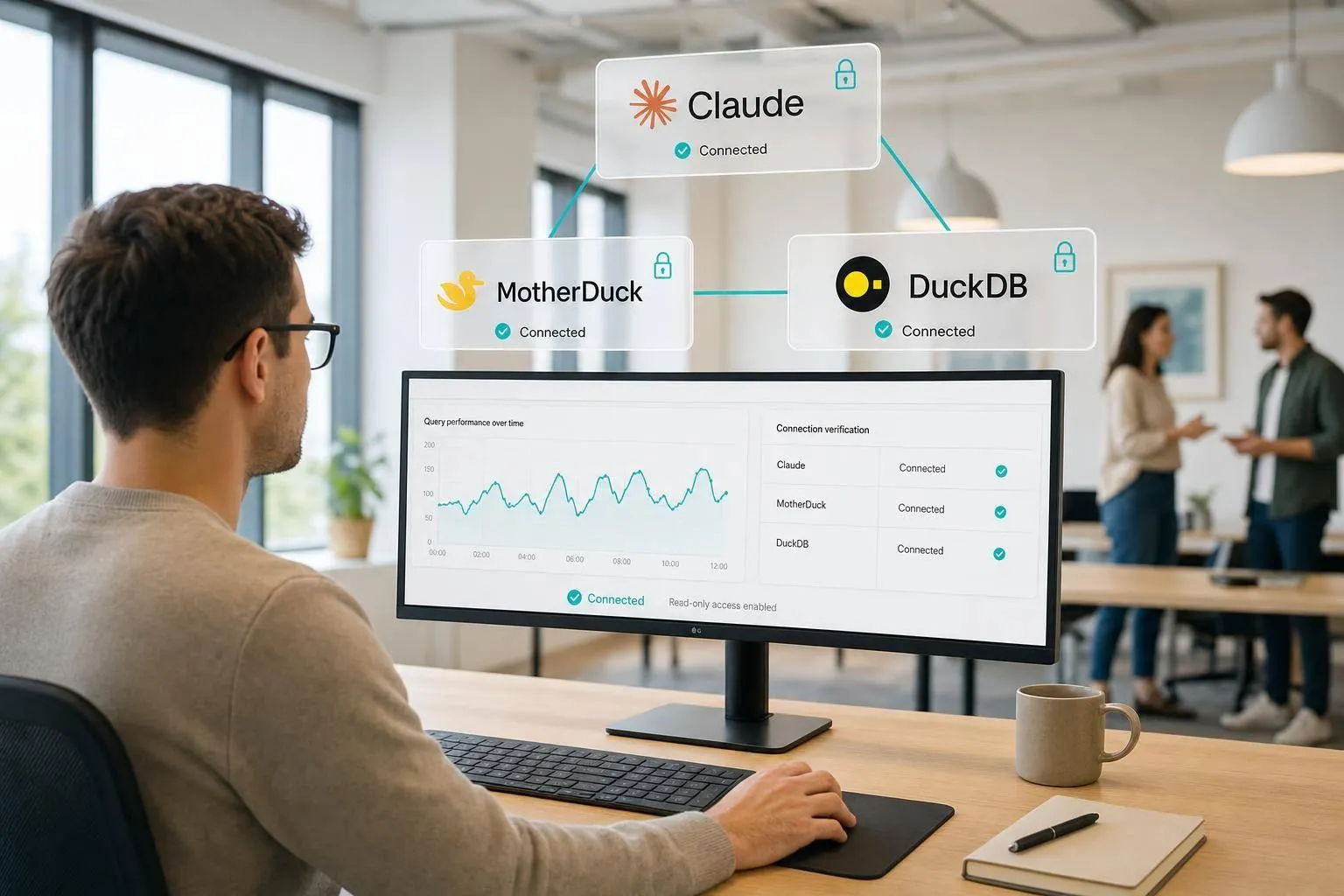
You can connect Claude to both MotherDuck and a local DuckDB file in one setup. I’d use MotherDuck’s remote MCP endpoint for cloud data, a local MCP server for the .duckdb file, and keep both connections read-only from the start.
Here’s the short version:
- I connect MotherDuck with a service token, not a personal login.
- I limit access with
GRANT SELECTso Claude can read data but not change it. - I run the local server with an absolute file path to the
.duckdbfile. - I test with simple checks like
SHOW DATABASESandlist_tablesbefore asking bigger questions. - I can then ask Claude to compare local snapshot data with live MotherDuck data in the same chat.
That setup gives me two paths into DuckDB-based data: one over the web and one from a local file. For cloud traffic, the article notes TLS 1.3 and HSTS are in place, which means data sent to MotherDuck is encrypted in transit. On the access side, the safest default is still plain read-only SQL access: 100% of the first-pass permissions should be limited to only the schemas and tables people need.
If I were setting this up today, September 16, 2026, I’d keep it simple: prepare the token, lock down permissions, connect the remote endpoint, start the local server, and verify both sources before sharing the workflow with anyone else.
::: @figure 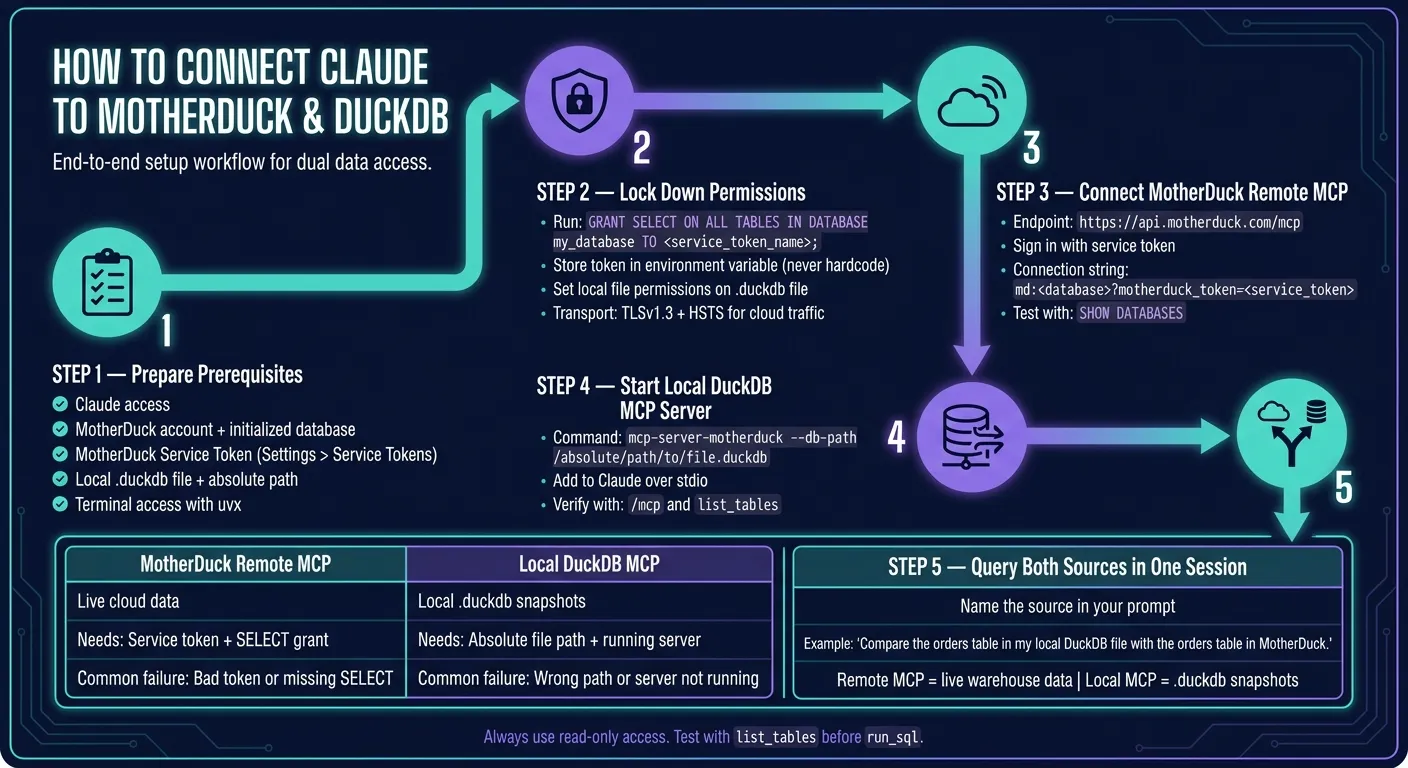 {How to Connect Claude to MotherDuck & DuckDB: Setup Process}
:::
{How to Connect Claude to MotherDuck & DuckDB: Setup Process}
:::
An intro to Anthropic MCP with DuckDB
::: @iframe https://www.youtube.com/embed/oX6IKXfcx78 :::
Quick comparison
| Connection | What I use it for | What I need | Common failure |
|---|---|---|---|
| MotherDuck remote MCP | Live cloud data | Service token, database access, network access | Bad token or missing SELECT |
| Local DuckDB MCP server | Local .duckdb file |
Absolute file path, running local server | Wrong path or server not running |
So the core idea is simple: Claude talks to databases through MCP tools like list_tables, describe_table, and run_sql, and I control what Claude can reach through tokens, grants, and file access rules.
Prerequisites and Security Defaults
Accounts, local tools, and files to prepare
Before you connect anything, get these items ready:
- Claude access
- A MotherDuck account with at least one initialized database
- A MotherDuck Service Token - create one in Settings > Service Tokens in the MotherDuck console. Claude uses this token for sign-in. Do not use your personal login credentials.
- A local
.duckdbfile and its absolute path, such as/Users/yourname/data/analytics.duckdb - Terminal access and a package runner like
uvxso you can run MCP servers without doing a manual install
These defaults help keep Claude limited to approved data before you connect the remote endpoint and the local file server.
Permissions, authentication, and safe data exposure
Start with read-only access. In MotherDuck, limit your service token with a GRANT SELECT statement:
GRANT SELECT ON ALL TABLES IN DATABASE my_database TO <service_token_name>;Store motherduck_token in an environment variable or a secret manager. Don't hardcode it in the MCP config. For local DuckDB, lock down file permissions on the .duckdb file so the MCP server process can read only the files it needs.
For cloud transport, MotherDuck uses TLSv1.3 and HSTS [2][3]. That means data in transit is encrypted by default. You'll also want to confirm that outbound network access to MotherDuck is allowed.
| Layer | What to configure |
|---|---|
| Authentication | MotherDuck Service Token; absolute path to the local .duckdb file for the local MCP server |
| Authorization | GRANT SELECT only on the required tables or schemas [1] |
| Transport and local file access | TLSv1.3 + HSTS for cloud [2][3]; local file permissions on the .duckdb file |
| Secret storage | Environment variable or secret manager - never hardcode the token |
With these defaults set, connect the MotherDuck MCP endpoint first. Then add the local DuckDB server. After that, connect Claude to MotherDuck through the remote MCP endpoint, and add the local .duckdb server in the same session.
Connect Claude to MotherDuck via Remote MCP
With your service token and SELECT grants ready, connect Claude to MotherDuck through the remote MCP endpoint at https://api.motherduck.com/mcp [1]. This is the first checkpoint. It confirms Claude can query live warehouse data before you bring in the local .duckdb source.
Add the MotherDuck connector in Claude
Add the MotherDuck MCP endpoint in Claude, then sign in with your service token. If you're using a manual client, use this connection string format: md:<database>?motherduck_token=<service_token> [1].
Run your first MotherDuck query from Claude
Now test the setup end to end with a warehouse table or dbt model you already know exists. A simple SHOW DATABASES works too. The goal is to make sure Claude can read from the target database.
If the query comes back empty, the issue is often permissions. Check that the service token has the right access on the target database or schema [1].
| Symptom | Likely Cause | Fix |
|---|---|---|
| Auth failure on connect | Incorrect, expired, or missing service token | Create a new service token [1] |
| Empty result | Missing SELECT permission |
Grant SELECT on the target database or schema [1] |
| Manual client connection fails | Malformed connection string | Use md:<database>?motherduck_token=<service_token> [1] |
Once the remote connection is working, add a local .duckdb MCP server so Claude can query cloud and local data in the same session.
Connect Claude to a Local DuckDB File and Use Both in One Session
Run a local MCP server for a .duckdb file and add it to Claude
Start the local MCP server with this command, using the absolute path to your file:
mcp-server-motherduck --db-path /absolute/path/to/file.duckdbUse the full path so the server can find the database no matter where you start it from. Once the server is running, add it to Claude or your Claude client over stdio. Then run /mcp to make sure the local tools show up.
If they don’t appear, check the endpoint in Claude’s settings. After that, confirm Claude can see the local source before you try querying both connections together.
If your team shares a .duckdb file, use read-only access.
Query MotherDuck and local DuckDB in the same Claude session
You can keep a local snapshot and MotherDuck connected in the same session for side-by-side queries. The main thing is to name the source in your prompt so Claude sends each part of the request to the right connection.
For example:
Compare the orders table in my local DuckDB file with the orders table in MotherDuck.
Use remote MotherDuck MCP for warehouse data and local DuckDB MCP for .duckdb snapshots. When you need to compare the two, keep both connected in the same Claude session. If one of them doesn’t show up, go to the troubleshooting section next.
Troubleshooting, Operating Guidelines, and Next Steps
Fix common connection and auth failures
Most failures land in four buckets:
| Issue | Root Cause | Fix |
|---|---|---|
| Connector not showing | MCP endpoint URL is wrong or local server isn't running | Check the URL in Claude's Integrations panel and restart the local MCP server process |
| Invalid token | Service token expired, deleted, or copied incorrectly | Generate a new token under MotherDuck Settings > Service Tokens [1] |
| Missing schema privileges | Schema USAGE or table SELECT is missing |
Grant USAGE on the schema and SELECT on all tables to the service token |
Relative path used for .duckdb file |
Relative path used for .duckdb file |
Switch to an absolute file path in the MCP server command |
Start with list_tables before you run run_sql. That one step saves a lot of time.
If discovery fails, the issue is usually the connection or permissions, not your SQL. If discovery works but queries come back empty, the service token often needs an explicit SELECT grant on the target tables.
After the connection is working, move on to team-safe operating rules.
Guidelines for production and team use
Once Claude can query both sources, lock the setup down for team use.
Use direct MCP for analyst-driven SQL. Use a governed semantic layer for shared metrics, approved joins, and self-serve access for non-technical teammates.
When you need the same metric definitions across a larger team - or you have coworkers asking questions in Slack or Claude - a governed layer like Querio fills in the context that raw MCP connections don't provide. Querio stores joins, metric definitions, and trusted queries as plain files synced to your GitHub repo alongside your dbt project, so the agent starts with context instead of piecing the schema together again each session [2].
The goal isn't just getting connected. It's getting reliable, governed access to live MotherDuck data and local DuckDB files in one Claude session.
Key takeaways and the setup you now have working
After validation, keep access limited to only the sources and permissions the team needs.
Run list_tables on both connections and make sure Claude sees the expected tables before you share the setup. Before handing it off to teammates, confirm each service token is scoped only to the databases and schemas they need for their work.
FAQs
::: faq
Can Claude join data across MotherDuck and a local DuckDB file?
Yes. Claude can join data across MotherDuck and a local DuckDB file when used through an intermediary agent or setup that supports connections to more than one database.
Because MotherDuck is built on DuckDB, you can attach both sources to the same engine instance and run cross-database SQL joins. A governed layer like Querio helps keep those connections read-only and consistent. :::
::: faq
What minimum permissions should I grant the service token?
Grant ONLY the minimum access the MotherDuck service token needs. In plain English, that means limiting it to the exact databases and schemas the agent will query, and using read-only SQL grants.
GRANT SELECT ON ALL TABLES IN DATABASE my_database TO querio_service_token;
GRANT SELECT ON ALL TABLES IN SCHEMA my_database.my_schema TO querio_service_token;
Replace the placeholders with your own database, schema, and token names. :::
::: faq
How do I make the local DuckDB connection read-only?
Append ?access_mode=read_only to your connection string. That opens the local DuckDB connection in read-only mode, avoids process-level file locks, and makes sure the agent can't change your local .duckdb file.
If you want tighter access control, use a dedicated service identity with permission limited to only the tables and schemas it needs. You should also disable remote filesystem access and extension loading in DuckDB. :::