Guide
How to Create a CSV File: A Complete Guide for 2026
Learn how to create a CSV file from any source: Excel, SQL, or Python. This guide covers validation, encoding, and preparing data for platforms like Querio.

You’ve probably hit this exact problem already. A vendor asks for a CSV upload. Your CRM exports one version, your product analytics tool exports another, and finance sends a spreadsheet that “looks fine” until the import fails on row 8,413.
That’s why knowing how to create a csv file still matters. Not the toy version where you click Save As and hope for the best. The production version. The one that preserves IDs, survives encoding issues, loads cleanly into databases and SaaS tools, and doesn’t send your team into a half-day debugging session over invisible characters and broken quotes.
A good CSV is boring in the best possible way. It opens anywhere, moves across systems easily, and doesn’t surprise the next person who touches it. That’s the standard worth aiming for.
Why CSV is Still the Lingua Franca of Data
A PM pulls customer records from the CRM, usage data from the product team, and invoices from billing. Thirty minutes later, the work stops because every export has a different shape. One system changes date formats. Another adds commas inside text fields. A third drops leading zeros from account codes.
The file type that still gets all three datasets into the same room is CSV.

CSV lasts because it solves a specific operational problem well. It gives different systems a plain-text table format they can usually read without custom integration work, vendor lock-in, or format conversion. That matters in real teams, where the handoff often matters more than the tool that produced the file.
Simplicity is the feature
CSV is deliberately plain. Rows, columns, delimiters, text.
That simplicity is why it keeps showing up in reporting, ops, analytics, finance, and vendor imports. Databases export it easily. Spreadsheets save it. Python, R, command-line tools, SaaS platforms, and warehouses all support it because plain text is a low-friction contract between systems. If someone needs to inspect the file manually, they can open it in a text editor and see what is there.
That last point gets underrated. Formats that hide structure behind proprietary rules are harder to debug under pressure. CSV is exposed enough that a data analyst can inspect a broken row, spot a quote problem, and fix it quickly.
The real value is interoperability
Most guides stop at "save as CSV." That is the easy part.
The harder part is creating a CSV that survives the next system. Production-ready CSVs depend on choices that casual exports ignore: UTF-8 encoding, the right delimiter for the target tool, stable headers, consistent quoting, and predictable null handling. Those details decide whether your import runs cleanly or burns half a day in triage.
That is also why CSV still fits a modern data stack. Warehouses, reverse ETL tools, BI platforms, and operational systems may all speak different APIs, but nearly all of them can still exchange a flat file when needed.
Bad CSVs create fake urgency
I rarely see teams lose time because CSV itself is flawed. They lose time because the file was exported without checking how another system will parse it.
Common failure points include:
- IDs getting reformatted by spreadsheet software
- Wrong encoding that corrupts names, addresses, or international characters
- Delimiter mismatches in regions where commas are used as decimal separators
- Header drift between recurring exports
- Unescaped quotes or line breaks inside free-text columns
A CSV is only finished when the receiving tool accepts it without cleanup.
That standard matters anywhere files move between teams or vendors. The same expectation applies when you export contacts from LinkedIn to a standard CSV. The file is not useful just because it downloaded. It is useful when the next system reads every column correctly.
Why teams still choose it
CSV is old. It is also practical.
Use it when you need portability, easy inspection, and broad compatibility across tools that were never designed to work together. Just do not confuse "simple format" with "careless export." The format is simple. Producing a CSV that will not break downstream takes discipline.
Creating CSVs from Spreadsheets the Right Way
The failure usually shows up after the export.
A teammate sends a customer list, the upload runs, and then someone notices ZIP codes lost their leading zeros, names with accents are garbled, or a CRM rejects the file because one row has an extra comma in a notes field. The spreadsheet looked fine. The CSV was not.
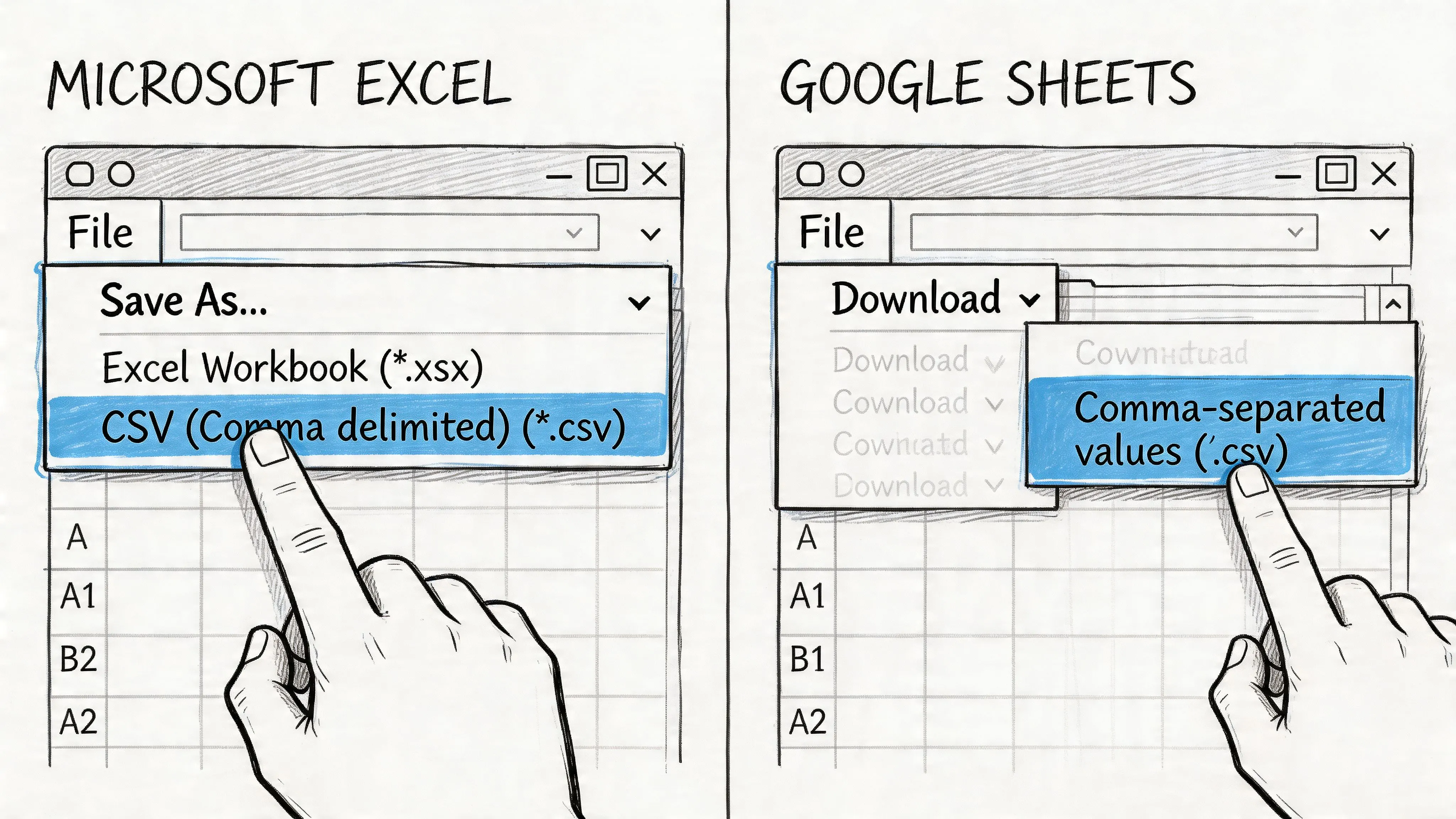
That is the difference between creating a CSV and creating one another system can ingest without cleanup. Spreadsheet exports are still useful, but they need a few controls if the file is headed into a database, CRM, finance system, or vendor workflow.
Prepare the sheet before you export
Export quality starts with sheet design.
Use a single header row. Keep header names stable across recurring exports. customer_id will age better than Customer ID if the file eventually lands in scripts, SQL models, or import templates. Remove merged cells, blank spacer rows, and decorative formatting. CSV keeps values only. Anything that exists for visual layout in the spreadsheet becomes noise or, worse, a parsing problem later.
Pay special attention to fields that look numeric but are not numbers in practice. Account IDs, order numbers, postal codes, SKUs, and coordinates are frequent trouble spots. California’s Department of Education notes in its guidance on creating a CSV file that opening CSVs in Excel can reformat long numerics into scientific notation. That is exactly the kind of silent change that burns hours in QA.
If a field is an identifier, format it as text before export and verify the raw output after saving.
Excel exports need one extra layer of discipline
Excel can produce a good CSV. It can also inadvertently change values on save or on reopen if the sheet was not prepared carefully.
The workflow I recommend for teams is close to the approach described in Mass.gov's CSV instructions: organize the file cleanly, save with the CSV UTF-8 (Comma delimited) (*.csv) option, then reopen the result in a plain-text editor instead of trusting the spreadsheet view. That sequence catches two of the most expensive mistakes early: damaged character encoding and unintended value conversion.
Here is the practical version:
| Situation | Better choice | Why |
|---|---|---|
| Names include accents, symbols, or non-English characters | CSV UTF-8 | Preserves characters more reliably across tools |
| The file will be imported into another platform | Check the raw CSV in a text editor | Confirms delimiters, quotes, and line breaks |
| The sheet contains IDs that look numeric | Store and review them as text | Prevents dropped zeros and scientific notation |
| A column contains notes or free text | Inspect a few rows manually after export | Catches embedded commas, quotes, and broken row structure |
That last row matters more than many teams expect. Free-text columns are where spreadsheet exports often fall apart.
If your workflow includes list building or lead enrichment, the same standard applies when you export contacts from LinkedIn to a standard CSV. The handoff succeeds only if the next system reads every field as intended.
Google Sheets is faster, but still needs checks
In Google Sheets, the menu path is simple: File > Download > Comma-separated values (.csv).
That simplicity is useful, especially for quick handoffs. But Sheets does not remove the need to validate. Date formatting can still drift. Header names can still be inconsistent. A notes column can still introduce quotes or commas that deserve a quick inspection before upload.
For analyst teams, a reliable habit is:
- export the file
- open it in VS Code, Notepad, or another plain-text editor
- inspect the header row and the first several records
- check that delimiters, quotes, and special characters look correct
- confirm row counts if the destination system is sensitive to dropped records
A short demo helps if you’re training teammates on the menu path and export options:
Validate before you send the file
The spreadsheet preview is not the final test. The CSV itself is.
Run through these checks before upload or handoff:
- Headers: no duplicates, trailing spaces, or last-minute renames
- Field count: each row should contain the same number of columns
- Encoding: names like José, Chloë, or Łukasz should display correctly
- Identifiers: postal codes, account numbers, and SKUs should match the source exactly
- Dates: use the format required by the receiving system, not whatever the spreadsheet displayed
- Blank values: confirm they are blank, not filled with stray spaces or placeholder text
At this point, spreadsheet work becomes production-ready instead of merely exportable.
Teams that still rely on manual spreadsheet delivery can reduce repeat cleanup by standardizing these checks and pairing them with automated Excel reporting workflows where it makes sense. That combination keeps spreadsheets useful without letting them become the weakest step in the pipeline.
Programmatic CSV Generation for Data Workflows
A manual export works once. A production export needs to work every time, under schedule pressure, with no surprises when another system reads it.
If a CSV feeds a recurring report, partner delivery, warehouse extract, or application import, generate it with code. That gives you repeatable column order, explicit encoding, controlled quoting, and a validation step you can run on every file. It also removes spreadsheet behavior that changes formats without notice.
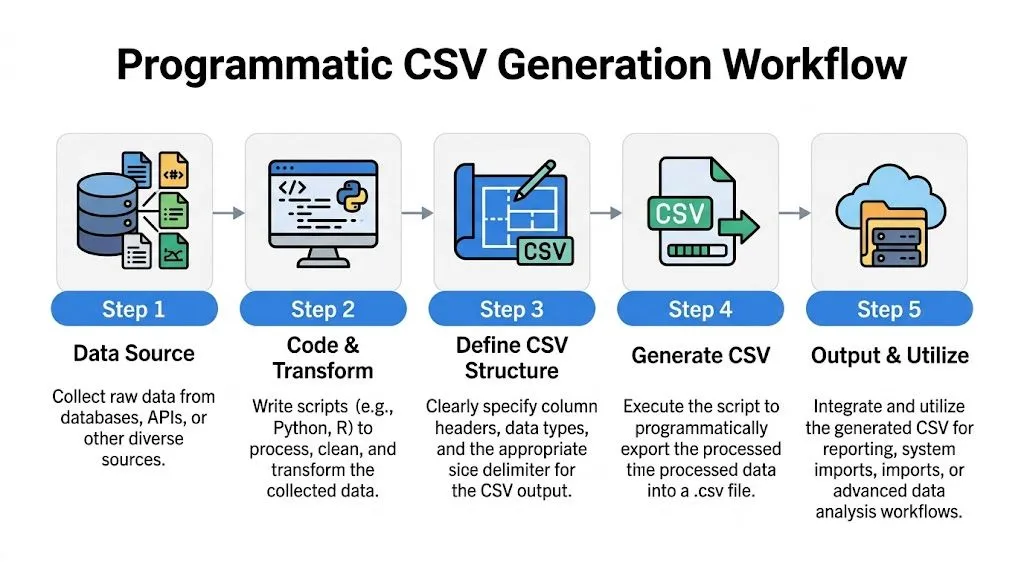
Use Python when the file format matters
Python’s built-in csv module is a strong default because it handles quoting and escaping correctly. A plain ",".join(...) approach looks faster to write, but it breaks as soon as a value contains a comma, quote, or line break. Cuantum’s guide on how to create CSV files covers the same practical points: use the csv module, open files with newline="", and set encoding deliberately.
import csv

rows = [
    ["customer_id", "name", "city"],
    ["1001", "Ana Gómez", "Madrid"],
    ["1002", "Bob Lee", "New York"],
    ["1003", "Claire, Inc.", "Paris"]
]

with open("customers.csv", "w", newline="", encoding="utf-8") as file:
    writer = csv.writer(file, quoting=csv.QUOTE_MINIMAL, lineterminator="\n")
    writer.writerows(rows)
Three settings do a lot of work here:
newline=""avoids blank-line issues on Windowsencoding="utf-8"protects names and non-English text from corruptioncsv.writer(...)escapes delimiters and quotes correctly
QUOTE_MINIMAL is fine for many exports. If the destination tool is brittle, or your text fields regularly contain commas, embedded quotes, or multiline notes, use stricter quoting and test the result with the exact importer that will receive it. The small file-size savings from lighter quoting are rarely worth a failed load.
Operational advice: Optimize for safe parsing. Nobody cares that the file is 3% smaller if finance, ops, or a partner cannot import it.
Pandas is usually the fastest path from table to file
If your data already lives in a DataFrame, pandas is usually the cleanest way to write the CSV.
import pandas as pd
import csv

df = pd.DataFrame([
    {"customer_id": "1001", "name": "Ana Gómez", "city": "Madrid"},
    {"customer_id": "1002", "name": "Bob Lee", "city": "New York"},
    {"customer_id": "1003", "name": "Claire, Inc.", "city": "Paris"}
])

df.to_csv(
    "customers.csv",
    index=False,
    encoding="utf-8",
    quoting=csv.QUOTE_MINIMAL
)
The parameter analysts forget most often is index=False. Leave it out, and pandas writes the row index as an extra column. That single mistake causes a surprising number of bad imports because the receiving system sees one more field than expected.
Pandas also makes it easier to standardize export logic across recurring jobs. You can sort columns, cast data types, fill nulls intentionally, and write the file in one place instead of relying on whoever happened to click the export button that day.
SQL should define the dataset
If the data comes from a warehouse or transactional database, keep the extraction logic close to the source. SQL should define which records belong in the file and which columns appear.
SELECT
  customer_id,
  email,
  signup_date,
  plan_name
FROM analytics.customers
WHERE signup_date >= CURRENT_DATE - INTERVAL '30 days';
Then write the result to CSV in your database client, notebook, or application layer.
This split works well in practice. SQL handles selection, joins, filters, and business logic. Python handles file writing, encoding, quoting, and post-write checks. Teams debating ownership usually make better decisions after looking at the trade-offs in this comparison of SQL vs Python for analytics workflows.
Some workflows need a conversion step before the data is tabular enough to export cleanly. If an upstream system sends nested markup instead of rows and columns, this guide on converting XML to CSV is a practical reference for normalizing the feed before it enters the rest of the pipeline.
Test the generator, not just the output
Programmatic exports are easier to trust because you can test them. A good CSV job should verify the header order, row shape, encoding, and a few sample records every time it runs.
A simple pattern works well:
- write the file with explicit settings
- re-open it with
csv.readeror pandas - confirm the header matches the expected schema
- check that row counts and column counts are consistent
That last step catches the expensive mistakes. I have seen exports look fine in a text editor while failing downstream because one multiline comment shifted the parser, or because a leading-zero identifier was cast incorrectly before the file was written.
Production-ready CSV generation is less about creating a file and more about creating a file another system can read predictably, every single run.
Advanced Options for Reliable CSV Files
A CSV can open perfectly and still fail in production.
The failures usually start in the export settings. Delimiter, quoting, line endings, and encoding decide whether another tool reads the file the same way you intended. Basic tutorials skip those choices because a simple download often works once. Production handoffs need settings that work every run, across different systems and regions.
SAP export workflows expose these controls directly, and Python gives you the same level of control through dialect settings such as custom delimiters and quoting rules, as described in the Angles for SAP documentation on exporting to CSV.
Delimiters should match the destination
Commas are common. They are not universal.
If your file is headed to a system that expects semicolons, or your users work in locales where commas appear in decimal values, sticking with commas creates avoidable parsing issues. I usually pick the delimiter based on the importer first, then on the shape of the text fields. That order saves rework.
| If your data looks like this | Consider | Reason |
|---|---|---|
| Text fields contain many commas | Semicolon-delimited output | Reduces the need for heavy quoting |
| System requires traditional CSV | Comma delimiter | Matches the expected default |
| Fields contain tabs rarely, but commas often | Tab-delimited export | Useful for internal transfer workflows |
Agreement matters more than convention. A semicolon-delimited file is fine if the receiving parser is configured for semicolons. It fails fast if nobody confirms that expectation.
Quoting is part of the schema
Quoting is not a cosmetic choice. It is a parsing rule.
Teams usually notice this after an address field, comment, or product description breaks the row structure. A file with free-text columns needs a quoting strategy before it leaves your system, not after someone reports that row 18,432 has too many columns.
A practical default looks like this:
QUOTE_MINIMALfor structured data where only some fields contain commas, quotes, or line breaksQUOTE_ALLfor files passed across several tools, vendors, or import jobs with inconsistent parser settings- Escape rules defined explicitly when your data can contain quote characters inside text fields
If the file includes names, notes, addresses, or user-entered comments, defensive quoting usually costs less than debugging a broken import.
UTF-8 should be the default, but verify BOM expectations
Encoding problems waste time because the file often looks correct until a downstream team opens it in a different tool.
UTF-8 is still the safest default for cross-platform work. It handles multilingual text well and behaves predictably in databases, notebooks, and modern SaaS importers. The catch is Excel. Some Excel-based workflows expect UTF-8 with BOM to display non-ASCII characters correctly on open, while many pipeline tools prefer plain UTF-8 without BOM.
That trade-off matters. If humans review the file in Excel before upload, UTF-8 with BOM may prevent support tickets. If the file feeds an automated process, plain UTF-8 is often the cleaner choice.
Line endings and nulls deserve explicit decisions
Two small details break more imports than teams expect.
First, line endings. Windows tools often write \r\n, while Unix-based systems usually expect \n. Many parsers handle both, but older loaders and custom scripts do not. Standardize this in the export job instead of letting the operating system choose for you.
Second, null handling. Decide how missing values should appear before you export. An empty field, the literal string NULL, and 0 mean very different things downstream. If the importer maps blanks to nulls, use blanks consistently. If it expects a sentinel value, document it and keep it stable.
These are the details that separate a file that merely exists from one another system can ingest without surprises.
Handling Large Files and Ensuring Data Integrity
A CSV usually fails at the worst possible moment. The export finishes, the file gets handed to another team, and the import breaks because row 248,913 has one extra delimiter or a product ID was reformatted during saving.
Large files need a different handling pattern. The job is to verify structure, preserve meaning, and move the data through your pipeline without relying on a spreadsheet to render the whole thing.
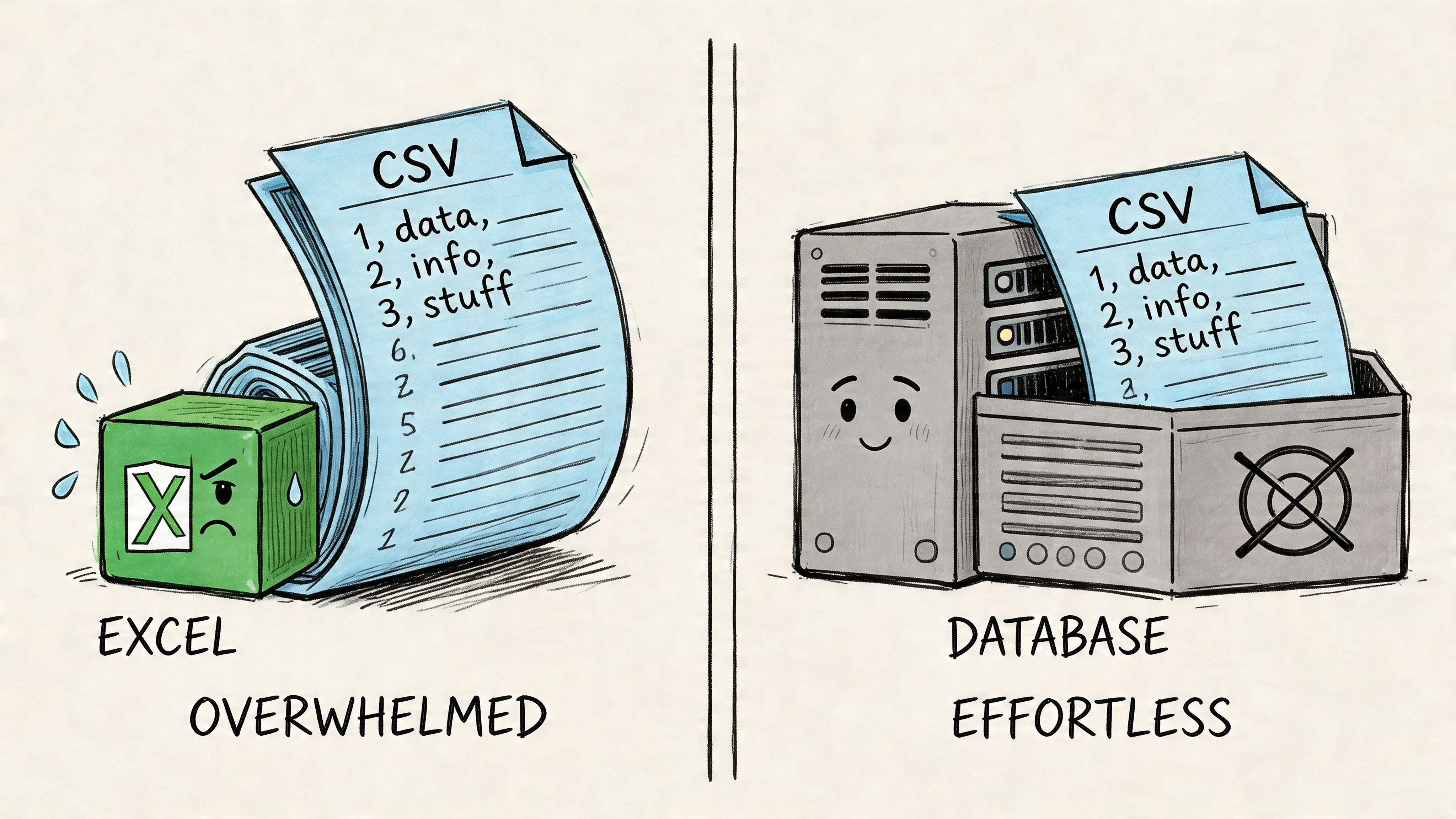
Inspect the file as text
For big CSVs, start with lightweight checks before anyone double-clicks the file.
A practical workflow looks like this:
- Use
headto confirm the header row and first few records - Use
wc -lto estimate row count - Use
csvstator similar tools to inspect column distributions and likely type issues - Check rows from the middle and end if the export job may have failed late or appended malformed records
This approach catches the failures that cost teams hours. Broken quoting, shifted columns, duplicate headers, and truncated exports are usually visible from text inspection long before they show up as an application error.
As noted earlier in Advanced Statistics using R, programmatic CSV handling is often more reliable than manual inspection for real data work. That principle matters more as file size grows.
Use a repeatable integrity checklist
For production handoffs, I want a fast pass on four things:
| Check | What to verify | Common failure |
|---|---|---|
| Header check | Expected column names and order | Extra unnamed columns or renamed fields |
| Row shape | Same number of fields on every row | A quote or delimiter breaks the row |
| Character check | Text displays correctly across tools | Garbled names, symbols, or accented characters |
| Type sanity | IDs, dates, and codes stayed in the intended format | Leading zeros stripped or dates auto-converted |
A file can parse and still be wrong.
That distinction matters. Plenty of imports succeed while customer IDs have already been damaged, nulls have shifted meaning, or one bad quote has pushed values into the wrong columns.
For recurring workflows, pair this with a documented cleanup process. Teams that already spend time fixing source exports should standardize their data cleanup workflow before the CSV leaves the source system.
Split or compress based on downstream limits
One huge file is not always the best delivery format.
Split the export into chunks when the receiving system has file-size limits, retries need to be scoped to a subset of rows, or multiple reviewers need to check different segments. Compress the file when transfer time or storage matters and the receiver can ingest .zip or .gz artifacts directly.
There is a trade-off here. Chunking makes retries and inspection easier, but it adds naming, ordering, and reassembly concerns. Compression reduces transfer friction, but it can hide problems if nobody validates the uncompressed content before delivery. In practice, I prefer keeping an archived compressed original and validating the extracted CSV that downstream tools will read.
Automate the checks
Large-file work gets safer when validation is built into the export process instead of left to a person with Excel and good intentions.
A strong pattern is simple:
- export from the source with code
- run header, row-count, and field-count checks
- sample records from the beginning, middle, and end
- split or compress only if the downstream system benefits
- hand off the validated file, not the first file produced
That is the difference between a CSV that exists and a CSV another system can trust.
From Creation to Insight with Clean Data
Creating a CSV file sounds basic until you’ve cleaned up someone else’s broken one.
The primary job isn’t producing a .csv extension. It’s producing a file another system can trust. That means stable headers, preserved identifiers, explicit encoding, sensible quoting, and a validation habit before the handoff. When teams treat CSV creation that way, imports stop failing for avoidable reasons.
That’s why how to create a csv file is still a foundational skill for analysts, operators, founders, and product teams. A clean CSV is often the first reliable step between raw operational data and a useful answer.
The downstream payoff is bigger than the file itself. Clean CSVs make warehouse loads smoother. They reduce ad hoc cleanup. They let non-technical teams use imports confidently. They also free analysts to spend more time on decision support instead of repair work.
If your current workflow still depends on “export and hope,” tighten the handoff standard. If your team already generates files programmatically, document the rules so every recurring export follows the same pattern. And if your data work regularly starts with messy files, a strong process for cleaning up data will save more time than most dashboard redesigns ever will.
A reliable CSV is not glamorous. It’s better than glamorous. It’s how data keeps moving.
If your team is tired of acting like a human API for every export, cleanup request, and one-off analysis, Querio is worth a look. It puts AI coding agents directly on your data warehouse so teams can work through Python notebooks and self-serve data workflows without waiting on analysts for every question.