Business Intelligence
How to Set Up Databricks AI/BI Genie: A Step-by-Step Guide
Checklist to configure Databricks Genie: enable Databricks SQL, use Unity Catalog, add curated tables, synonyms, joins, metrics, and test before launch.

If I want Genie to give answers people can use, I need to do 6 things first: use a Pro or Serverless SQL warehouse, keep data in Unity Catalog, load only curated tables, define terms, joins, and metrics, test answers against trusted queries or dashboards, and set a named owner before launch.
Put simply: Genie works best when I treat it like a governed BI layer, not a chatbot pointed at raw data. If I skip setup, I increase the odds of mixed KPI answers, bad joins, and too much table noise.
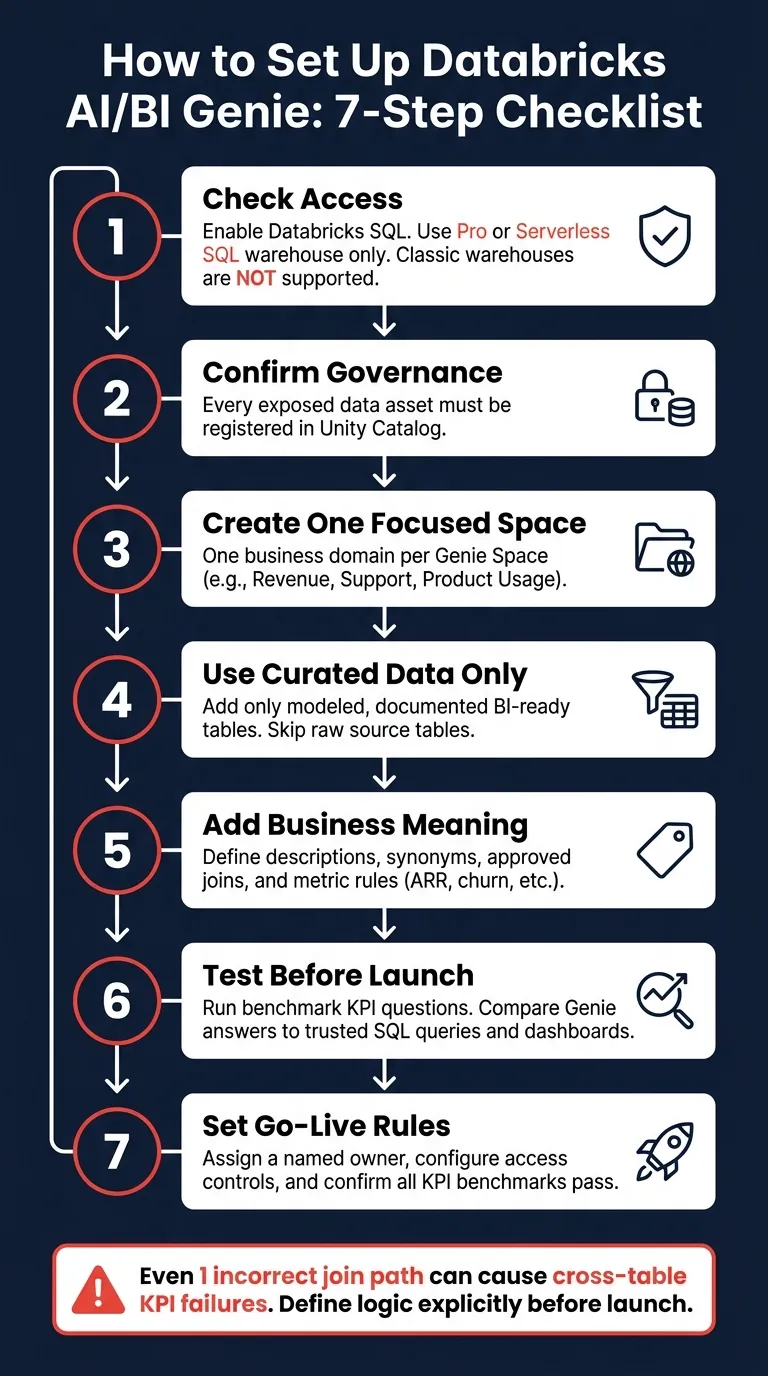
Here’s the whole setup path at a glance:
- Check access: Databricks SQL must be on, and Classic warehouses won’t work
- Confirm governance: every exposed asset should sit in Unity Catalog
- Create one focused space: one domain per space, like Revenue or Support
- Use curated data only: skip raw source tables
- Add business meaning: descriptions, synonyms, joins, metric rules
- Test before launch: compare Genie answers to approved SQL and dashboards
- Set go-live rules: owner, access, and KPI pass checks in place
A small setup mistake can affect a lot of answers. For example, if even 1 join path is off, cross-table KPI questions can fail fast. And if 2 people ask for churn in slightly different words, they can get different numbers unless I define the logic up front.
The short version: I should start small, keep the scope tight, and only launch after Genie matches the numbers my team already trusts.
From there, the rest of the guide walks through the setup in the right order so I can avoid rework later.
Check workspace, warehouse, and governance prerequisites
Before you create a Genie Space, make sure a few basics are in place. Databricks SQL must be enabled, the warehouse must be Pro or Serverless, and the data must be governed in Unity Catalog. These checks help prevent Genie from surfacing ungoverned data or giving mixed answers. Start with warehouse access, then verify table permissions and governance.
Verify Databricks SQL, warehouse, and table access
Begin with the warehouse and table permissions Genie will use. Your workspace needs Databricks SQL enabled, and the warehouse connected to Genie must be Pro or Serverless. Classic warehouses are not supported.
Stick to curated, documented tables. Then grant SELECT only on the schemas and tables Genie needs. That keeps access tight and cuts down on noise.
Confirm Unity Catalog and governance readiness
Unity Catalog must be enabled and active for every data asset you plan to expose in a Genie Space. Before rollout, check that the target schemas and tables are registered in Unity Catalog.
Decide who can create, edit, and share the space
Keep creation, editing, and sharing limited to named owners who are responsible for the space. A small owner group makes it easier to keep the space consistent once business users start using it.
Once these checks pass, create the Genie Space and connect the curated tables.
Create the Genie Space in Databricks
Create the Genie Space with a clear business name, a plain-language description, the verified SQL warehouse, and a small set of curated starting tables. Start with the tables that define the business domain, not the raw source system.
Create a new space and set the base configuration
Set up the space around the business use case: a space name, a description, an attached SQL warehouse, and the first data assets you want Genie to use.
Name the space for the business domain, not the source system. Labels like Revenue Analytics, Product Usage, or Support Operations give the space instant context and make it easier to find later.
Use the description to explain the purpose in plain business language. Spell out the questions the space should answer, who will use it, and which core metrics matter.
Attach the verified SQL warehouse. That's the compute Genie will use for queries, so it should match the business domain tied to the space.
Once the space is created, attach ONLY the curated tables Genie should use.
Select curated tables instead of raw operational data
Only add tables or views that are curated, documented, and modeled for BI.
A small, consistent set is easier for Genie to interpret than a pile of overlapping tables with vague names. Think of it like giving someone a clean map instead of a cluttered drawer full of old notes.
Plan around scope limits and space boundaries
Keep each Genie Space focused on one business domain. If you put Revenue, Product Usage, and Support Operations data into one space, the scope gets muddy fast.
Split spaces by domain. One domain per space keeps answers tighter and cuts down on cross-domain mix-ups.
Once the space is scoped, define the business terms and metrics Genie needs so it can answer questions correctly.
Connect trusted data and define business logic Genie can use
Curated tables give Genie the data. Metadata gives it the meaning.
Once data access is set up, the next step is to add the semantic context Genie needs so it can match business questions to schema fields in a steady, reliable way.
Add descriptions, synonyms, joins, and metric definitions
Genie uses Unity Catalog metadata to map business questions to schema fields. That means your descriptions do more than tidy things up. They help Genie understand your schema.
Use table descriptions to explain the business meaning of each curated table. Then add clear column comments so each field says what it actually represents in plain business terms.
Inside the Genie Space, define synonyms that connect the language people use every day, like "ARR", "churn", or "top customers", to the technical field names in your warehouse.
You should also add approved joins and metric definitions so Genie follows the same business logic your warehouse and BI layer already use. That keeps ARR, churn, and customer counts tied to one governed definition. It also makes Genie far more useful for self-serve KPI checks and governed reporting, instead of turning it into a tool that only surfaces schema details.
Encode business rules instead of leaving logic implicit
Write down the business rules behind your metrics: how calculations work, which filters apply by default, and how edge cases should be handled.
When logic stays implicit, answers drift. One person asks for churn and gets one number. Someone else asks a similar question and gets another. Explicit rules help Genie stay aligned with how your team defines success.
Configuration choices vs. common mistakes: a comparison table
These choices shape whether Genie maps questions to the right fields and metrics.
| Configuration choice | Common mistake | Why it matters |
|---|---|---|
| Clear table and column descriptions | Technical jargon or missing comments | Genie uses descriptions to read your schema |
| Synonyms mapped to approved business terms | Assuming users will use exact column names | Business users ask in business language, not warehouse syntax |
| Approved joins defined in the space | Ad hoc or unreviewed joins | Cross-table questions require consistent, governed join paths |
| Metric definitions tied to warehouse logic | Ambiguous or duplicated calculations | KPI answers stay consistent across every question |
| Documented business rules | Implicit logic left in code or undocumented | Edge cases and filters produce predictable, repeatable results |
Clear metadata helps cut down on misread columns and inconsistent KPI answers. Once terms, joins, and metrics are defined, test benchmark questions against trusted outputs before rollout.
Test answers, fix failures, and prepare the space for rollout
Test benchmark questions against trusted outputs
Once the space has definitions, joins, and metrics set up, test them against answers your team already trusts. Put together a short acceptance suite of business-critical questions tied to your main KPIs.
Focus on the KPI questions people ask all the time, like monthly MRR, last quarter churn, top expansion accounts, and weekly active users. These numbers should come from a trusted dashboard or an approved SQL query.
Run each question through Genie and compare the output side by side. If the numbers match, that item passes. If they don’t, you’ve got a clear failure to fix. That’s a much better place to spot a gap than during a meeting with executives.
A mismatch usually points to a setup issue in the space, not some vague model problem.
Diagnose failure patterns and improve accuracy
Start with four checks, in this order: synonyms, joins, metric definitions, and source tables. For each failure, tie the issue back to the setup layer that caused it.
If a cross-table question fails to connect related data, the join path often doesn’t have a clear relationship defined in Unity Catalog. Fix that layer, run the benchmark question again, and make sure the answer stays stable before you move on.
This back-and-forth matters most for metrics used in executive reviews or board reporting. When one of those numbers drifts, trust can disappear fast.
Share the space and define go-live criteria
After the benchmark suite passes, share the space with approved users and assign a space owner.
A clean go-live checklist should cover four things:
- Reliable answers for every core KPI in the acceptance suite
- Terminology that matches the way your business talks
- Access controls that line up with your data governance policy
- A named owner who updates logic when metric definitions change
Document ownership before go-live.
| Category | Pre-Rollout Requirement |
|---|---|
| Validation | Acceptance suite passes for MRR, churn, weekly active users, and expansion accounts |
| Accuracy | Synonyms, join paths, and metric definitions resolve all benchmark failures |
| Governance | Access controls set; roles assigned for who can create, edit, or share the space |
| Launch | Reliable KPI answers, clear terminology, and documented ownership confirmed |
FAQs
How many tables should I start with?
Start small. Focus on 3–5 tables and 10–20 columns first.
That gives you room to test your model, check your business logic, and catch issues before things get messy.
A smart way to do this is to pick one lighthouse use case like monthly revenue. Use it to test governance and fine-tune your semantic layer.
Once those first metrics are dependable, add more tables and relationships step by step.
Can one Genie Space support multiple teams?
Yes. One Genie Space can support multiple teams. But how well that setup works comes down to governance.
Genie uses Unity Catalog metadata, not a centralized cross-functional semantic layer. So if several teams share the same space, the underlying datasets need to be clean, well organized, and easy to manage. Permissions also need to be scoped the right way so people only see what they should.
It also helps to define and document shared metrics in Unity Catalog. That keeps reporting and answers consistent across teams, instead of letting each group calculate the same number a different way.
How often should I retest Genie answers?
Retest Genie on a regular basis, especially after updates to your semantic layer, data schema, or business logic.
Run those checks again any time you add new datasets or change metric definitions. Because Genie depends on Unity Catalog metadata, routine validation helps prevent metric drift and keeps natural-language answers in line with your current business truth.