Business Intelligence
How to Query SQL Server from Claude via MCP
Guide to letting an AI assistant query SQL Server via an MCP server with read-only access, ODBC drivers, and audit controls.

Yes - I can connect Claude to SQL Server through an MCP server, keep the database login off the client, and let Claude run live read-only SQL. The setup comes down to three parts: a SQL Server login, an MCP server with the right ODBC driver, and a Claude client that can see tools like list_tables, describe_table, and run_sql.
Here’s the short version:
- I use an MCP server as the middle layer between Claude and SQL Server
- I install ODBC Driver 17 or 18 for SQL Server on that server
- I connect with a string like
mssql+pyodbc://... - I keep access read-only, often with
db_datareader - I test the connection before opening Claude
- I confirm Claude is using live data by asking for table lists, schema details, and SQL-backed answers
- I check output against a trusted BI source like Looker or dbt
A few details matter right away:
- SQL Server usually uses port 1433
- Passwords with characters like
@must be URL-encoded such as%40 - A fast test query is
SELECT GETDATE(); - For team use, I want query logs, timeouts, and views or approved schemas
- If more than one team depends on the same metrics, a governed semantic layer can cut drift in joins and definitions
MCP for SQL Server with Claude Desktop
::: @iframe https://www.youtube.com/embed/d0KyfkN0Ldc :::
Quick comparison
| Option | Best for | Metric consistency | SQL review | Access model |
|---|---|---|---|---|
| Direct SQL Server MCP | Small, technical teams | Low | Mostly in logs | Raw tables or schemas |
| Governed MCP layer | Shared BI use across teams | High | In product/UI | Views, metric rules, versioned context |
In plain English: Claude does not talk to SQL Server by itself. The MCP server does that job, holds the credentials, exposes the schema, and sends results back. If I lock the login to SELECT, keep network access tight, and test with live prompts, I end up with a setup that is simple to use and easier to control.
That’s the core of the article: get the connection working, prove Claude is running live SQL, then lock down access before more people use it.
What you need before setup
Before Claude can query SQL Server, gather the basics first: connection details, the driver, and network access. Get the connection info from your database team, install the driver on the MCP server, and then register the MCP server in Claude.
SQL Server connection details and drivers
You need four things from your database team:
- Server hostname or FQDN
- Port 1433
- Database name
- A dedicated set of credentials created just for this integration
Install the driver on the same machine as the MCP server. In most cases, that means Microsoft ODBC Driver 17 or 18 for SQL Server. FreeTDS can also work if the MCP server supports it [2].
Use a connection string like this:
mssql+pyodbc://<username>:<password>@<host>:1433/<database>?driver=ODBC+Driver+17+for+SQL+ServerIf your password includes special characters, URL-encode them so the string doesn't break. For example, @ becomes %40 [2].
Once you have the credentials and driver in place, check that Claude can reach the database over the network path.
Claude and MCP environment requirements
You need Claude Desktop or another MCP-compatible Claude environment. For production, run the MCP server inside your VPC or behind a VPN [2].
At that point, the setup is almost there. Next comes the part that matters a lot in practice: locking down access.
Minimum permissions and network access
Use a dedicated read-only login. You can map it to db_datareader, or go a step further and limit access to approved analytics schemas or views.
A common starting point is a SQL Server login mapped to db_datareader on the target database [2]:
CREATE LOGIN mcp_user WITH PASSWORD = 'your_password_here';
CREATE USER mcp_user FOR LOGIN mcp_user;
ALTER ROLE db_datareader ADD MEMBER mcp_user;
If you work in healthcare or finance, keep access scoped to approved analytics schemas or views. That way, Claude stays inside the same governed access model your BI team already uses.
Use this checklist before you configure the server:
| Prerequisite | What You Need |
|---|---|
| Server details | FQDN, port 1433, database name |
| Credentials | Dedicated service login, not a human account |
| Driver | Microsoft ODBC Driver 17 or 18 for SQL Server |
| Claude client | Claude Desktop or an MCP-compatible Claude environment |
| Permissions | db_datareader scoped to approved analytics schemas or views |
| Network | VPN, Private Link, or an allowlisted IP for port 1433 |
Set up the SQL Server MCP server and connect Claude
::: @figure 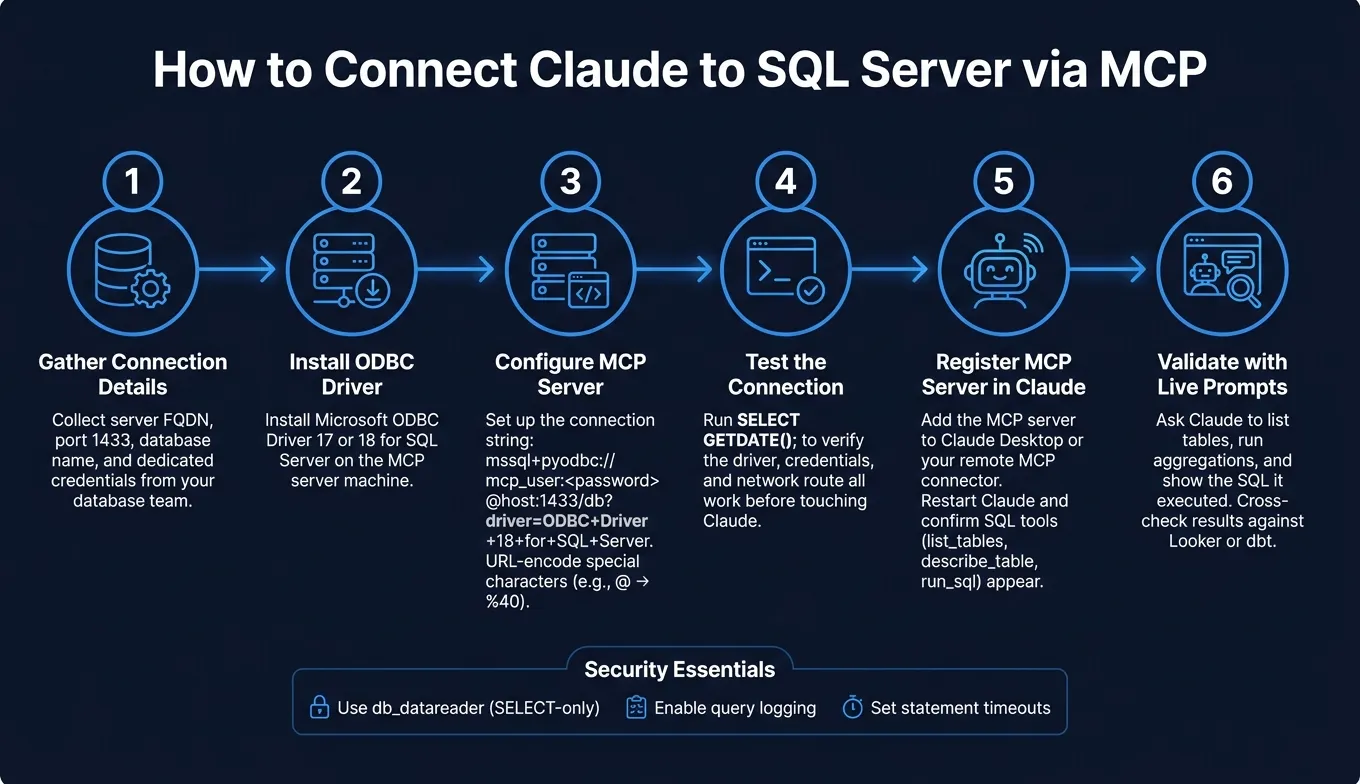 {How to Connect Claude to SQL Server via MCP: Step-by-Step Setup}
:::
{How to Connect Claude to SQL Server via MCP: Step-by-Step Setup}
:::
Now that the login, driver, and network path are in place, it’s time to hook the MCP server up to SQL Server and make sure it works before Claude enters the picture.
The order matters here:
- Set up the MCP server first
- Test the SQL Server connection
- Connect Claude second
SQL Server stays the source of truth the whole time.
Configure the MCP server with SQL Server credentials
Use your read-only SQL Server login in the MCP server config. A sample connection string looks like this:
mssql+pyodbc://mcp_user:<password>@your-sql-server.company.com:1433/analytics_db?driver=ODBC+Driver+18+for+SQL+ServerIf the username or password includes special characters, URL-encode them first. SQL Server uses port 1433 by default.
Test the database connection before opening Claude
Before you open Claude, test the MCP server with the same connection string. You can use the server’s built-in test command or run a quick query like this:
SELECT GETDATE();If that returns a timestamp, you’ve cleared the big hurdles: the driver is installed, the credentials work, and the network route is open.
Here are the most common failures and the fastest way to deal with them:
| Failure | Common root cause | Fastest fix |
|---|---|---|
| Login failed for user | User not mapped to the database | Run CREATE USER [user] FOR LOGIN [user]; in the target database. |
| Driver not found | Missing or wrong driver | Install the required SQL Server driver. |
| Permission denied | Missing read role | Run ALTER ROLE db_datareader ADD MEMBER [user]; |
| Connection timeout | Firewall or IP block | Allowlist the MCP server's IP and verify port 1433 is reachable. |
If you hit the untrusted certificate chain error, fix the TLS trust chain before you go any further.
Don’t register the server in Claude until every connection issue is fixed. It’s a lot easier to sort this out now than to debug tool failures later.
Register the MCP server in Claude Desktop or your remote MCP connector so Claude can see the SQL tools
Once the connection test passes, register the MCP server in Claude Desktop or your remote MCP connector. Then restart Claude.
After that, open a new conversation and ask Claude to list its tools. If the setup worked, Claude should show the SQL tools it can call, including schema inspection and query execution.
When Claude can list those SQL tools, you’re ready for read-only prompt testing.
Run SQL-backed prompts and make the setup safe for production
Now that Claude can reach SQL Server, the next step is simple: prove it’s using live data and then tighten the setup before more people use it.
Prompt examples that confirm the setup works
Use prompts that force actual SQL execution, not guessed answers.
Start with basic discovery:
- "List the tables in the analytics schema."
- "Summarize the analytics schema."
Claude should return your actual table names. If it shows objects that aren’t there, stop and check the MCP server registration or your connection settings.
Then test filtering, aggregation, and joins with prompts like these:
- "Show me the MRR trend for the last 6 months."
- "Show me the top 5 customers by revenue in Q3 2026."
These requests push Claude to use live warehouse data instead of making up a result.
For each response, ask Claude to show the SQL it ran. Before you move into deeper analysis, give it a short Markdown context file that covers your 10 most important tables, the key columns, and any known traps like double-counted refunds or timezone issues [3].
That same live connection that proves everything works can also create risk if you leave it unchecked.
Once these prompts return real results, lock things down before broader team use.
Permissions, auditing, and timeout settings for production use
Production needs tighter controls than a demo. No way around it.
Use dedicated SELECT-only credentials for each Claude-to-SQL Server connection.
If you want tighter control, put approved views in front of raw tables. That way, Claude only sees the fields you want exposed. Turn on query logging so you can review what Claude actually ran, and set a statement timeout that fits your setup to cut the chance of long-running queries during peak usage.
Raw SQL Server MCP access vs. governed semantic access
After basic validation, decide what your team needs: raw SQL access or governed metric definitions.
Direct SQL Server MCP is the fastest path for technical teams that are comfortable reviewing Claude’s SQL. The trouble starts when more people need to use the same metric definitions and expect the same answer each time.
The main issue isn’t query access. It’s keeping revenue, retention, and customer metrics consistent across users.
A governed semantic layer standardizes joins and metric logic so Claude returns the same answer across sessions. Querio connects to SQL Server directly and stores metric definitions as versioned context files alongside your dbt project, so the logic stays consistent across the app, Slack, and Claude via MCP.
"Wire your warehouse and context files to MCP once, and when a better model ships next year, you swap the model and keep everything else. It keeps your governance in one place instead of re-implemented per tool." - Rami Abi Habib, Founder, Querio [1]
The table below shows where each option fits for teams using SQL Server as a shared BI source:
| Direct SQL Server MCP | Governed MCP Layer (e.g., Querio) | |
|---|---|---|
| Metric consistency | Low - Claude infers logic per session | High - defined once, reused every time |
| SQL inspectability | Limited to warehouse logs | Inspectable and editable in the UI |
| Auditability | Basic query logging | Full lineage and versioned context files |
Choose direct MCP access when your team is technical and your schema is small. Move to a governed layer when multiple teams depend on the same SQL Server source and metric consistency across sessions matters most.
Conclusion: From zero to a working Claude-to-SQL Server workflow
Claude can now query SQL Server through MCP, with the MCP server handling the connection and running queries.
Now that the server is tested and Claude is connected, do one last pass before rollout. Test the MCP server by itself, use read-only credentials scoped to the right schema, and check early answers against Looker or dbt.
That last step matters more than it may seem. A system can connect just fine and still return the wrong answer if the joins or filters drift from your business rules. If more people start using Claude for the same core metrics - revenue, retention, churn - you don't want those definitions getting rebuilt from scratch every session.
That's where a governed semantic layer helps. Instead of leaning on a raw schema and hoping the model picks the right joins, you give it approved logic to work from. Querio stores joins, metrics, and definitions in a governed context layer with inspectable SQL.
Use this checklist to make sure the setup is live, accurate, and locked to the right permissions.
| Check | Action | Expected Result |
|---|---|---|
| Connectivity | Open Claude's MCP Servers panel | Tools like run_sql are visible |
| Discovery | Prompt: "List tables in analytics" | Accurate table list from SQL Server |
| Logic | Inspect the generated SQL | Joins and filters match business rules |
| Accuracy | Compare results to Looker or dbt | Numbers match the trusted source |
| Security | Check SQL Server Audit Logs | Query runs under the service account, not an admin login. |
FAQs
::: faq
Can Claude write to SQL Server or only read from it?
Claude should be set up with read-only access to your SQL Server database.
Use a dedicated database user with read-only permissions, such as the db_datareader role. That lets Claude query data and inspect the schema, but it can’t modify records, delete data, or drop database objects.
:::
::: faq
What should I check if Claude can’t see the SQL tools?
First, make sure your MCP server endpoint is set up the right way. After you sign in, check that it exposes these required tools: list_tables, describe_table, and run_sql.
If those tools still don't show up, go back through the setup and check a few common trouble spots:
- Confirm your OAuth redirect URIs match exactly
- Verify the connection string format, including the driver and host
- Make sure your credentials have the needed permissions on the data objects and compute resources
A small mismatch in any of those areas can block the tools from appearing, even when the rest of the setup looks fine. :::
::: faq
When should I use views instead of raw tables?
Use governed, cleaned, and de-duplicated views when exposing data to Claude through MCP, instead of raw staging tables.
Views give you a secure, stable layer between the model and your source data. That layer can hide schema changes, heavy joins, and messy raw records. It also helps you enforce row-level security and column masking, so the AI only sees the data it needs and works from consistent, auditable business logic. :::