Business Intelligence
How to Get Daily KPI Reports in Slack (Without a Data Request)
Automate approved daily revenue, orders, and conversion KPIs to a restricted Slack channel with data-recency checks and safe delivery.

I’d set up daily KPI reports by saving an approved warehouse analysis in Querio and scheduling it for a restricted Slack channel. You may need the data team once for access and metric approval - not for every daily report.
Here’s the setup I’d use:
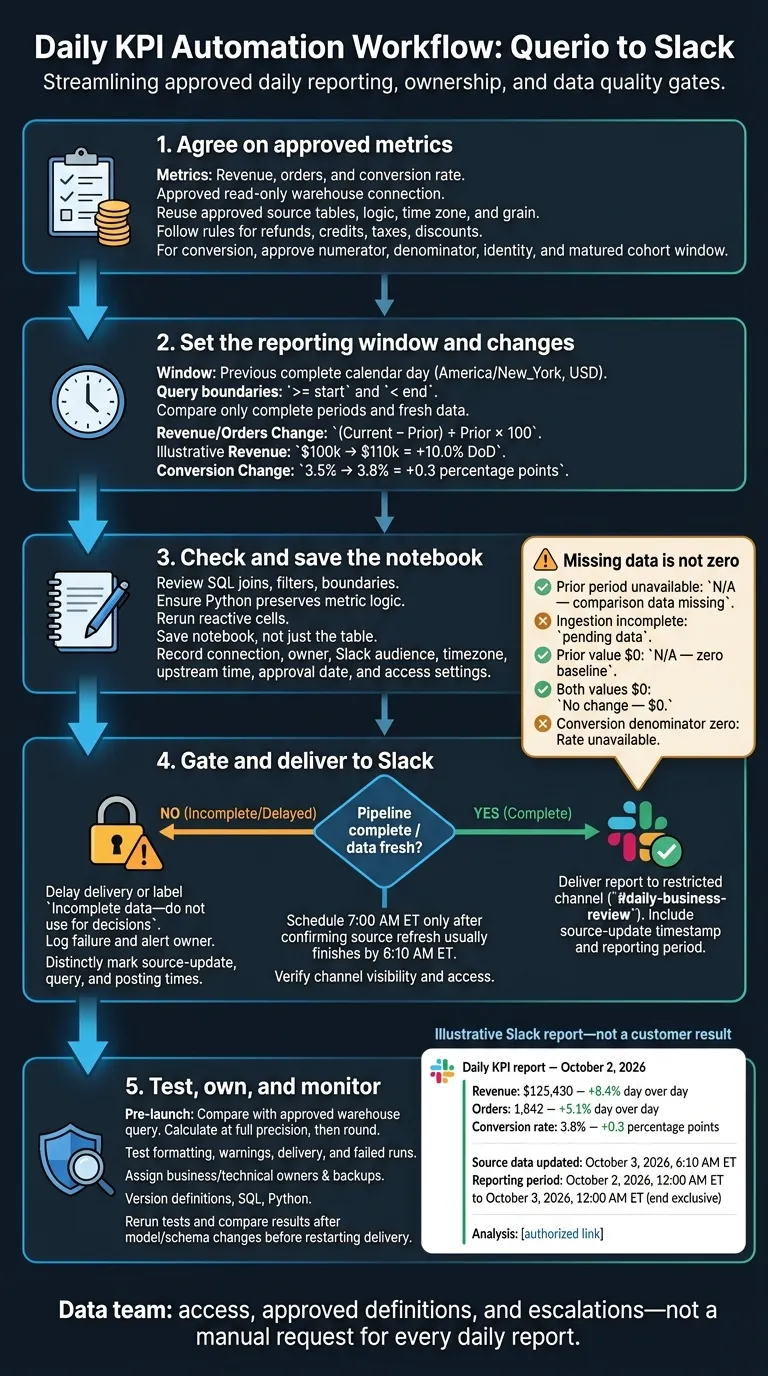
- Agree on the numbers: Use approved revenue, order, and conversion definitions through a read-only warehouse connection.
- Set the reporting window: Report the previous complete day in
America/New_York, format money in USD, and compare only complete periods. A conversion change from 3.5% to 3.8% is +0.3 percentage points, not +0.3%. - Check and save the logic: Review queries, date boundaries, and conversion denominators, then save the notebook with its owner and access settings.
- Control delivery: Schedule for 7:00 AM ET only if the source load finishes beforehand. Confirm channel permissions and include the source-update timestamp.
- Test and monitor: Check results against an approved query, test failed runs, assign backups, and review model or permission changes.
My rule: missing data is not zero. If a load is late, delay the report or mark it incomplete rather than sending numbers people might mistake for final results.
Choose KPIs and Calculate Daily Changes
Use Approved KPI Definitions
Once access and timing are set, lock in KPI definitions before building the Slack report. Start with revenue, orders, and conversion rate. Use the finance-approved revenue definition, and track bookings separately if your team uses that metric.[1][2] Follow the approved rules for refunds, credits, taxes, and discounts. For orders, count the approved paid-purchase event and apply the approved exclusions.
Apply the same care to growth metrics that depend on cohorts and elapsed time. For trial-to-paid conversion, define the numerator, denominator, identity matching rule, and cohort window.[3][5] Use only fully matured cohorts. If no window is approved, report a count rather than a rate.
Reuse the approved metric definition stored in Querio, including its source tables, joins, filters, time zone, grain, and calculation logic. Don’t add report-specific filters. Log definition changes so readers can tell business changes apart from changes in calculation logic.
Keep formatting consistent: dollar amounts with thousands separators, whole-number order counts, and rates with the same decimal precision.
Compare Complete Reporting Periods
With definitions fixed, compare each KPI against the prior complete period only. Include both the values and their changes in the daily Slack report.
Calculate revenue and order changes as (current complete day − prior complete day) ÷ prior complete day × 100. Both periods must pass data freshness checks. For conversion, compare cohorts with the same elapsed window, then subtract their rates to show percentage-point change.[4]
Change type Illustrative calculation Report label Relative percent change Revenue rises from $100,000 to $110,000 +10.0% day over day Percentage-point change Conversion rises from 3.5% to 3.8% +0.3 percentage points
Save these formulas in the report logic so every Slack delivery uses the same calculations.
Missing data is not zero. Use these labels to make the difference clear:
- If the prior period is unavailable, show “N/A - comparison data missing”. If ingestion is incomplete, show “pending data”.
- If the prior value is $0, show “N/A - zero baseline” or, when the current value is positive, “New activity - prior day was $0.” If both values are $0, show “No change - $0.” Use equivalent count labels for orders.
For conversion, a zero denominator makes the rate unavailable. A valid 0% rate still supports a percentage-point comparison.
Build and Save the Report in Querio
Query the Previous Day’s KPIs
Once you know how to measure key performance indicators and definitions are approved, build the daily report in Querio using the live warehouse. Run the approved KPI query for the previous complete calendar day, specifying the reporting timezone, date, and output fields. Include the conversion numerator and denominator so you can check the rate.
Check that the query uses >= start and < end boundaries in the reporting timezone. Test midnight and daylight saving time (DST) edge cases, then check how current the data is and record the data-through timestamp before scheduling delivery.[6]
Review the Logic and Save the Analysis
After the query runs, review the notebook before saving it for automation. Check the SQL joins, filters, denominators, and date boundaries. Make sure Python doesn't change the metric logic after SQL runs. After any edit, rerun reactive cells and confirm that tables, charts, and date labels update together.[7]
Save the notebook, not just the final table. The saved analysis keeps the approved KPI logic in place for recurring Slack delivery. Record the connection, owner, Slack audience, timezone, upstream completion time, and approval date.[7]
Schedule Daily Slack Delivery
After saving the report, schedule it to post automatically in Slack.
Choose the Channel and Delivery Time
Set the saved analysis to post daily to a channel such as #daily-business-review. Use ONLY a restricted Slack channel. Verify posting rights and channel visibility, and check for external Slack Connect users before sharing sensitive metrics.
Schedule delivery for 7:00 AM Eastern Time, but only after confirming that the daily refresh usually finishes by 6:10 AM ET. Use America/New_York to keep the schedule aligned with daylight saving time.
Before each post, require a pipeline-completion or data-recency check. If the check fails, delay delivery or label the report incomplete.
Example Daily Slack Report
This is an example, not a customer result. The saved Querio analysis supplies the report values. Use this format in the channel and keep commentary in a thread.
Daily KPI report  -  October 2, 2026

Revenue: $125,430  -  +8.4% day over day
Orders: 1,842  -  +5.1% day over day
Conversion rate: 3.8%  -  +0.3 percentage points

Source data updated: October 3, 2026, 6:10 AM ET.
Reporting period: October 2, 2026, 12:00 AM ET to October 3, 2026, 12:00 AM ET (end exclusive).
Analysis: [authorized link]
Generate the actual values and source-update timestamp from authorized data, not the message’s posting time. Link to the saved Querio analysis only where sharing permissions allow.
Test and Maintain the Daily Report
Test Accuracy, Source Updates, and Delivery
Before launch, run the saved report in a private test. Compare it with an approved warehouse query for the same period, using matching filters and time zone boundaries. Calculate changes at full precision, then round. Label changes from a zero baseline “N/A - zero baseline.”
Check formatting, links, and warning text on desktop and mobile, and verify scheduled delivery. Log the source-update timestamp separately from query time. A successful query doesn’t mean the data is complete.
Simulate a late load and a failed run. Confirm that delivery is withheld or clearly labeled “Incomplete data - do not use for decisions,” the failure is logged, and the owner gets an alert.[8][9]
Review Model and Permission Changes
After the first successful test, set up ownership and change control. Assign a business owner to interpret metrics and a technical owner to handle source-update checks, failed runs, and Slack delivery. Name backups and set a one-hour acknowledgment target for technical issues. The data team owns definitions and escalations - not daily manual reporting.
Version definitions, SQL, Python, joins, and reporting assumptions in the git repo that holds Querio's context, so each change goes through a pull request. When dbt models, warehouse schemas, or permissions change, rerun data tests and compare results before restarting delivery.[10] Recheck channel access and posting permissions. Investigate differences rather than changing numbers to fit expectations.
Conclusion: Automate Approved KPI Reports
Once testing is complete, confirm ownership and monitor changes so daily Slack delivery stays tied to approved metrics, source-update checks, and permission control.
FAQs
What access do I need to automate KPI reports in Querio?
To get started, you’ll need an active Querio account, administrative permissions, a paid Slack workspace, and a connection to your data warehouse, such as Snowflake, BigQuery, or Postgres.
You’ll use those administrative permissions to install the Querio app in Slack and set up warehouse connections. The app also needs permission to read designated channels, post tables and charts, and access user information for security.
How should I handle corrections to previously reported KPIs?
Update the metric logic in Querio’s context files in your git repo (the change opens a pull request your reviewers approve), then rerun downstream reports so notebooks, dashboards, and Slack reports all use the corrected definitions.
If a data source changes or you spot an error, update the connections and check the SQL or Python code. Keep metric documentation and version history clear so teams can tell certified, corrected, and experimental data apart.
When should I compare KPIs week over week instead of daily?
Compare KPIs week over week to spot longer-term trends, seasonal patterns, and performance shifts that daily ups and downs can hide. Daily reports help you check day-to-day business health and flag issues that need attention right away. Weekly digests help you track pipeline movement, deals dropping out at each stage, and changes in deal size or discounting.
Match your reporting schedule to decision-making cycles so stakeholders can act on changes that matter instead of reacting to daily noise.