Business Intelligence
Excel Copilot vs ChatGPT for Data Analysis
Compare Excel Copilot, ChatGPT, and Querio for workbook edits, uploaded-file analysis, governance, and pricing trade-offs.

I’d choose Excel Copilot for workbook edits and ChatGPT for uploaded-file analysis. If you need current warehouse data with shared metric rules, I’d also consider Querio. None replaces checking results against your source data.
Here’s how I’d compare them:
Quick Comparison
| Criteria | Excel Copilot | ChatGPT | Querio |
|---|---|---|---|
| Starting point | Excel workbook | Uploaded CSV or Excel file | Connected warehouse |
| Main output | Formulas, charts, and PivotTables | Python transformations, charts, and explanations | Editable SQL/Python and connected notebooks |
| Data updates | Depend on workbook connections | Usually require another upload | Live, read-only queries |
| Review and governance | Check formulas and Microsoft 365 permissions | Save code and verify plan-specific file policies | Check metric rules, queries, and warehouse permissions |
| Listed price in the article | $30/user/month plus a required Microsoft 365 license | $20/month for Plus | Not provided |
There’s no tested accuracy or speed winner here. The article provides no benchmark results, so I’d test both tools with the same data, prompts, and review steps before choosing.
I’d count review time alongside subscription costs, treat exports as snapshots, and confirm privacy terms and HIPAA compliance before uploading sensitive data. For PHI, that includes an applicable BAA covering the exact service and workflow.
::: @figure 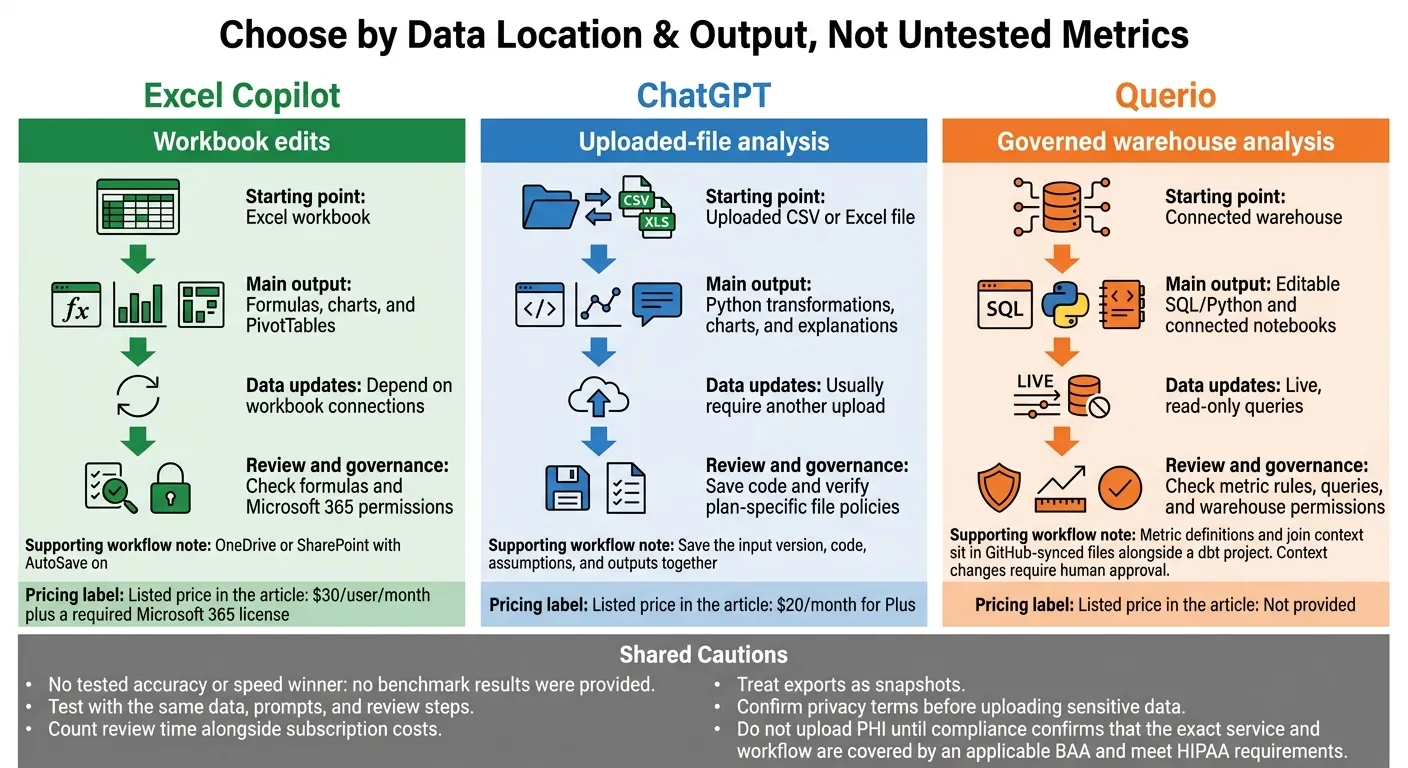 {Excel Copilot vs ChatGPT vs Querio: Choose Your Data Workflow}
:::
{Excel Copilot vs ChatGPT vs Querio: Choose Your Data Workflow}
:::
I Tested ChatGPT 5 vs Copilot in Solving Excel Problems #teamwater
::: @iframe https://www.youtube.com/embed/LMoJCQXWtAE :::
Capabilities and Workflows Compared
This table compares workflow capabilities - not accuracy or speed. The main choice is whether to work inside a workbook or analyze an uploaded file through a conversation. Availability depends on your license and product experience. Use this comparison as the baseline for the side-by-side test that follows.
| Area | Copilot in Excel | ChatGPT file analysis |
|---|---|---|
| Starting point | Existing workbook in Excel | Chat interface with CSV or Excel upload |
| Data location | OneDrive or SharePoint with AutoSave on | Uploaded CSV or Excel file in a temporary execution environment |
| Cleaning | Calculated columns, filtering, and formatting | Python/pandas transformations |
| Formulas | Editable formulas in workbook cells | Text-based formulas to copy into Excel |
| Python support | Integrated Excel Python in supported versions | Python runtime in file analysis |
| Charts | Native Excel charts and PivotTables | Chart images or interactive Plotly charts where supported |
| Refreshability | High when the data source is linked | Low; generally requires another upload and rerun |
| Collaboration | Workbook sharing under Microsoft 365 permissions | Shared files and outputs with saved code |
| Reproducibility | Preserve formulas, Python cells, and source connections | Code, inputs, and assumptions remain available for review |
| Auditability | M365 permissions and Purview auditing | Inspectable Python/pandas code |
| Warehouse connectivity | Via Microsoft Fabric or Power BI | Manual file upload only |
| Best fit | M365-integrated teams, such as finance and operations | Ad hoc analysts and non-coders |
Copilot in Excel: Working in a Workbook
Copilot can create editable in-cell formulas and calculated columns, filter and format data, summarize results, and build supported charts and PivotTables. Changes stay in the workbook, where you can inspect formulas and keep outputs tied to Excel tables. Python analysis is separate from Copilot and depends on your Excel version and plan.
For this workflow, store the workbook in OneDrive or SharePoint with AutoSave on. Use consistently structured tables with clear headers. Before accepting changes, review the formulas, confirm that dates and amounts are usable values, and check the calculation settings.
ChatGPT: Analyzing Uploaded Files
With file analysis enabled, ChatGPT can profile CSV and Excel files, clean data with Python/pandas, calculate grouped totals, generate charts, and explain its approach. Each upload supplies a one-time context for ad hoc analysis - not a live warehouse workflow.
Ask to see the transformation logic that was executed, including how it handled duplicates, missing values, and date parsing. Formula suggestions usually arrive as text you copy into Excel, rather than formulas inserted into your working workbook.
Save the input version, code, assumptions, and outputs together so another analyst can rerun the work. For Snowflake or BigQuery data, treat uploads as extracts, not live warehouse connections. The same-dataset test below puts these workflow differences into practice.
Same-Dataset Test: Results, Accuracy, and Time
No benchmark results were provided, so there's no basis to say either tool produces cleaner data, delivers more accurate results, or runs faster on the same dataset and prompts.
The planned comparison uses a fictional B2B SaaS sales dataset with order date, order ID, account ID, segment, owner, region, product, units, discount, revenue, cost, and channel.
Data Cleaning and Metric Calculation
Neither tool has cleaning outputs, calculated metrics, or correction counts available for review. Their workbook and uploaded-file workflows remain untested here.
Revenue Trends and Charts
No chart outputs or trend summaries were provided. That means their agreement with source revenue and margin totals cannot be checked.
Accuracy and Time
The supplied material includes no measurements for setup, generation, review, correction, or total completion time. Correction counts were not measured either, so the workflow comparison above does not establish a performance winner.
Pricing, Privacy, and Data Governance
Licenses and Total Workflow Cost
The subscription price is only part of the cost. Factor in the time your team spends reviewing outputs, too.
| Plan | Listed price | Billing and prerequisites | Access controls to verify |
|---|---|---|---|
| Microsoft 365 Copilot add-on | $30/user/month [5] | Requires a Microsoft 365 license; cannot be purchased on its own [5] | Excel access and tenant controls |
| ChatGPT Plus | $20/month [5] | Monthly subscription | File uploads [5] |
Sensitive Data, Permissions, and Retention
Price matters, but governance usually determines whether a tool can handle regulated data. Before approving sensitive data, security and legal teams should check storage, retention, identity, training, audit logs, and BAA terms against official documentation and the signed agreement.
| Control | Copilot in Excel: verify | ChatGPT: verify |
|---|---|---|
| Storage and retention | Workbook location, sharing links, and prompt/response retention | Uploaded-file storage, retention, deletion timing, and shared-chat access |
| Identity and permissions | Tenant identity, workbook permissions, and administrator controls | Workspace identity, membership, sharing permissions, and available SSO |
| Training and auditability | Contractual training exclusions and available activity logs | Plan-specific training policy and available audit or compliance logs |
| Regulated-data safeguards | Covered services, signed BAA where needed, and contractual restrictions | BAA availability for the exact service, covered features, and contractual restrictions |
Do not upload PHI until compliance confirms that the exact service and workflow are covered by an applicable BAA and meet HIPAA requirements. Finance teams should approve permitted data fields and retention rules first.
Querio for Governed Warehouse Analysis
Teams that need governed warehouse analysis rather than file uploads have a different set of needs.
Querio uses live, encrypted, read-only connections to Snowflake, BigQuery, Redshift, and PostgreSQL - without CSV exports. Metric definitions and join context sit in GitHub-synced files alongside a dbt project. Context changes require human approval.
Teams can inspect and edit SQL/Python, while reactive notebooks support review. Governed self-service analytics is available in-app and through Slack, Teams, or MCP.
| Workflow need | Querio’s relevant capability |
|---|---|
| Analyze current warehouse data | Live, read-only queries rather than exported snapshots |
| Keep metric definitions consistent | Governed metric and join context synced to GitHub |
| Review and revise calculations | Editable SQL/Python with connected notebook cells and updating charts |
Conclusion: Choose by Data Location and Output
Use Copilot in Excel for edits within a workbook. Use ChatGPT for uploaded files and custom Python transformations. Before comparing accuracy or speed, use the same dataset, prompts, and review steps.
In the examples above, the choice comes down to where your data lives and what output you need.
| Requirement | Recommended tool | What to check |
|---|---|---|
| Editing within a workbook | Copilot in Excel | Formula correctness and review time. |
| Uploaded-file analysis and Python transforms | ChatGPT | Python logic, transformed outputs, and whether files are up to date. |
| Governed analysis within Snowflake or BigQuery | Querio | Metric definitions, query logic, and warehouse permissions. |
Weigh data location, output type, verification, and governance. These are essential features of modern business intelligence tools that ensure long-term scalability. Up-to-date data and privacy can matter more than convenience. A correct snapshot may still be wrong for recurring reporting, and a well-written answer doesn't prove that sensitive data was handled correctly.
FAQs
::: faq
How should I validate AI-generated revenue calculations?
Keep auditability and human oversight front and center. Inspect the underlying SQL or Python instead of treating the output as a black box [1][2]. Test generated queries in a secure, non-production setting before running them against live data [3][4].
Maintain a fixed regression suite of questions with known answers to check accuracy whenever definitions or models change [2]. Use a governed semantic layer to keep revenue definitions consistent and prevent discrepancies caused by on-the-fly calculations [1][4]. :::
::: faq
When should my team move beyond file uploads?
File uploads stop working well when you keep re-exporting the same report - or colleagues see conflicting totals because they exported data on different days.
Consider a live warehouse connection when you need consistent metrics under shared data rules, or when company security policies prohibit uploading sensitive data. Connecting directly to Snowflake, BigQuery, or Redshift lets everyone work from a single source of truth instead of separate, static snapshots. :::
::: faq
How can I assess AI analysis tools for HIPAA compliance?
Choose tools that offer signed Business Associate Agreements (BAAs) and SOC 2 Type II certification. Check that role-based access control (RBAC) and row-level security limit each user to the data they’re allowed to access.
Use direct data warehouse connections with read-only, encrypted credentials instead of manual file uploads, which can expose protected health information (PHI). Also, confirm that the vendor explicitly prohibits using customer data to train its underlying AI models. :::