Business Intelligence
How to Let AI Query MySQL Without Write Access
Give AI a dedicated MySQL account with SELECT-only grants, SSL, host limits, and query logging so it can read data but not write.

If I want AI to query MySQL safely, I give it a separate MySQL user with SELECT only access. That is the whole control point: MySQL allows reads and blocks writes itself.
Here’s the short version:
- I create a dedicated account for the AI tool
- I grant only
SELECTon the schema or views I approve - I lock the account to a known host or subnet
- I turn on SSL/TLS
- I test that
SELECTworks and thatINSERT,UPDATE,DELETE,CREATE,ALTER, andDROPfail - I log queries and rotate credentials on a set schedule
That matters because prompt rules are not enough. If the model makes a mistake, or someone tries prompt injection, the database must still say no. In practice, that means the AI should use a read replica when possible, or limited views if the data set includes PHI, PCI, or other sensitive fields.
A simple setup often looks like this:
CREATE USER 'ai_readonly'@'10.0.0.%' IDENTIFIED BY 'StrongPassw0rd!';
GRANT SELECT ON reporting_db.* TO 'ai_readonly'@'10.0.0.%';
ALTER USER 'ai_readonly'@'10.0.0.%' REQUIRE SSL;
Then I confirm the controls with checks like:
SELECT CURRENT_USER();SHOW GRANTS FOR CURRENT_USER;SELECT 1;- a blocked write test such as
INSERT ..., which should return MySQLERROR 1142
Bottom line: if the AI can only log in with a MySQL account that has read access, it cannot change data, even if it tries.
How To Make A Database READ ONLY In MySQL
::: @iframe https://www.youtube.com/embed/7kFzNo6tD-k :::
Create a read-only MySQL user with minimum required privileges
Use one dedicated MySQL account with only the grants the assistant needs. Don't reuse root or shared app credentials. Then limit access to only the schema or views the assistant will touch.
Create the user and grant SELECT on the right schema
Grant SELECT only on the approved schema:
-- Create a dedicated AI user restricted to an internal network range
CREATE USER 'ai_readonly'@'10.0.0.%' IDENTIFIED BY 'StrongPassw0rd!';

-- Grant read access to the reporting schema only
GRANT SELECT ON reporting_db.* TO 'ai_readonly'@'10.0.0.%';
If the AI needs to query or inspect views, add SHOW VIEW:
GRANT SELECT, SHOW VIEW ON reporting_db.* TO 'ai_readonly'@'10.0.0.%';Need the same setup for several AI users? Use a role so you don't have to repeat grants over and over:
CREATE ROLE 'ai_readonly_role';
GRANT SELECT ON reporting_db.* TO 'ai_readonly_role';

CREATE USER 'ai_readonly'@'10.0.0.%' IDENTIFIED BY 'StrongPassw0rd!';
GRANT 'ai_readonly_role' TO 'ai_readonly'@'10.0.0.%';
SET DEFAULT ROLE 'ai_readonly_role' FOR 'ai_readonly'@'10.0.0.%';
Roles make it much easier to keep read-only access consistent across staging, replicas, and analytics.
Restrict access by host, SSL, and schema or view scope
Lock the account to a known app server IP, hostname, or internal VPN subnet like 10.0.0.% instead of using @'%'. That's a small change with a big payoff. It narrows who can even attempt to use the account.
For regulated data - PHI in healthcare, PCI in finance - limit access to specific views instead of a full schema. For example, a view like analytics_customer_summary can expose only the columns the AI needs and hide sensitive fields at the database layer.
Require SSL/TLS so credentials and query results are encrypted in transit:
ALTER USER 'ai_readonly'@'10.0.0.%' REQUIRE SSL;Verify that the setting is in place:
SELECT user, host, ssl_type FROM mysql.user WHERE user = 'ai_readonly';Add a connection limit so a runaway AI workflow doesn't swamp a production replica:
ALTER USER 'ai_readonly'@'10.0.0.%' WITH MAX_CONNECTIONS_PER_HOUR 50;Store credentials in a secret manager. Don't hard-code them, and don't commit them.
Privilege matrix for an AI read-only account
Use this table as a policy reference when reviewing current accounts or setting up new ones.
| Privilege | Status | Notes |
|---|---|---|
SELECT |
Allowed | Core read access for all AI queries |
SHOW VIEW |
Allowed | Add only if the AI queries or inspects views |
INSERT |
Blocked | No data creation |
UPDATE |
Blocked | No record modification |
DELETE |
Blocked | No data removal |
CREATE |
Blocked | No new tables or schemas |
ALTER |
Blocked | No schema changes |
DROP |
Blocked | No table or database deletion |
GRANT |
Blocked | No privilege escalation |
REVOKE |
Blocked | No modification of other users' access |
"Querio should use a dedicated read-only account whenever possible. This keeps permissions clear and makes it easier to audit what Querio can access." - Querio Documentation [1]
If an account doesn't match this matrix - especially one with GRANT ALL or access to *.* - treat it as a misconfiguration, not a shortcut.
After you've scoped the account, connect it to the AI tool and test it. Reads should work. Writes should fail.
Connect the read-only account to an AI assistant or agent
Once the account is scoped, connect it to Querio or your agent layer. Use the tool’s standard MySQL connection settings. MySQL still enforces the permission boundary.
Configure a MySQL connection in Querio with read-only credentials
In Querio, adding a MySQL data source comes down to the usual connection fields:
- Host: the FQDN or internal DNS name of the MySQL server, such as
mysql-prod.analytics.internal - Port:
3306 - Database: the specific schema or reporting database the AI should query
- Username: a dedicated read-only service account, such as
ai_readonly - Password: a strong secret stored in a secret manager
- SSL/TLS: turn on "Require SSL" and provide the CA certificate
Then map those same read-only credentials into the agent’s query path.
Querio’s governed context layer lets you define canonical metrics once, then generate inspectable SQL against live MySQL. That matters because you want the AI to work from the same metric logic every time, not make it up on the fly.
Network placement matters too. Put Querio in the same VPC as MySQL, or connect it through VPN or private peering. Then restrict inbound access to the AI tool’s IP range or security group. Keep port 3306 off the public internet.
Use MCP or internal agents while preserving MySQL permissions
For agent frameworks, keep credentials inside the server-side tool, not in the prompt. If your team uses Claude or another assistant through MCP, store the MySQL credentials inside the MCP server, ideally in environment variables backed by a secret manager. The assistant should call a constrained tool like mysql_readonly_query, not connect to the database on its own.
The tool must use a MySQL account with SELECT only. MySQL is the enforcement boundary, so prompt injection or jailbreak attempts won’t change what that database user can do.
You can lock this down even more by restricting the MySQL user to the MCP server host, for example, 'mcp_readonly'@'mcp-server.internal'. It also helps to log every query with the SQL, user, and timestamp. That gives you an audit trail and a clean control point for SOC 2 or HIPAA reviews.
Verify that reads work and writes fail
Once the AI connection is live, do one verification pass before you put it in production. The goal is simple: MySQL must block every non-SELECT statement, not the AI tool.
Run positive tests for read access
First, make sure the AI session is using the right account. Run SELECT CURRENT_USER(); in the AI interface and check that it returns the dedicated read-only username, not an admin account or a shared app login.
Then run SHOW GRANTS FOR CURRENT_USER; and review the output. You want to see only SELECT on the approved schema or views. There should be no INSERT, UPDATE, DELETE, or DDL rights.
After that, run a few read checks to confirm access works from end to end:
| Test | Example SQL | Expected Result |
|---|---|---|
| Connectivity | SELECT 1; |
Returns 1 |
| Schema inspection | DESCRIBE reporting.subscriptions; |
Returns column list |
| MRR by month | SELECT DATE_FORMAT(billing_period_start, '%Y-%m-01') AS month, SUM(mrr_usd) AS total_mrr_usd FROM subscriptions WHERE status = 'active' GROUP BY month ORDER BY month; |
Monthly USD totals |
Run each query both in MySQL and through the AI interface. The results should match. If those reads pass, move on to the write-block tests.
Run negative tests for blocked writes and DDL
Now connect as the AI read-only user and try each statement below. Every one of them should fail with a MySQL permission error.
INSERT INTO accounts (account_id, name) VALUES (999999, 'Test AI Write');UPDATE accounts SET name = 'Updated by AI' WHERE account_id = 1;DELETE FROM accounts WHERE account_id = 1;CREATE TABLE ai_test_table (id INT PRIMARY KEY);ALTER TABLE accounts ADD COLUMN ai_test_flag TINYINT(1);DROP TABLE ai_test_clone;(run against a disposable object in a non-production clone)
Each command should return an error similar to ERROR 1142 (42000): INSERT command denied to user 'ai_readonly'@'host' for table 'accounts'. Save the exact error text in your change record.
That detail matters. If someone asks later, “Did the database block the write, or did the app just avoid sending it?”, you’ll have proof from MySQL itself.
Checklist for production rollouts
Use this as the rollout gate.
| Check | What to Verify |
|---|---|
| Account & grants | SHOW GRANTS confirms SELECT only on approved schemas or views; no write or DDL privileges |
| Dedicated credentials | AI uses its own service account, not a shared or human account |
| Connection target, SSL/TLS, and network scope | String points to a read replica; SSL is required with a CA certificate; private endpoints and firewall rules limit access to the intended MySQL instance |
| Positive tests passed | SELECT queries return correct results through the AI interface |
| Negative tests passed | INSERT, UPDATE, DELETE, CREATE, ALTER, DROP all return MySQL Access denied errors |
| Query logging enabled | Every AI-generated SQL statement is logged with user, timestamp, and full SQL text |
| Credential rotation scheduled | Rotation policy is defined and stored in a secrets manager |
| Quarterly review scheduled | Access review is calendared to re-run SHOW GRANTS, check usage patterns, and confirm compliance posture |
If your team works under HIPAA or SOC 2, include the negative test output and SHOW GRANTS snapshots in your audit evidence package. Auditors usually want to see layers: app-level controls on one side, database-level enforcement on the other. That’s how you show there isn’t a quiet bypass path.
It also helps to store logs in a secure, append-only system with a clear retention policy. When an audit review or post-incident investigation comes around, those records save a lot of scrambling.
Choose the right model for governed AI access
::: @figure 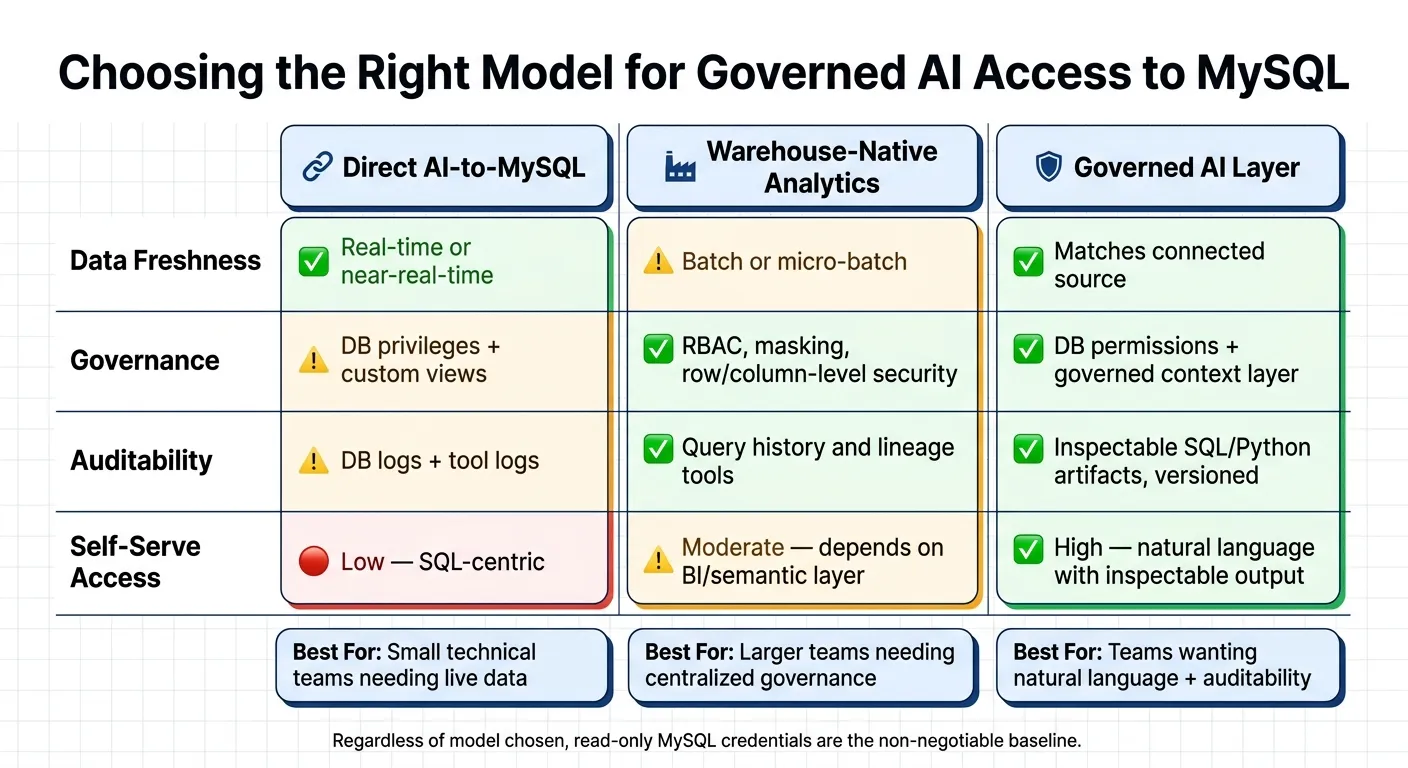 {Direct MySQL Access vs. Warehouse Analytics vs. Governed AI Layer}
:::
{Direct MySQL Access vs. Warehouse Analytics vs. Governed AI Layer}
:::
Once the read-only account is set up, the next call is where governed AI should live: right on top of MySQL, or inside a warehouse-native analytics layer.
Direct read-only MySQL access vs. warehouse-native governed analytics
Use direct read-only MySQL access when you need live operational data and your team is comfortable working close to the schema. Go with a warehouse-native layer when you need centralized governance, metric consistency, and broader self-serve access.
As data teams grow, direct access can make metric definitions tougher to standardize and audits tougher to centralize. Warehouse-native systems like Snowflake, BigQuery, and Redshift keep governance in one place with RBAC, masking, and query history. The trade-off is data latency and more infrastructure overhead.
The table below helps you pick the safest usable pattern for live analysis without write risk.
| Dimension | Direct AI-to-MySQL | Warehouse-native analytics | Governed AI layer |
|---|---|---|---|
| Data freshness | Real-time or near-real-time | Batch or micro-batch | Matches the connected source |
| Governance | DB privileges + custom views | RBAC, masking, row/column-level security | DB permissions + governed context layer |
| Auditability | DB logs + tool logs | Query history and lineage tools | Inspectable SQL/Python artifacts, versioned |
| Self-serve access | Low - SQL-centric | Moderate - depends on the BI or semantic layer | High - natural language with inspectable output |
In plain English, the trade-off comes down to three things: freshness, governance, and who needs to use the results. If a small technical team needs live data and doesn’t mind working close to raw tables, direct MySQL access can be a good fit. If more teams need access, shared definitions start to matter a lot more.
Querio sits on top of live MySQL and inherits its permission model, so read-only credentials still block writes. It also adds governed context for metric definitions and joins, then returns inspectable SQL or Python.
Key takeaways for data leaders
This choice is about governance depth, not security fundamentals. Small, technical teams can stay close to MySQL. Larger teams usually need governed context, reusable logic, and self-serve access.
If your team picks direct MySQL access, the read-only controls above are still the non-negotiable base.
FAQs
::: faq
Should I point the AI at production MySQL or a read replica?
For simple checks, a MySQL read replica is usually the better pick. It gives you fast, lower-risk access and helps you avoid putting extra load on production.
If you need consistent metrics across teams or more complex historical reporting, warehouse-native analytics are the better fit. In either case, use a dedicated read-only user with SELECT-only permissions and an encrypted connection. :::
::: faq
When should I use views instead of granting SELECT on a full schema?
Use views when you need stricter governance, standard metric definitions, or masking for sensitive data. Instead of exposing raw or messy staging tables, views expose curated business logic.
They also let you apply row-level security and column masking at the source. That makes the schema simpler for the AI, cuts down on bad joins, and leads to more consistent reporting. :::
::: faq
What should I log and review to audit AI access over time?
Maintain attributable logs across your application layer, semantic layer, and data warehouse. Track user prompts, session IDs, prompt-to-SQL mappings, tool calls, metric definition changes, and SQL execution details like row counts and bytes scanned.
Then review those logs with intent. Look for unusually large result sets, attempts to access restricted schemas, repeated failed queries, or attempted DDL commands.
The key is to connect the dots. Correlate connector logs with warehouse execution logs so you can verify why a query ran and confirm that it matched governed business definitions. :::