Business Intelligence
Best AI BI Tools That Connect to Snowflake (2026)
The best AI BI tools that connect to Snowflake, compared for non-technical users, governance and natural language querying.
If I had to boil this down to one takeaway, it’s this: the best Snowflake BI tool is the one that queries live data, keeps metric logic in one place, and lets me check how the AI got the answer.
Here’s the short version:
Querio fits governed self-serve with inspectable SQL and Python.
ThoughtSpot fits search-led questions for execs and business teams.
Sigma fits spreadsheet-style work on live Snowflake data.
Power BI with Copilot fits Microsoft-heavy reporting stacks.
Tableau with Pulse fits exec dashboards and metric updates.
Hex fits analyst-led SQL and Python notebook work.
Snowflake-native tools fit teams that want logic and AI to stay inside Snowflake.
What matters most is simple:
Live vs. imported data
Where metric or semantic layers live
Whether AI answers are traceable
How well the tool works with Snowflake security and joins
A few facts stand out. ThoughtSpot supports live-query analysis at up to 250 million rows in its live mode. Cortex Analyst is reported at around 90%+ text-to-SQL accuracy in Snowflake’s own evaluation materials. And Power BI Copilot needs Premium Per User at $24/user/month or Fabric capacity.
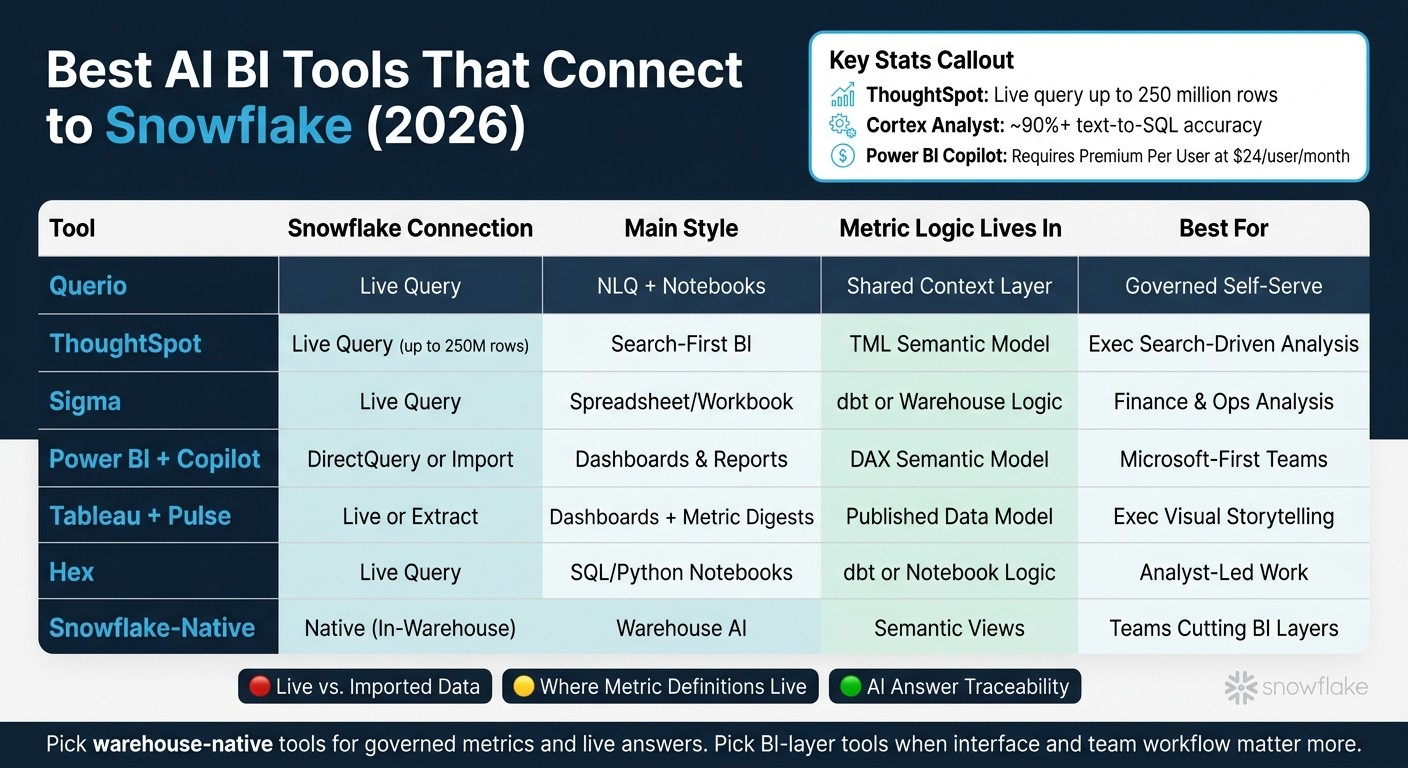
Best AI BI Tools for Snowflake: Side-by-Side Comparison (2026)
Table 3: Who It Fits Best, and What You Give Up
Tool | Best Fit | Main Tradeoff |
|---|---|---|
Querio | Governed self-serve | Separate layer above Snowflake |
ThoughtSpot | Exec search-driven analysis | Requires TML semantic model |
Sigma | Finance and ops analysis | Metric logic in dbt |
Power BI with Copilot | Microsoft-first reporting stacks | Requires DAX semantic model |
Tableau with Pulse | Exec dashboards and metrics | Manual TDS export setup |
Hex | Analyst-led notebook work | Needs SQL/Python skills |
Snowflake-native | Teams cutting BI layers | Upfront modeling, dedicated compute |
Talk To Your Data: Snowflake Intelligence Demo
Quick Comparison
Tool | Connects Live to Snowflake | Main Style | Metric Logic Lives In | Best For |
|---|---|---|---|---|
Querio | Yes | NLQ + notebooks | Governed self-serve | |
ThoughtSpot | Yes | Search-first BI | TML semantic model | Exec search-driven analysis |
Sigma | Yes | Spreadsheet/workbook | dbt or warehouse logic | Finance and Ops analysis |
Power BI with Copilot | Yes, with DirectQuery; also import mode | Dashboards and reports | Power BI semantic model + DAX | Microsoft-first teams |
Tableau with Pulse | Yes; Semantic Views need live setup and export workflow | Dashboards + metric summaries | Tableau data model | Exec dashboarding |
Hex | Yes | SQL/Python notebooks | dbt or notebook logic | Analyst-led work |
Snowflake-native | Native | In-warehouse AI | Semantic Views | Teams cutting extra BI layers |
If you’re choosing fast, I’d use this rule: pick warehouse-native tools when you care most about governed metrics and live answers; pick BI-layer tools when interface and team workflow matter more.
1. Querio
Querio is an AI-native analytics workspace for Snowflake teams. It connects straight to Snowflake and lets people ask questions in plain English.
Snowflake Integration Depth
Querio runs live queries on Snowflake with encrypted, read-only credentials. It doesn't move data into a separate proprietary store, which means your Snowflake permissions and access controls stay in place.
AI Analysis Workflow
Querio turns questions into SQL or Python, runs that code on Snowflake, and returns the result. Each answer includes the underlying code, so teams can review it, check the logic, and reuse it later.
It also comes with interactive notebooks. That makes it easier for analysts to iterate on queries and dig into deeper analysis without bouncing between tools. In practice, this flow works best when the metric layer stays consistent.
Semantic Governance Model
Querio's shared context layer puts joins, metric definitions, and business terms in one place. You define the logic once, then reuse it across questions, notebooks, dashboards, and AI answers.
That setup gives data teams a clear way to maintain and version logic over time. The payoff is simple: self-serve analytics stays governed and consistent, even as more people use it.
Best-Fit SaaS Use Case
Querio is a strong fit for 100–500-employee B2B SaaS teams that use Snowflake for governed self-serve analytics. It makes sense when the data team needs to scale access to trusted answers without giving up control of definitions or warehouse-native governance.
If your team wants that same warehouse-native setup but with a different workflow, the next section covers ThoughtSpot.
2. ThoughtSpot
ThoughtSpot takes a search-first approach to analytics. Instead of clicking through dashboards, users type a question and get a live answer from Snowflake. That shifts the focus a bit. The big differentiators aren’t just charts or UI polish. They’re integration depth and governance.
Snowflake Integration Depth
ThoughtSpot is warehouse-native by design. It queries Snowflake live, so results stay current instead of relying on stale extracts. It also inherits Snowflake row-level security (RLS), which keeps access in line with warehouse permissions.
That matters more than it might seem at first. If your team already manages access in Snowflake, ThoughtSpot can follow those same rules without forcing a separate permission setup. The platform can handle up to 250 million rows in live query mode [3], which makes it a solid option for large-scale ad hoc analysis that would break many dashboard-first tools.
AI Analysis Workflow
Spotter, formerly Sage, handles multi-step reasoning and conversational follow-ups. In plain English, a user can ask one question, then keep digging without starting over each time.
SpotIQ works in the background to detect trends and anomalies on its own, surfacing insights without waiting for someone to ask. That can save time, especially when teams don’t know what they should be looking for yet.
The Answer Explainer feature adds another layer of trust. It shows which Snowflake fields were used and how calculations were performed. For teams that need to audit AI-generated results, that’s a big deal.
Semantic Governance Model
Governance runs through TML, ThoughtSpot’s YAML-based semantic layer for metrics, synonyms, and table relationships. This is what keeps natural-language answers consistent across users. If metrics and synonyms are defined cleanly, the search experience stays steady as usage grows.
It can also pull column descriptions from Snowflake Semantic Views. That said, there’s no magic here. Accuracy depends on clean metadata and well-managed synonyms. If the underlying definitions are messy, the answers can drift.
Those governance tradeoffs shape where ThoughtSpot fits best.
Best-Fit SaaS Use Case
ThoughtSpot works best when executives and business users need immediate answers to one-off questions, not recurring operational reports. The search bar lowers the barrier for non-technical users, and Spotter can handle follow-up questions without pulling in an analyst every time.
It also offers an Embedded product for SaaS companies that want to bring search-driven analytics into their own product. That includes multi-tenant security and row-level data segregation, which is often a must-have in customer-facing analytics.
Where it’s less strong is in polished recurring dashboards or deeply customized visualizations.
Teams that want more controlled, spreadsheet-like exploration often look at Sigma next.
3. Sigma
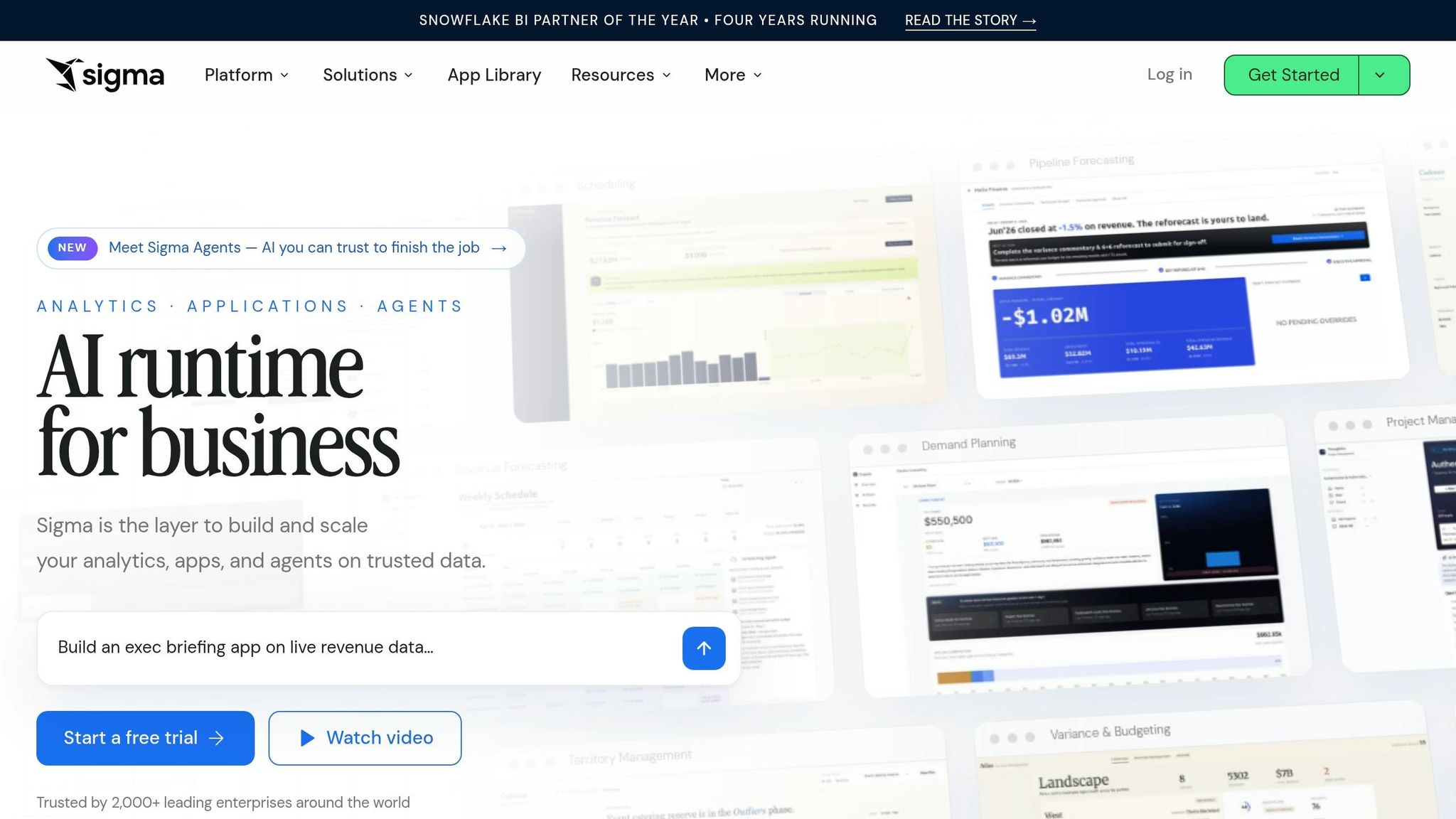
For teams that like workbook-style analysis more than search, Sigma changes the way people work with Snowflake without changing the live connection underneath. Instead of a search bar, users get a spreadsheet-style interface that runs right on top of Snowflake. That makes it feel familiar to Finance and Ops teams, but without the scale limits that come with actual spreadsheets.
Snowflake Integration Depth
Sigma runs live SQL pushed down to Snowflake, so there are no extracts and no reload cycles. Input Tables also let users write back to Snowflake for planning, forecasting, and what-if analysis. On top of that, Sigma surfaces dbt models and metrics inside workbooks, which helps keep analysis tied to the same transformation logic already used by the data team. This setup works best when metric definitions already live in one central place.
AI Analysis Workflow
Ask Sigma handles multi-step analysis by finding the right sources, building the analysis, and explaining the result. That last part matters. Users can inspect the reasoning behind an answer instead of just taking a number at face value. [1]
Semantic Governance Model
Sigma leans on Snowflake Row-Level Security for access control and dbt for metric definitions. So compared with tools that have a dedicated semantic layer, the governance model is lighter. [4][3]
Best-Fit SaaS Use Case
Sigma is a strong fit for Finance and Ops teams at data-forward SaaS companies that want to move beyond spreadsheets but still work in a familiar grid-style setup. It’s less suited to cases where strict metric governance is the top priority, especially for non-technical self-serve users. It works best for teams that want live planning and analysis in the same place.
4. Power BI with Copilot

Power BI with Copilot makes the most sense for Microsoft-first SaaS teams already living in Excel, Teams, and SharePoint. The tradeoff is pretty clear: do you care more about Microsoft-native workflows, or do you want tighter warehouse-native control in a Querio vs Power BI comparison?
Snowflake Integration Depth
Power BI connects to Snowflake through a native connector and supports both Import and DirectQuery modes. DirectQuery keeps data live. Import pulls data into VertiPaq, which breaks the warehouse-native model.
Support for native Snowflake Semantic Views is still limited. And metadata like descriptions and synonyms doesn't flow over on its own.
AI Analysis Workflow
Copilot can generate DAX, suggest visuals, build report pages, and summarize dashboards in plain English. It works inside your existing datasets instead of acting like a standalone analyst.
To use Copilot, you need Premium Per User (PPU) at $24/user/month or a Microsoft Fabric capacity plan[1][3].
Semantic Governance Model
Business logic sits in Power BI semantic models and DAX. Row-level security runs through DAX rules and Azure AD. But Snowflake metadata doesn't carry over on its own, so governance stays split across systems.
Best-Fit SaaS Use Case
Power BI with Copilot is a better fit when Microsoft-native reporting matters more than live, warehouse-first analysis. If your team leans toward narrative, executive-facing reporting, it makes sense to compare it with Tableau with Pulse next.
5. Tableau with Pulse
Tableau Pulse takes a hands-on approach to metric monitoring. It sends digest-style metric updates and anomaly callouts on its own, powered by Salesforce's Einstein AI engine [6]. That sounds smooth on paper. In practice, Snowflake Semantic View support only works in certain setups, so the connection can be more brittle than it first seems.
Snowflake Integration Depth
Tableau needs a live Snowflake connection to work with Semantic Views. Extracts don't support them because the views are resolved at query time [5].
There are two main connection methods, and that choice has a big effect on what Tableau can and can't do:
Feature | Standard Connector | Snowflake TDS Export |
|---|---|---|
Snowflake-defined metrics | Can fail without TDS export | Supported via |
Metadata/Descriptions | Not carried through | Not carried through |
Field Organization | Flat field list | Folders by source table |
Setup Effort | Simple | Manual re-export and replacement |
If Tableau needs to read Snowflake Semantic Views, use SYSTEM$EXPORT_TDS_FROM_SEMANTIC_VIEW [5]. And here's the catch: every time the semantic view changes, you need to re-export the file and replace it in Tableau. That's the part that can turn a clean setup into a bit of a maintenance chore.
AI Analysis Workflow
Pulse works well for leadership teams because it turns metrics into plain-language summaries and flags anomalies on its own [6].
Think of it as a dashboard that doesn't just sit there waiting to be checked. It nudges people with updates, which is handy for executives who want the headline first and the chart second.
Semantic Governance Model
Metric drift shows up when different workbooks define the same KPI in different ways [3]. That's a common headache in BI, and Tableau doesn't fully solve it here.
Snowflake column descriptions also don't carry over through either connection method [5]. So even if the data lives in Snowflake, the meaning behind that data can still get split across systems. One team may rely on Snowflake for definitions, while another fills in context inside Tableau. That's where governance starts to fray.
Best-Fit SaaS Use Case
Tableau with Pulse fits analyst-heavy B2B SaaS teams that care a lot about polished visual storytelling and executive-facing dashboards, especially if they're already deep in the Salesforce ecosystem.
The tradeoff is pretty simple: Pulse is strong for automated executive metric monitoring, but Snowflake Semantic View support needs careful handling around the export workflow to stay dependable.
Teams that want notebook-style, editable analysis on live Snowflake data will usually lean toward a more hands-on workflow.
6. Hex
Hex is a strong pick for analyst-led, notebook-style Snowflake analysis. It works well for teams that want SQL, Python, and shared workspaces in one place. The big draw is simple: analysts can do governed ad hoc analysis inside the notebook instead of bouncing between tools.
Snowflake Integration Depth
Hex connects to Snowflake with live, read-only access. That means analysts work straight from governed warehouse data, not exports or stale copies.
That setup matters even more when AI writes part of the query. Teams can still inspect what the AI produced and see exactly what will run.
AI Analysis Workflow
Hex's Magic AI can generate SQL and Python from prompts, and analysts can review and edit each query before it runs. That's a big deal. You get speed, but you don't give up control.
Published notebooks can also turn into Hex apps with scheduled runs and screenshot alerts for business users. So the same analysis can move from analyst workflow to shared reporting without much friction.
Semantic Governance Model
Hex leans on dbt-based semantic definitions to keep metrics consistent across projects.
Best-Fit SaaS Use Case
Teams often like the SQL-plus-Python workflow and Magic AI. The tradeoff is that the viewing experience for non-technical users is less polished. So if your goal is analyst-led reporting, Hex makes a lot of sense. If your goal is broad self-service dashboarding for the whole company, it may feel a bit rough around the edges.
That makes Hex a strong fit for small-to-mid analytics teams at B2B SaaS companies that need analyst-led reporting, not self-service dashboarding.
If you want Snowflake-native AI without another BI layer, the next section covers Snowflake's own options.
7. Snowflake-native AI Options (Cortex, Intelligence, Semantic Views)
Snowflake-native AI matters most when your semantic layer, governance, and analysis all need to stay in the warehouse. If your team already works deep inside Snowflake, you may not need a separate BI layer for every job. Snowflake’s native AI stack - Cortex Analyst, Snowflake Intelligence, and Semantic Views - keeps analysis, governance, and access patterns in one place.
Snowflake Integration Depth
These options run inside Snowflake, so the data stays put and inherits Snowflake row-level security and access policies.[4][6]
AI Analysis Workflow
Semantic Views are governed Snowflake objects that store business logic directly in Snowflake: metrics, dimensions, facts, and relationships. They translate raw field names like amt_ttl_pre_dsc into business terms like “Gross Revenue.”[14] That’s the core idea here: one semantic layer can support more than one AI workflow.
Cortex Analyst sits on top of Semantic Views and translates natural language into SQL. In customer evaluations, it reaches about 90% or higher accuracy and is consistently close to 2x more accurate than single-shot SQL generation from state-of-the-art LLMs.[13] It also returns the generated SQL with the answer, so analysts can check the logic before using it.[13]
"Cortex Analyst disrupts this cycle by providing a natural language interface with high text-to-SQL accuracy... enabling business users to ask questions using natural language and receive more accurate answers in near real time." - Julian Forero, Senior Product Marketing Manager, Snowflake[13]
Snowflake Intelligence builds on Cortex Analyst, Cortex Search, and Document AI to support multi-step analysis workflows. It brings together structured tables and unstructured sources like PDFs or Slack threads, which helps when a question depends on both kinds of context.[11]
Semantic Governance Model
Semantic Views put business logic in one place inside Snowflake. They validate joins natively and keep metric logic centralized.[8][9][10]
They also expose a consistent SQL interface, SELECT * FROM SEMANTIC_VIEW(...), so BI tools can query standardized metrics without hand-built join logic.[9][12]
Best-Fit SaaS Use Case
This native stack makes the most sense for teams that want to cut tool sprawl and keep the semantic layer where the data already lives. It works well when analysts are already building dbt models and the goal is to add conversational access on top of the warehouse.
The main tradeoff is setup time. Before business users can ask natural-language questions with confidence, someone still has to build clean upstream models, define Semantic Views, and write custom instructions for business-specific terms. That means upfront analyst time for clean models, Semantic Views, and custom instructions.[1][7][2]
The table below separates the governance layer, the NLQ layer, and the broader agentic layer.
Native Option | Primary Role | Prerequisites |
|---|---|---|
Semantic Views | Governed definitions | Analyst-led modeling via dbt or SQL |
Cortex Analyst | NL-to-SQL for structured data | Semantic Views and clean data models |
Snowflake Intelligence | Multi-step workflows across structured and unstructured data | Pre-defined metrics, thresholds, and dedicated compute |
Comparison Tables and Pros and Cons
The tables below compare data analytics tools to boil the Snowflake choice down to workflow, governance, and tradeoffs. They show how each tool connects to Snowflake, who owns metric logic, and what each option asks you to give up. The last recommendation uses those tradeoffs to match each tool to a team type and working style.
Table 1: How Each Tool Works with Snowflake
Tool | Workflow | Snowflake Connectivity | Answer Mode | Metric Governance | Best Use Case |
|---|---|---|---|---|---|
Querio | Notebook + NLQ | Live query | NL-to-SQL/Python, inspectable | Shared context layer, data team-owned | Governed self-serve + ad hoc analysis |
ThoughtSpot | Search-driven BI | Live query | Search-driven AI | Semantic model, data team-owned | Executive search-driven analytics |
Sigma | Spreadsheet | Live query | Assistive AI | dbt or in-warehouse | Analyst-led exploration on live data |
Power BI with Copilot | Dashboards and reports | DirectQuery or extract | Copilot-assisted | DAX, BI team-owned | Microsoft-centric reporting |
Tableau with Pulse | Dashboards + metric digests | Live or extract; Semantic View support depends on live connections and export workflow | AI summaries | Published data model, BI team-owned | Executive visual storytelling |
Hex | Notebook | Live query | AI-assisted SQL/Python | dbt-native, analyst-led | Technical ad hoc analysis |
In-warehouse (Cortex Analyst, Intelligence, Semantic Views) | Warehouse-native | Native | Cortex Analyst | Semantic Views, data team-owned | Warehouse-first analysis, low tool sprawl |
Table 2: Governance and Self-Serve Readiness
This table shifts the focus from interface to ownership. Put simply: where metric definitions live usually tells you who has to maintain trust in the numbers.
Tool | Where Metric Definitions Live | Best For | Ongoing Owner |
|---|---|---|---|
Querio | Shared context layer | Governed self-serve for business users and analysts | Data team |
ThoughtSpot | Semantic model (TML) | Executive and business user self-serve | Data team |
Sigma | dbt or analyst-built workbooks | Analyst-led exploration | Analysts |
Power BI with Copilot | DAX measures, shared datasets | Structured reporting for business users | BI team |
Tableau with Pulse | Published data model | Executive dashboards and metric monitoring | BI team |
Hex | dbt or notebook code | Analyst and data team workflows | Analysts |
In-warehouse | Snowflake Semantic Views | Teams keeping all logic inside Snowflake | Data team |
Use the first two tables to narrow the field. This last one makes the main compromise much easier to see.
Table 3: Who It Fits Best, and What You Give Up
Tool | Best Fit | Main Tradeoff |
|---|---|---|
Querio | Governed self-serve, reusable metrics, and live ad hoc analysis | Requires teams to define and maintain shared logic |
ThoughtSpot | Executive search-driven analytics | Depends on a well-modeled semantic layer |
Sigma | Analyst-led exploration in a spreadsheet-style Snowflake workspace | Less suited to non-spreadsheet users |
Power BI with Copilot | Microsoft-centric reporting | DAX complexity and slower DirectQuery performance |
Tableau with Pulse | Executive visual storytelling | Cost and freshness tied to refresh schedules |
Hex | Technical SQL and Python analysis | Not built for broad non-technical self-serve |
In-warehouse (Cortex Analyst, Intelligence, Semantic Views) | Teams that want to keep governance and analysis inside Snowflake | Requires clean dbt models and defined Semantic Views before business users can query with confidence |
The final recommendation turns these tradeoffs into a pick by team type and workflow.
Final Recommendation
After looking at live connectivity, governance, and AI workflow, the decision comes down to fit. The best Snowflake BI tool depends on three things: where your metric logic lives, who needs the answers, and how much SQL transparency your team wants.
The best approach is simple: match the tool to the way people work. Use Querio for governed self-serve analytics, ThoughtSpot for search-driven executive analysis, Sigma for spreadsheet-style exploration, Power BI with Copilot for Microsoft-native reporting, Tableau with Pulse for executive storytelling, Hex for notebook-based analysis, and Cortex Analyst with Semantic Views for warehouse-native AI inside Snowflake.
To narrow the shortlist, check these three areas:
Live warehouse queries vs. imported or cached data - Does the tool query Snowflake directly, or does it move data into a separate store?
Metric ownership - Are metric definitions centralized and owned by the data team, or spread across analyst workbooks and BI models?
SQL and Python transparency - Can your team inspect and edit AI-generated code before trusting the answer?
Then comes the part that matters most. You need to see how the tool behaves with your actual Snowflake permissions and joins. Before making a call, run a proof of concept on real Snowflake data, including Row Access Policies and complex joins.
FAQs
How should I test a Snowflake BI tool before buying?
Run a proof of concept with your own Snowflake data. Skip the polished demo dataset. It may look good, but it won’t show how the tool handles your actual tables, joins, naming mess, and day-to-day workload.
Ask the vendor for a live test. For example, change a row in Snowflake and check that the dashboard updates right away. That kind of hands-on check tells you a lot, fast.
You’ll also want to confirm that the tool connects to Snowflake directly, with no extraction step and no scheduled refresh in the middle. Then look at the practical side:
How easy it is to use
How governance works
Whether it matches your team’s skill level
That last part matters more than people think. A tool can look slick in a sales call and still be a pain once your team has to use it every week.
When does live querying matter more than imported data?
Live querying matters most when real-time insights matter most - like when a dashboard or analysis needs to show changes in the warehouse right away.
It gives users the latest data without making them wait for a scheduled refresh.
What makes an AI BI answer trustworthy in Snowflake?
A reliable AI BI answer in Snowflake comes down to governance, transparency, security, and live data.
The semantic layer is a big part of that. It keeps metrics, dimensions, and business logic aligned, so AI-generated SQL uses agreed definitions instead of spitting out conflicting numbers.
Trust also depends on SQL that people can see and review, respect for Snowflake access controls and row-level security, and a warehouse-native setup that queries live data directly for current, dependable results.
Related Blog Posts
Related reading
Sources and further reading
Tableau — tableau.com