Business Intelligence
How to Connect Gemini to BigQuery for Data Analysis
Enable required APIs and IAM, limit Gemini to curated datasets, and generate SQL in BigQuery Studio while reviewing results.

You can connect Gemini to BigQuery in a few steps: turn on Gemini in BigQuery Studio, enable four Google Cloud APIs, grant the right IAM roles, and test access with a live table. After that, you can ask questions in plain English and have Gemini write SQL for your BigQuery data.
Here’s the short version:
- Turn on APIs: BigQuery API, BigQuery Connection API, Vertex AI API, and Cloud AI Companion API
- Grant access:
roles/bigquery.user,roles/bigquery.jobUser, dataset-levelroles/bigquery.dataViewer,roles/cloudaicompanion.user, androles/aiplatform.user - Use clean schemas: clear table names like
fact_ordersanddim_customerhelp Gemini write better SQL - Start in BigQuery Studio: use the Gemini panel or convert SQL comments into SQL
- Review before running: check joins, date filters, and metric fields
- Fix common issues: grayed-out Gemini, missing tables, and
"Permission denied"errors usually come down to APIs, region, or IAM
If I were setting this up for a team, I’d keep Gemini pointed at curated datasets only. That matters because dataset-level access limits what Gemini can see, and that cuts down on bad table picks or exposure to raw and sensitive data.
A few facts stand out:
- The guide covers 4 required APIs
- Analysts usually need 5 IAM roles
- A simple test query like
SELECT * ... LIMIT 10can confirm table access in seconds - Example prompts cover common use cases like last 12 months, last quarter, and past 30 days
For day-to-day work, Gemini in BigQuery is best for ad hoc analysis, SQL drafting, and query explanation. If your company needs the same metric logic every time, pair it with a governed semantic layer or dbt-based models so revenue, CAC, and conversion rate stay defined the same way.
Here’s a fast comparison of the main workflow options mentioned:
| Method | Best for | Best user |
|---|---|---|
| Gemini panel in BigQuery Studio | Plain-English to SQL | Analysts |
| Conversational analytics | Follow-up questions in context | Analysts and data teams |
| BigQuery AI functions | AI inside SQL workflows | Data engineers |
| Governed semantic layer tools | Shared metric definitions | Cross-team reporting |
Bottom line: if you want Gemini to work well with BigQuery, set up APIs and IAM first, limit access to approved datasets, and treat every generated query as a draft that still needs a human review.
::: @figure 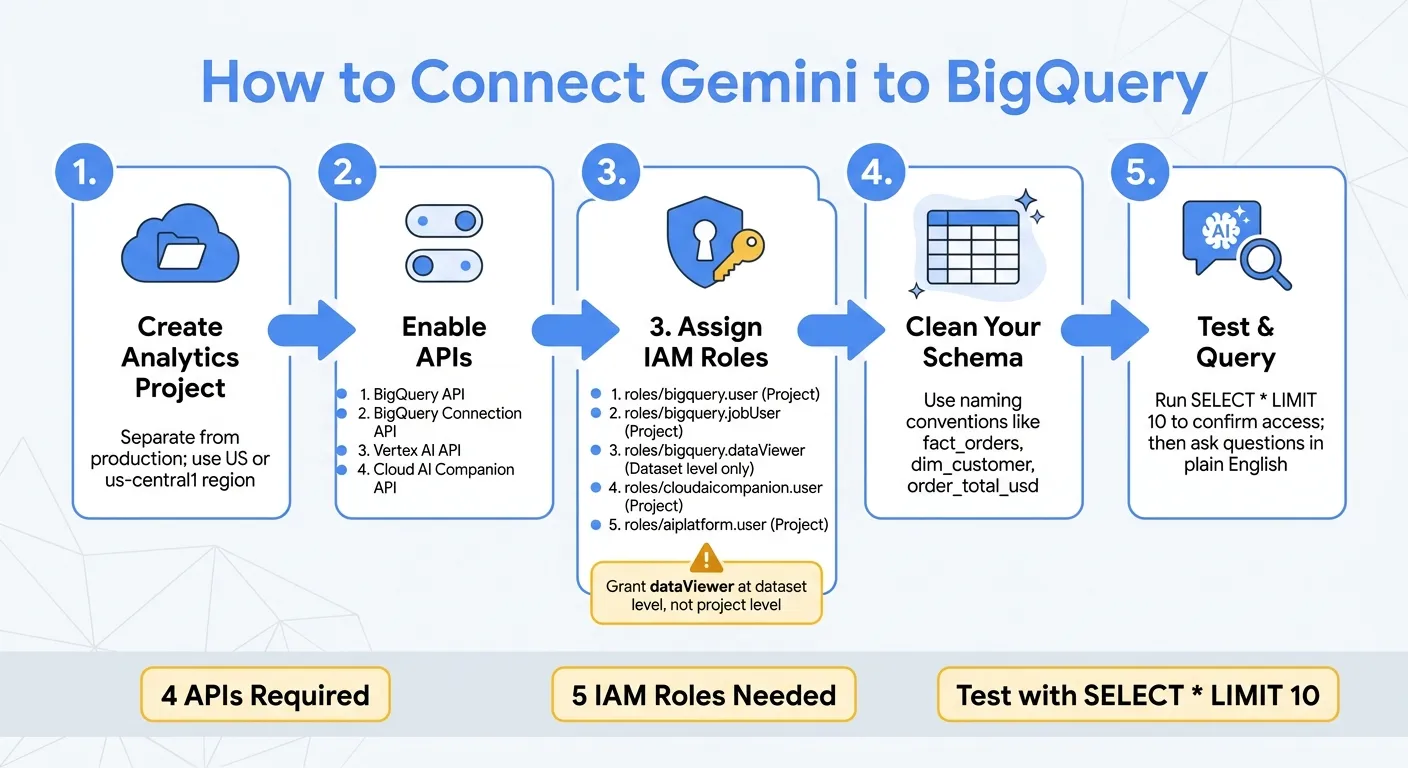 {How to Connect Gemini to BigQuery: Setup Steps & Requirements}
:::
{How to Connect Gemini to BigQuery: Setup Steps & Requirements}
:::
How to Use Gemini in BigQuery (and Why You Should)
::: @iframe https://www.youtube.com/embed/L3J8agZz3O8 :::
Set up Google Cloud, BigQuery, and permissions
Before Gemini can read BigQuery data, you need to prep the analytics project, turn on the right APIs, and assign IAM roles.
Use a dedicated analytics project that’s separate from production systems. That keeps Gemini focused on curated datasets instead of drifting into data it shouldn’t touch. For U.S. teams, place datasets in US or us-central1 when that fits data residency and latency needs.
Enable the required APIs and Gemini features
In BigQuery Studio, click the Gemini icon and enable these services in the selected project:
- BigQuery API
- BigQuery Connection API
- Vertex AI API
- Cloud AI Companion API
Then turn on Auto-completion, Auto-generation, and Explanation to use Gemini in the editor.
If your organization limits who can enable services, the setup may pause here. In that case, an access request goes to a project owner or admin, who needs to finish setup before analysts can move forward.
Grant IAM roles for analysts and service accounts
One of the most common setup mistakes is simple: teams grant BigQuery access, but skip the Vertex AI side.
Here’s the role set analysts usually need:
| IAM Role | Granted At | What It Does |
|---|---|---|
roles/bigquery.user |
Project | Lets analysts create datasets and run BigQuery jobs. |
roles/bigquery.jobUser |
Project | Lets analysts run query jobs in the project. |
roles/bigquery.dataViewer |
Dataset | Read tables and views in the dataset. |
roles/cloudaicompanion.user |
Project | Use Gemini's conversational interface in BigQuery Studio. |
roles/aiplatform.user (Vertex AI User) |
Project | Call Vertex AI-backed Gemini features from BigQuery Studio. |
Grant BigQuery Data Viewer at the dataset level, not the project level. That way, analysts stay limited to curated datasets like analytics_mart_sales instead of raw event logs or PII tables.
Use the same approach for service accounts. Give them access only to the modeled datasets they need.
Once access is in place, Gemini can generate SQL against the datasets you expose.
Prepare tables and schema so Gemini produces better SQL
Gemini reads table names, column names, and schema metadata when it interprets plain-English questions. So the cleaner your schema is, the less cleanup your analysts will have to do in the SQL editor.
Use fact and dimension naming conventions like fact_orders, fact_campaign_performance, dim_customer, and dim_product. Names like these help Gemini infer that orders are transactional tables and customers are joinable dimensions.
The same idea applies to columns. Names like order_total_usd, order_date, campaign_channel, and spend_usd give Gemini direct business context. Vague names like value, col1, or amount make it guess. And when it guesses, it can miss the mark.
If your team uses dbt, point Gemini to your analytics_mart dataset instead of staging or raw layers to enable self-service BI. You can also add column descriptions in BigQuery’s schema editor or through dbt docs. That extra context helps with time-based filters and joins, which means fewer SQL fixes inside BigQuery Studio.
With the project, APIs, IAM roles, and schema in place, open BigQuery Studio and start asking questions in plain English.
Connect Gemini to BigQuery in BigQuery Studio
Turn on Gemini in BigQuery Studio
Once your permissions are set, you can start using Gemini inside BigQuery Studio. Open BigQuery Studio in the right project, then click the Gemini icon near the query editor or in the toolbar. If you see Auto-generation, Explanation, or Generate SQL with Gemini, Gemini is turned on.
Before you type a real prompt, run a quick query against the target dataset to make sure the tables are there. For example, use SELECT * FROM analytics_prod.fact_subscriptions LIMIT 10. [5]
Ask questions in plain English and review the generated SQL
When Gemini is active, the fastest way to get started is plain-English prompt-to-SQL. Click the Gemini icon next to the editor, enter your request, and select Generate. [9][3][10] For example: "Calculate net new MRR in USD by customer segment for the last 12 months from analytics_prod.fact_subscriptions and dim_accounts, excluding churned and test accounts." Gemini then places a full query into the editor. [5][2]
You can also write your request as a SQL comment block and click Convert comments to SQL: [8][3]
/* Show total monthly recurring revenue in USD by customer segment for the last 12 months
   using analytics_prod.fact_subscriptions and dim_accounts.
   Exclude canceled subscriptions and only include active customers in the United States. */
SELECT
  -- Gemini will replace this with generated columns and joins
;
Gemini reads the comment and the table metadata, then builds the SELECT, JOIN, WHERE, and GROUP BY clauses. It shows the updated SQL in a diff view. [6][7]
Review the generated SQL before you run it. Make sure the join keys line up - for example, fact_subscriptions.account_id = dim_accounts.account_id. Check that the date filters use the right window. And confirm that fields like amount_usd match your actual schema. [5][2] If the query touches a regulated subject area, give it an extra close read before execution.
Use conversational analysis and notebooks for deeper work
For deeper analysis, it helps to move beyond one-off prompts and work in a conversation or notebook. Conversational analysis in BigQuery Studio keeps the context from one prompt to the next. [1][4]
Here’s what that looks like in practice: start with "Explain churn trends for US-based enterprise customers over the past six months from analytics_prod.fact_subscriptions and dim_accounts," then follow with "Break that down by industry" and "Identify the top 10 customers by downgrade MRR in USD." Gemini carries the table context and filters into each next step. [2][4]
If you’re doing trend analysis, cohort work, or Python-based follow-up, switch to BigQuery notebooks. In a notebook, you can generate and edit SQL in one cell, then load the result into a pandas DataFrame in the next. [1] Every generated SQL statement stays visible and editable. That makes it easier for reviewers to audit the exact queries, verify metric definitions, and check filters like country = 'US' or currency = 'USD' before the notebook is shared or scheduled. [1][2]
Choose the right Gemini-to-BigQuery workflow for your team
Once Gemini is on and permissions are set, the next step is picking the workflow that fits your team and your rules around access and oversight.
Comparison table: Gemini panel, conversational analytics, and BigQuery AI functions
| Method | Best for | Setup required | Who it serves best | SQL visibility | Governance fit |
|---|---|---|---|---|---|
| Gemini Panel | SQL generation & optimization | Enable Gemini API + IAM roles | Data analysts | High - fully editable SQL | Native IAM; relies on Dataplex metadata for context |
| Looker Conversational Analytics | Rapid exploration & visual summaries | LookML / semantic model | Business users | Moderate - visual-first | Tied to the Looker ecosystem; high consistency |
| BigQuery AI Functions | AI tasks inside SQL pipelines | Model creation in BigQuery ML | Data engineers | High - embedded in SQL | Governed by SQL permissions and model access |
| Querio | Governed self-serve across teams | Read-only service account + context layer | Cross-functional teams | High - inspectable and editable SQL and Python | Centralized semantic layer; versioned in GitHub |
The Gemini Panel works well for fast, analyst-led SQL generation inside BigQuery Studio. You can see the SQL, edit it, and fine-tune it as needed. That makes it a good fit when analysts want speed but still need control.
Looker Conversational Analytics makes more sense when your team already works in Looker and prefers visual-first exploration. Instead of living in raw SQL, users can move through data in a way that feels closer to asking questions and reading charts.
BigQuery AI functions fit best when AI needs to live inside SQL pipelines. If your data engineers want AI steps built straight into query workflows, this is usually the cleaner path.
If setup still fails, the next section covers the most common permission and visibility issues.
Troubleshoot setup issues and next steps
Fix disabled Gemini features, permission errors, and missing tables
After setup, run a few quick checks to spot the most common Gemini-to-BigQuery issues fast.
If the Gemini icon is grayed out, make sure Gemini is turned on for the project. Also check that you're in the right project and using a supported region. If BigQuery Studio asks you to turn on Gemini-related APIs, do that too.
If you're hitting permission issues, make sure users have the roles BigQuery Studio needs. Add BigQuery Job User and Vertex AI User when Gemini-generated SQL relies on Vertex AI-backed features. When you see a "Permission denied" error, check Cloud Audit Logs and look for the denied permission in authorizationInfo where access was denied.
If tables aren't showing up, check dataset-level access and confirm the dataset lives in the selected project. Gemini relies on dataset visibility to discover schema through INFORMATION_SCHEMA.
Rollout checklist for data teams
Once Gemini is working with trusted prompts, use this checklist before giving more teams access:
- Confirm least-privilege roles - Give each analyst group read-only access to approved datasets, plus BigQuery Job User. Skip write or admin permissions.
- Validate with trusted prompts - Test common sales and marketing questions such as "Show total revenue in USD by product line for the last quarter" or "Compare email open rates by campaign for the past 30 days". Review the SQL Gemini generates, then compare the results against a known dashboard or benchmark before anyone depends on them.
- Document approved datasets - Publish a clear list of Gemini-approved datasets so analysts know exactly where to work.
- Align metrics with dbt models - Define core measures like revenue, CAC, and conversion rate in governed dbt models or documented views.
- Define a result review process - Decide who checks Gemini-generated insights before they shape high-stakes decisions.
FAQs
::: faq
Do I need both BigQuery and Vertex AI permissions?
It depends on how you're using Gemini.
For Gemini features inside BigQuery, access is handled through Google Cloud IAM. That setup requires the roles/cloudaicompanion.user role.
If you're connecting Querio to BigQuery for natural-language analysis, you do not need Vertex AI permissions. Instead, you need the standard BigQuery roles:
- BigQuery Job User
- BigQuery Data Viewer
- BigQuery Read Session User :::
::: faq
What data should I expose to Gemini first?
Start with the minimum data needed for your first approved use case. In most cases, that means one schema with cleaned, de-duplicated views instead of raw production tables.
Then define 10 to 20 core metrics in a governed semantic layer, grant read-only access, and apply row-level and column-level security.
Roll access out table by table, check accuracy through audit logs, and expand only after governance is confirmed. :::
::: faq
How can I verify Gemini’s SQL is safe to run?
Review the generated SQL in BigQuery before you run it. Gemini shows you the SQL, and you can inspect and edit it, so take a minute to check the joins, filters, and metric calculations. That helps you confirm the query lines up with your organization’s business definitions.
If you want extra confidence, use explain-SQL features to see how your prompt turned into code. Then compare the output with trusted sources like dbt models, Looker dashboards, or Hex notebooks. :::