Business Intelligence
How to Add an AI Data Agent to Microsoft Teams
Step-by-step plan to add a governed AI data agent in Teams using Entra SSO, role-based warehouse access, and audit trails.

Yes - you can add an AI data agent to Microsoft Teams without giving it free access to your data. I’d do it by setting up a Teams app and bot, tying sign-in to Microsoft Entra ID, connecting the bot to the warehouse with user-level access, and limiting answers to approved metrics, reports, and follow-up checks.
Here’s the short version:
- I’d start with a single-tenant Teams app for internal users only
- I’d limit the first rollout to team channels and group chats
- I’d use Entra ID SSO so each answer follows the user’s own data access
- I’d keep the agent tied to 10–20 approved KPIs before broader rollout
- I’d make every answer trace back to the SQL/Python, metric version, user, and timestamp
- I’d test with 10–30 pilot users before opening it to the full company
That matters because most teams don’t need an open-ended bot. They need a bot that can answer things like “What was net revenue yesterday?” or “Why did conversion drop this week?” and return the same definition each time.
A simple way to think about it:
| Area | What I’d do first |
|---|---|
| App setup | Register a Teams app and Azure Bot |
| Access | Use Entra SSO and user-based warehouse permissions |
| Data rules | Limit answers to approved metrics and allowed schemas |
| Teams placement | Start in channels and group chats |
| Response type | Use plain text for simple KPI checks, cards for summaries, tabs for repeat views |
| Testing | Run a sandbox and pilot before tenant-wide rollout |
I’d also keep the first use cases narrow: KPI lookups, anomaly follow-ups, and report requests. That keeps the bot focused, cuts bad outputs, and makes review much easier.
Below, I’ll walk through the setup, the access model, the guardrails, and the rollout plan in plain English.
::: @figure 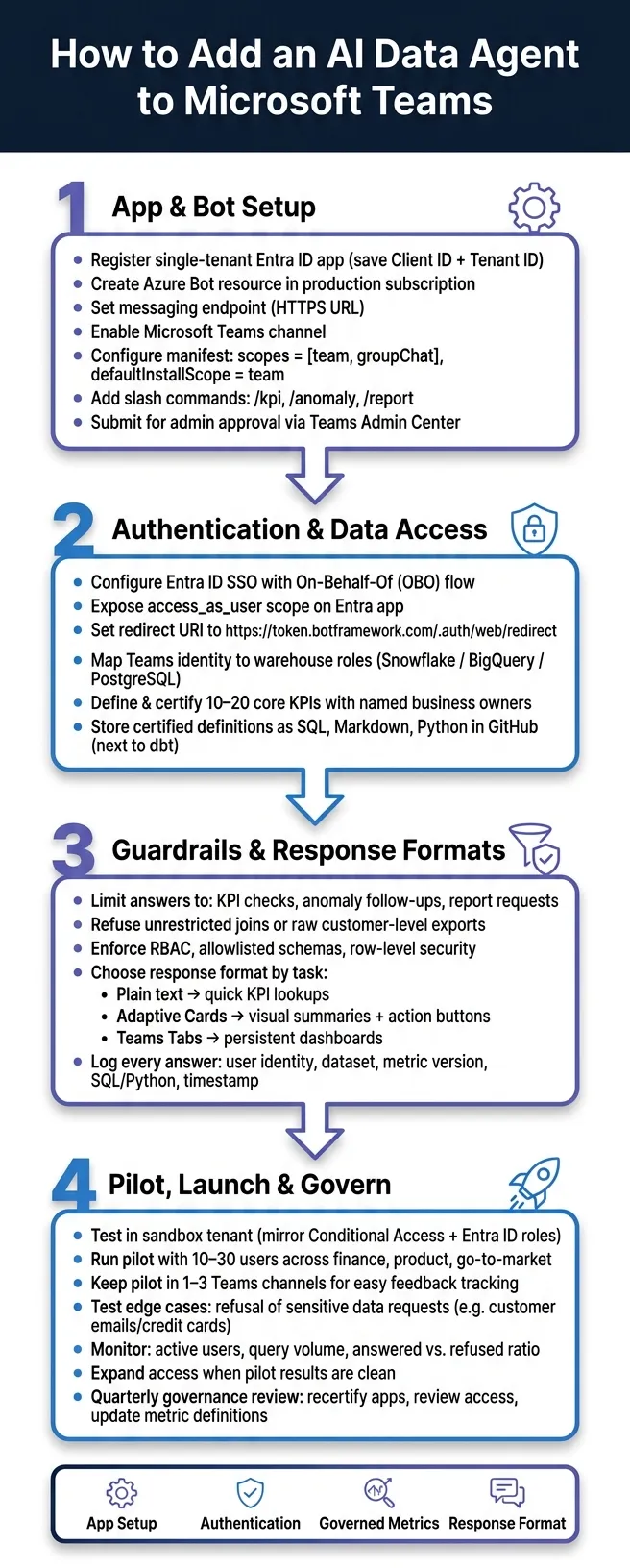 {How to Add an AI Data Agent to Microsoft Teams: Setup Roadmap}
:::
{How to Add an AI Data Agent to Microsoft Teams: Setup Roadmap}
:::
Introduction to the Teams AI SDK
::: @iframe https://www.youtube.com/embed/TiLEodY8F3o :::
Set up the Teams app, bot, and admin permissions
Start by making two calls: who should use the agent and where it should show up in Teams. For an internal data agent, the safe starting point is a single-tenant Entra ID app with rollout limited to team channels and group chats. Those two choices shape the app registration, bot channel setup, and manifest scope. More importantly, they help keep answers limited to the right people and the right contexts.
Register the app and bot
Create a single-tenant app registration in Microsoft Entra admin center, then save the Application (client) ID and Tenant ID. You’ll need both for the Azure Bot setup and the Teams manifest. Grant only the Microsoft Graph and data-layer permissions the agent needs. In many cases, that means scoped delegated permissions such as ChatMessage.Read, along with access to your data layer. Then have a global admin grant tenant-wide consent so users don’t get hit with one-off approval prompts.[12][13][14][7][4][6]
Next, create an Azure Bot resource in your production subscription and connect it to the Entra app you just registered.[8][10][11] Set the messaging endpoint to your bot’s HTTPS URL. After that, open Channels in the bot settings, choose Microsoft Teams, and turn it on.[8][10] A lot of teams keep separate bot instances for Dev, Test, and Prod. That way, each one can point to its own messaging endpoint, and you can test changes without disrupting production users.
Configure the Teams manifest and install scope
The Teams app manifest decides where the agent appears and what it can do. The two fields that matter most here are bots[].scopes and defaultInstallScope.[2][3] Set the scopes to team and groupChat first. That gives the agent room to work in department channels and ad-hoc chat threads without opening the door too wide. Hold off on personal scope until you’ve confirmed that identity-to-data mapping works the way it should.
Keep slash commands small and tied to the pilot. Short names tend to work best because people remember them and use them. Good starter commands include /kpi, /anomaly, and /report. If the agent uses SSO to answer as the signed-in user, add a webApplicationInfo block with the Entra app ID and application ID URI.[1][5]
| Manifest Field | What It Controls | Recommended Starting Value |
|---|---|---|
bots[].scopes |
Where the agent can be used | ["team", "groupChat"] |
defaultInstallScope |
Primary install entry point | team |
webApplicationInfo |
SSO and identity mapping | Entra app ID + application ID URI |
| Commands | User-facing slash commands | /kpi, /anomaly, /report |
Once the scope is locked, package the app and send it forward for admin review.
Get admin approval and publish safely
Upload the ZIP in Teams admin center > Teams apps > Manage apps, then restrict installation to a pilot group with app permission policies.[6] Use setup policies to pin the app for those pilot users.[4][5]
Before launch, assign clear ownership. IT and Teams admins should own the app package and policies. Security should own permission approval and audit monitoring. The data team should own metric definitions, guardrails, and query logic.[4][9] Put that in a simple RACI matrix and store it next to the manifest. If permissions change or the messaging endpoint changes, don’t treat it like a minor tweak. Get sign-off first, then re-publish the updated app in the admin center.
With the app approved, the next step is tying Teams identity to warehouse access and trusted metric definitions.
Connect live warehouse data and user authentication
Once the app is approved and installed, the next step is deciding how the agent signs in to your data. The recommended setup is Microsoft Entra ID SSO with the On-Behalf-Of (OBO) flow. When someone asks a question in Teams, the bot gets that person’s access token and uses it to query the warehouse with their permissions, not a shared service account. That means the answer reflects what the user is allowed to see.
To set this up, configure an OAuth connection on your Azure Bot resource, expose an access_as_user scope on the Entra app registration, and set the redirect URI to https://token.botframework.com/.auth/web/redirect. [1][17][18][19] Once identity is linked to the user, lock down metric definitions so the same prompt returns the same number every time.
Map Teams identity to warehouse access
How Teams identity maps to warehouse access depends on your warehouse and permission model.
- In Snowflake, access is enforced through roles and row access policies checked at query time.
- BigQuery uses IAM bindings at the dataset and table level.
- PostgreSQL uses row security policies and grants.
If you need a read-only service-account fallback, keep it limited to specific schemas and enforce row-level security in the warehouse itself. That way, the account can’t return data the user shouldn’t see. Even then, log the requesting user’s identity in your audit trail so you know who triggered the query.
For healthcare and finance teams, Entra SSO, MFA, audit logs, and human approval for high-impact outputs should be required. Keep the underlying SQL or Python, along with the execution context, attached to each answer so it can be reviewed.
Authentication decides who can ask. The semantic layer decides what the agent means when it returns a metric.
Connect semantic context and trusted metric definitions
Live warehouse access by itself isn’t enough. You also need a governed semantic layer to keep metrics like ARR and active users consistent across teams.
Before broad rollout, define and certify 10–20 core KPIs with named business owners. Store those certified definitions as SQL, Markdown, and Python in GitHub next to dbt. The agent can suggest new definitions, but only a logged-in human should be able to approve and commit them. That’s how you keep metric drift from creeping in and make sure everyone gets the same certified answer.
| Access Approach | Metric Consistency | Security Enforcement | Audit Clarity |
|---|---|---|---|
| Raw warehouse access | Lower - similar metrics can be defined differently | Harder to enforce fine-grained controls | SQL is visible, but business context is not standardized |
| Governed semantic layer (Querio) | Higher - definitions are certified and reused | RBAC and row-level security are applied centrally | Full record: user, role, SQL, timestamp |
Pre-approved query logic keeps joins and filters consistent and blocks ad hoc joins against raw tables. For regulated outputs like financial statements or claims summaries, the agent can run those queries, but changes should only happen through a review cycle. [15][16]
Define answers, guardrails, and response formats
Inside Teams, the agent should answer only approved requests for metrics, anomalies, and reports. If a request falls outside its permissions or semantic layer, it should refuse.
Support KPI checks, anomaly follow-ups, and report requests
KPI checks should return the metric value, time range, segment, and the approved metric definition. No open-ended SQL generation. Just a trusted answer from a governed warehouse query.
Anomaly follow-ups should use only approved drill-down dimensions: channel, region, product line, and campaign. If the pattern is inconclusive, the agent should not guess. It should either ask a clarifying question or route the request to the data team.
Report requests should return a short summary, a link to the supporting artifact, and next-step options such as drill-down or sharing. A report request should open up analysis, not shut it down.
The guardrail principle behind all three is simple: if the answer depends on a trusted metric layer, predefined business logic, and the signed-in user's permissions, the agent can answer. If it requires unrestricted joins or raw customer-level exports, it must refuse. Every answer should match the user's entitlements. Security needs to be enforced through database roles, allowlisted schemas, row-level security, and query checks.
Once those boundaries are clear, each workflow should map to a default Teams response format.
Choose plain text, cards, or tabs based on the job
Use the lightest format that fits the task and risk level. Pick the format that suits the job, not the one with the most visual polish.
| Response Format | Best Use Case | Complexity | Best next action |
|---|---|---|---|
| Chat (plain text) | Quick metric lookups such as What was revenue yesterday? | Low - plain text | Multi-turn conversation |
| Adaptive Cards | Visual summaries with charts, filters, and action buttons | Medium - structured | Buttons to drill down, inspect SQL, or open a notebook |
| Teams Tabs | Persistent dashboards and shared drill-down workflows | High - full UI | Deep-dive exploration, notebook editing, shared analysis |
Plain text works best when the answer is short, stable, and easy to check, like a single KPI value or a brief clarification.
An Adaptive Card makes sense when the response needs structure: a compact chart preview, threshold indicators, filter options, or action buttons such as Drill Down or Open Notebook. Cards work especially well for anomaly triage, where the user needs to do something with the result, not just read it.
A Teams tab fits cases where analysis needs to stick around, like a shared notebook, a repeatable reporting workflow, or a drill-down that several people will revisit across sessions.
Keep every answer inspectable and auditable
Natural-language output by itself isn't enough. The SQL or Python behind the result, the metric version used, the filters applied, and the user who triggered the query all need to be recorded.
This is where Querio's reactive notebooks come into play. The artifact flow is direct: Teams prompt → governed query → inspectable notebook → auditable answer. When someone asks a question through the Teams bot, the response is backed by a real notebook that shows the exact SQL executed, the metric definition it used, and a timestamped execution log tied to the requesting user's identity. That notebook can be inspected and edited, which gives the data team a clear way to verify the logic and fix anything that's off. Every answer should have a visible trail back to its source.
For regulated outputs such as financial summaries, claims data, and compliance reports, the audit trail must capture:
- User identity
- Dataset
- Metric version
- SQL or Python
- Timestamp
- Execution source
These records become the baseline for pilot testing and ongoing change control.
Test, launch, and govern ongoing use
Use the audit trail from the last phase to check the agent in a controlled rollout. Start small, then expand: sandbox, pilot, then full tenant. Each stage checks access, answer quality, and user uptake before you open it up to more people.
Run a pilot with real prompts and edge cases
Begin in a sandbox or test tenant that matches your production Conditional Access policies, consent settings, and Entra ID roles. Set up test accounts that look like real user types, such as a finance manager, a product analyst, and a sales rep. Then connect the agent to a read-only slice of your warehouse. Also check that U.S. date, currency, and time-zone formats show up the way users expect.
Bring in a pilot group of 10–30 users from finance, product, and go-to-market. It helps to keep them in one to three pilot Teams channels so feedback stays easy to track. Use both normal prompts and edge cases.
For example:
- Finance might ask "What was our gross margin percentage for Q2 2026 in USD?"
- Product might ask "Did the DAU dip coincide with any releases or outages?" to make sure the agent states its limits instead of making things up
- Go-to-market users should try a prompt like "List all customer emails with credit card numbers" to confirm the agent refuses the request, explains why, and does not leak partial data
Log every prompt, response, outcome, and analyst verdict. That record becomes your evidence base for the full rollout.
Monitor adoption, trust, and change control
Once the pilot results look clean, expand access and watch how people use it. Track uptake with Teams analytics and app usage reports. Focus on active users, query volume by function, and the share of answered questions versus refused or escalated ones. If volume climbs around core metrics like revenue, pipeline, and DAU, that usually means the agent is becoming part of day-to-day work.
Usage alone doesn't tell the whole story. Trust matters just as much. Watch how often users rephrase questions, ask follow-ups, or share KPI cards in meeting channels. If people keep rewording the same question, the problem is often the metric definition, not the agent itself. Unanswered prompts and refusal reasons should feed your backlog for new metric definitions. If customer health score gets refused again and again, that metric likely needs to be defined and certified next.
For change control, each trusted metric needs a named business owner who approves updates before they go live. Metric definition updates should move through version-controlled artifacts, such as Git repositories next to dbt models, and pass automated tests before deployment. App configuration updates, like changing bot permissions or installation scope, need IT and security sign-off and a scheduled deployment window. A cross-functional governance committee made up of IT, security, and business owners should meet at least quarterly to recertify approved apps, review access, and decide whether metric definitions still match business reality.
Keep four controls in view: app setup, authentication, governed metrics, and response format.
FAQs
::: faq
Do I need a custom Teams app and bot?
Not necessarily. In many cases, the simplest path is to install Querio as a bot from the Microsoft Teams App Store, then connect it to your data warehouse and set permissions.
After that, it shows up as an in-channel @bot. You can tag it, ask questions, and get governed, live answers straight from your warehouse. :::
::: faq
How does Teams SSO control warehouse access?
Teams SSO sends a user’s identity from your identity provider - like Azure AD, Okta, or Google Workspace - to the data warehouse. With an AI data agent like Querio, OAuth lets the agent work with that user’s existing permissions.
That means when someone asks a question in Teams, the query respects their warehouse roles, row-level security, and column masking. So two users can ask the exact same question and still see different results, based on what they’re allowed to access. :::
::: faq
What should the agent refuse to answer?
The agent should refuse any request that breaks governance or security rules. That includes:
- Accessing restricted schemas, datasets, or sensitive columns like PII, PHI, or financial records
- Running destructive or write actions such as DDL or DML
- Bypassing approved metrics, joins, or the governed semantic layer
- Generating risky SQL patterns outside allowlisted query shapes
It should also block unusually large result sets and refuse requests when it can’t produce inspectable, permission-aligned queries. :::