Guide
10 Great Data Visualization Examples to Steal in 2026
Discover 10 great data visualization examples and learn why they work. Get expert tips and templates to recreate them in BI tools like Querio.
In a data-saturated business environment, the ability to translate raw numbers into actionable insights is a critical advantage. Simply creating a chart isn't enough; the real power lies in choosing the right visualization to tell a clear story, reveal hidden patterns, and empower teams to make smarter, faster decisions. A well-designed visualization can illuminate a path forward, while a poorly chosen one can obscure the truth and lead to costly mistakes. The difference is strategic, not just aesthetic.
This article moves beyond basic charts to provide a curated gallery of great data visualization examples used by leading companies across product, finance, and operations. We will explore everything from interactive dashboards and funnel charts to retention cohort heatmaps and waterfall charts. For each example, we'll dissect the strategic "why" behind its effectiveness, offering a clear breakdown of how it drives specific business outcomes.
To effectively turn raw data into strategic decisions, leveraging the right tools is paramount; explore a comprehensive business intelligence software comparison to find the best fit for your team’s needs. Throughout this guide, we provide actionable design takeaways, highlight common pitfalls to avoid, and show you how modern BI tools like Querio make creating these powerful visuals accessible to everyone on your team. You'll gain a practical framework for selecting, designing, and implementing visualizations that don’t just report numbers but actively guide strategy and accelerate growth.
1. Interactive Dashboards with Drill-Down Capabilities
Interactive dashboards with drill-down capabilities are dynamic data visualization examples that empower users to explore data layers without leaving the primary interface. Unlike static charts, these dashboards invite interaction, allowing stakeholders to move from high-level summaries, like quarterly revenue, to granular details, such as individual sales transactions, with a single click. This approach transforms passive data consumption into an active, investigative process.

The core mechanism is "progressive disclosure," where complex information is layered and revealed based on user input. This prevents cognitive overload by presenting only the most critical KPIs upfront while keeping deeper insights accessible. Modern business intelligence (BI) platforms like Tableau and Looker have popularized this method, making it a standard for effective operational and executive reporting.
Why It Works & Key Takeaways
The strategic advantage of interactive dashboards lies in their ability to answer follow-up questions in real time. When an executive sees a dip in monthly active users, they don't need to request a new report; they can click into the data to segment by user cohort, region, or acquisition channel instantly.
- Empowers Self-Service Analytics: Reduces dependency on data teams for ad-hoc queries. Product managers at companies using Amplitude or Mixpanel can independently investigate user drop-offs in a conversion funnel.
- Enhances Data Context: Connecting high-level metrics to underlying details creates a clear narrative. A sales leader using a Tableau dashboard can see the overall sales pipeline and drill down to evaluate a specific account manager's performance.
- Improves Decision Velocity: Actionable insights are surfaced faster, enabling quicker strategic responses to emerging trends or problems.
Strategic Insight: The most effective interactive dashboards are designed around specific business questions, not just a collection of metrics. They guide the user's analytical journey from "what happened?" to "why did it happen?" and "what should we do next?".
How to Replicate It
Building a dashboard with drill-down functionality in a tool like Querio or Power BI involves a structured approach.
- Define the Hierarchy: Start by identifying your top-level KPIs (e.g., Total Sales). Then, map out the logical drill-down paths (e.g., Sales by Region -> Sales by City -> Sales by Individual Store).
- Use Consistent Visual Cues: Ensure that interactive elements are clearly identifiable. Use consistent color schemes and icons to signify clickable components across all layers of the dashboard.
- Implement Progressive Filters: Begin with a clean, high-level view. Keep advanced filtering options hidden behind an "Advanced" or "More Filters" button to maintain a simple user interface for the majority of users.
- Prioritize Performance: Ensure that drill-down actions are fast and responsive. A slow-loading dashboard discourages exploration and undermines its interactive value.
2. Funnel Charts for Conversion Analysis
Funnel charts are powerful data visualization examples designed to illustrate the sequential stages of a process and the drop-off rates between them. They are essential for analyzing user journeys, such as the path from website visitor to paying customer. Using a series of progressively narrowing shapes, each segment of the funnel represents a stage, with its width proportional to the number of users who completed it, clearly highlighting where the biggest leaks occur.
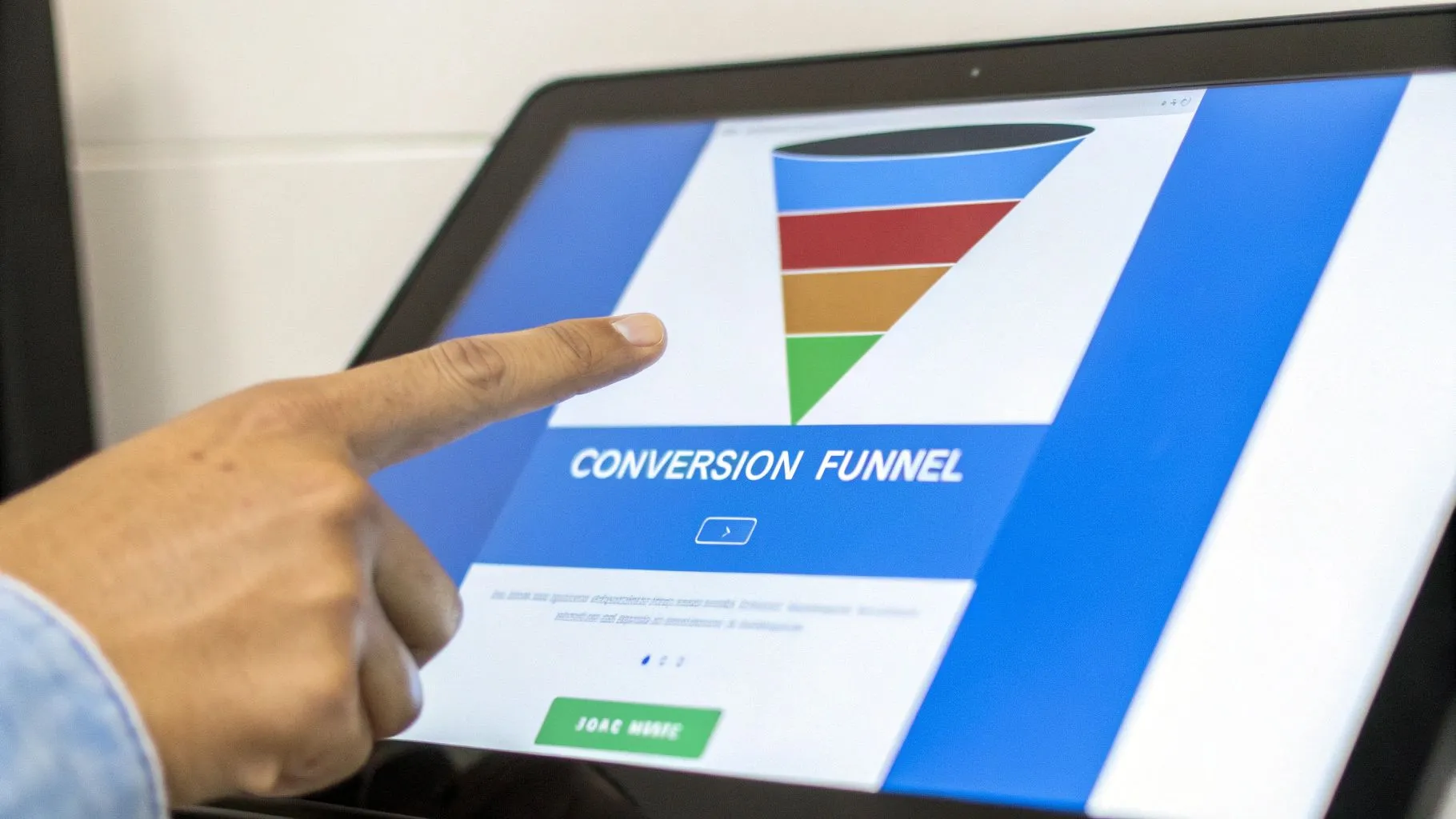
This visualization instantly communicates the health of a conversion process, making it a cornerstone for product and marketing teams. Platforms like Amplitude and Mixpanel have made funnel analysis a core feature, allowing teams to track everything from SaaS product onboarding to e-commerce checkout flows. The visual metaphor of a funnel makes it intuitively understandable for all stakeholders, regardless of their data literacy.
Why It Works & Key Takeaways
The strategic value of funnel charts is their ability to pinpoint the exact friction points in a user journey. Instead of guessing why overall conversion is low, a product manager can see that 70% of users drop off between the "Add to Cart" and "Initiate Checkout" steps, immediately focusing optimization efforts where they will have the most impact.
- Pinpoints Critical Drop-offs: Instantly reveals the weakest links in any multi-step process. A marketing team can use a funnel to see that their ad campaign drives high traffic, but users abandon the landing page before signing up.
- Measures Process Efficiency: Provides a clear metric for the overall conversion rate and the efficiency of each step. This allows for clear goal-setting and performance tracking over time.
- Enables Targeted Segmentation: Analyzing funnels by user cohort, device, or acquisition channel uncovers deeper insights. A SaaS company might discover their onboarding funnel converts well on desktop but fails on mobile.
Strategic Insight: A funnel chart's true power is unlocked through segmentation. Comparing funnels for new versus returning users or organic versus paid traffic can reveal dramatically different behaviors and expose specific opportunities for personalization and improvement.
How to Replicate It
Creating an effective funnel chart in a tool like Querio or Heap is a methodical process focused on defining the user journey.
- Define Key Stages: Clearly map out the critical, sequential steps a user must take to convert. For an e-commerce checkout, this might be: View Product -> Add to Cart -> Initiate Checkout -> Complete Purchase.
- Instrument Tracking Events: Ensure your analytics tool is capturing a distinct event for each defined stage. Without accurate event tracking, the funnel data will be unreliable.
- Analyze the Highest Drop-Off: Once the funnel is built, focus your attention on the largest percentage drop-off between two steps. This is your primary optimization target.
- Establish a Baseline: Before making changes, save your initial funnel as a baseline. Use this to conduct A/B tests and accurately measure the impact of your product or marketing experiments.
3. Retention Cohort Tables and Heatmaps
Retention cohort tables and heatmaps are matrix-style visualizations that are crucial for understanding product stickiness and long-term user behavior. These charts group users into "cohorts" based on a shared characteristic, most commonly their sign-up date. The table then tracks each cohort's activity over subsequent days, weeks, or months, revealing patterns in user engagement and churn. By color-coding the cells to represent retention percentages, the table transforms into a powerful heatmap.
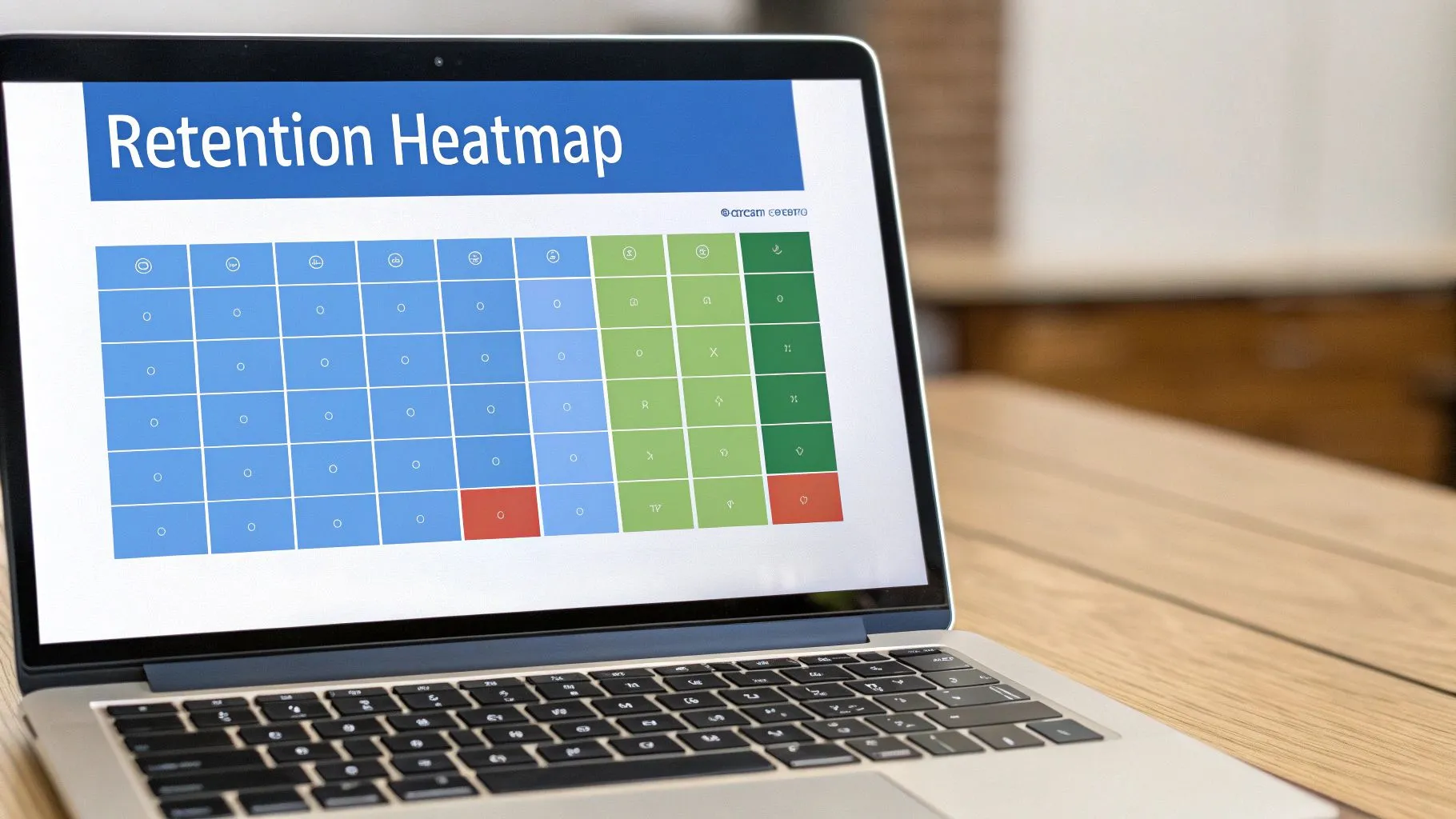
The visualization presents a grid where each row is a cohort (e.g., "Users from January") and columns represent the time elapsed since that cohort's start date (e.g., Month 1, Month 2). This structure makes it easy to compare the long-term value of different user groups at a glance. Analytics platforms like Amplitude and Mixpanel have made these tables a go-to tool for product and growth teams to diagnose the health of their user base.
Why It Works & Key Takeaways
The strategic value of a retention heatmap is its ability to separate growth from engagement. While user acquisition numbers might look strong, a heatmap quickly reveals if those new users are actually sticking around. This is one of the most honest and effective data visualization examples for assessing product-market fit.
- Identifies Product Health Trends: A "smiling" curve (where retention flattens out after an initial drop) indicates a sticky product with a core, loyal user base. Conversely, a constantly declining line points to a "leaky bucket" problem.
- Measures Impact of Changes: By comparing cohorts from before and after a major product update or marketing campaign, teams can directly measure the impact on long-term user retention.
- Highlights Critical Onboarding Periods: The heatmap clearly shows when users tend to drop off, allowing teams to focus on improving the user experience during those critical first days or weeks.
Strategic Insight: A cohort heatmap tells a story not just about users, but about your product's evolution. A visible improvement in retention in newer cohorts is a clear signal that your product development efforts are successfully creating more value over time.
How to Replicate It
Creating a retention heatmap in a BI tool like Querio or Google Analytics requires organizing user data by time.
- Define the Cohort: Group users by their acquisition date (e.g., sign-up week or month). This will form the rows of your table.
- Establish the Timeline: Define the columns as the number of periods (days, weeks, months) that have passed since the cohort's acquisition date.
- Calculate Retention Percentage: For each cell, calculate the percentage of users from the initial cohort who returned and performed a key action during that specific time period.
- Apply Conditional Formatting: Use a color scale (e.g., green for high retention, red for low) to turn the table into an instantly readable heatmap. This visual layer is what makes the trends so apparent.
4. Time Series Line Charts with Forecasting
Time series line charts are foundational data visualization examples that plot data points sequentially over time. Their power is elevated when enhanced with forecasting, transforming a historical record into a forward-looking strategic tool. These charts are essential for tracking KPIs, identifying seasonality, and projecting future performance. When integrated with predictive models, they enable proactive, data-driven decision-making.
This visualization moves beyond simply reporting what happened last quarter. It models historical data to predict future outcomes, often including confidence intervals to represent the range of likely results. Tools like Datadog and Grafana have made these charts indispensable for monitoring application performance and infrastructure health, while platforms like Shopify use them to help merchants forecast sales trends.
Why It Works & Key Takeaways
The strategic value of a forecasting time series chart lies in its ability to shift organizational focus from reactive to proactive. Instead of just analyzing last month's dip in user engagement, a product manager can see a projected decline and intervene before it becomes a critical issue.
- Enables Proactive Strategy: Allows teams to anticipate future trends and allocate resources accordingly. A finance team seeing a revenue forecast can adjust budgets or investments ahead of time.
- Identifies Seasonality and Cycles: Clearly visualizes recurring patterns, helping businesses prepare for predictable peaks and troughs in demand, like holiday sales rushes.
- Provides Context for Anomalies: A solid trend line and forecast make it easy to spot when a data point is a true anomaly versus normal variance, as seen in Stripe's transaction monitoring.
Strategic Insight: The most impactful time series charts don't just show a single predicted number; they visualize uncertainty with confidence intervals. This prevents false precision and helps leaders make decisions based on probabilities, not just a single-point forecast.
How to Replicate It
Creating a time series chart with forecasting in a BI tool involves both visualization design and underlying data modeling.
- Establish a Clean Time Series: Ensure your data is consistently aggregated over a specific time interval (e.g., daily, weekly, monthly). Gaps or inconsistent data will compromise forecast accuracy.
- Select an Appropriate Forecasting Model: Start with simple models like moving averages or exponential smoothing. Many modern tools have built-in functions (e.g., Prophet or ARIMA) that can automatically handle seasonality.
- Visualize Uncertainty: Always plot confidence intervals (e.g., 95% confidence) around your forecast line. This communicates the potential range of outcomes and builds trust in the model.
- Keep it Legible: Limit the chart to 3-5 key time series to avoid a cluttered "spaghetti plot." Use distinct colors and a clear legend to ensure the historical data, forecast, and confidence bands are easily distinguishable.
5. Scatter Plots and Bubble Charts for Correlation Analysis
Scatter plots and bubble charts are essential data visualization examples for uncovering relationships between two or more variables. A scatter plot uses X and Y axes to plot individual data points, revealing patterns, correlations, and outliers. Bubble charts extend this by adding a third dimension, where the size or color of each bubble represents a third variable, adding depth to the analysis.
Popularized by Hans Rosling's famous Gapminder presentations, these charts transform dense datasets into clear visual stories. For instance, a product manager could use a bubble chart to analyze feature adoption, plotting user engagement (X-axis) against retention (Y-axis), with the bubble size representing the user's lifetime value. This instantly highlights which features are used by the most valuable customers.
Why It Works & Key Takeaways
The power of these charts lies in their ability to display many data points simultaneously, making it easy to spot trends that tables of numbers would obscure. They are indispensable for tasks like identifying customer segments, analyzing portfolio performance, or understanding marketing campaign effectiveness.
- Reveals Hidden Correlations: Instantly shows whether variables are positively, negatively, or not at all correlated. A venture capital firm can plot funding amount vs. growth rate to assess portfolio health.
- Identifies Outliers and Clusters: Atypical data points and natural groupings become immediately visible. Slack might use this to see how company size correlates with the adoption of specific paid features.
- Facilitates Multi-Dimensional Analysis: Bubble charts elegantly introduce a third variable without cluttering the visualization, providing richer, more contextual insights.
Strategic Insight: The most impactful scatter and bubble charts are not just exploratory; they are diagnostic tools. By segmenting data with color or allowing users to filter, they help pinpoint exactly which cohorts or conditions are driving an observed correlation.
How to Replicate It
Creating a powerful scatter or bubble chart in a tool like Querio, Looker, or Tableau requires careful data preparation and design choices.
- Select Meaningful Variables: Choose two to three variables you hypothesize are related (e.g., ad spend, conversion rate, and customer LTV).
- Add a Regression Line: A line of best fit visually quantifies the strength and direction of the correlation, making the trend explicit for the viewer.
- Manage Overplotting: When many data points overlap, use transparency (alpha blending) or smaller point sizes to ensure dense areas are visible without obscuring the overall pattern.
- Incorporate Interactive Elements: Allow users to hover over points to see details, filter by categories (e.g., user segment), or even swap the axes to explore different relational perspectives.
6. Stacked Bar and Area Charts for Composition Analysis
Stacked bar and area charts are powerful data visualization examples that show how a total figure breaks down into its constituent parts. Each segment of the bar or area represents a different category, distinguished by color, allowing viewers to grasp both the overall total and the proportional contribution of each component simultaneously. This method is exceptionally useful for comparing composition across different groups or tracking changes over time.
This visualization technique excels at part-to-whole analysis. For example, a stacked bar chart can display a company's total revenue broken down by product line, while a stacked area chart can show how the composition of a user base (e.g., free vs. paid tiers) has evolved over several quarters. Tools like D3.js and Google Charts have made these essential visuals for financial, marketing, and product reporting.
Why It Works & Key Takeaways
The strategic value of stacked charts is their efficiency in conveying multiple layers of information within a single graphic. They answer two key questions at once: "What is the total amount?" and "How is that total composed?". This dual-purpose design makes them incredibly dense with insights.
- Reveals Compositional Shifts: A 100% stacked area chart is ideal for showing changes in market share or user segmentation, independent of absolute growth. For example, Netflix can track if its subscriber base is shifting more toward premium plans over time, even as the total subscriber count grows.
- Highlights Dominant Categories: The visual weight of the segments immediately draws attention to the largest contributors. GitHub's language distribution charts quickly show which programming languages dominate the platform's repositories.
- Supports Comparative Analysis: Placing stacked bars side-by-side allows for quick comparisons of composition between different entities, such as comparing the revenue breakdown of two different business units.
Strategic Insight: Stacked charts are most effective when telling a story about change or comparison. The key is not just to show the parts of a whole, but to reveal how that composition differs from another period, another region, or a key competitor.
How to Replicate It
Creating an effective stacked chart in a BI tool like Querio requires careful data structuring and design choices to ensure clarity.
- Limit Categories: To avoid a cluttered and unreadable chart, limit the number of segments to a maximum of five. Group smaller, less significant categories into a single "Other" segment.
- Order Segments Logically: Arrange the segments consistently across all bars or time periods. A common practice is to order them from largest to smallest, with the largest segment at the base for stability.
- Use a Clear Color Palette: Assign distinct, easily distinguishable colors to each category. Ensure the color scheme is consistent across all related charts in a report or dashboard to maintain a clear visual language.
- Choose the Right Type: Use a standard stacked bar/area chart to show changes in both total value and composition. Use a 100% stacked chart when the primary goal is to compare proportional composition, as it normalizes the total to 100%.
7. Heat Maps and Geographic Visualizations
Heat maps and geographic visualizations translate complex data into intuitive, color-coded spatial representations. They use a spectrum of colors to represent the concentration or intensity of a metric across a map or a matrix, making it easy to spot hotspots, trends, and outliers. This method is incredibly powerful for analyzing data with a geographic component, revealing patterns that would be invisible in a spreadsheet or standard chart.
From Uber visualizing rider demand to trigger surge pricing to real estate platforms showing property value hotspots, these visualizations provide immediate context. By layering data onto a familiar map, they connect abstract numbers to real-world locations, making insights more relatable and actionable for business leaders and operational teams alike.
Why It Works & Key Takeaways
The primary strength of geographic heat maps is their ability to communicate density and distribution at a glance. They excel at answering questions like "Where are our customers concentrated?" or "Which sales territories are underperforming?". This visual context is critical for logistics, marketing, and strategic planning.
- Reveals Spatial Patterns: Quickly identifies geographic clusters, gaps, and regional performance variations. A marketing team can use a heat map to see where a campaign is resonating most, allowing for targeted ad spend.
- Simplifies Complex Datasets: Condenses thousands of data points (e.g., individual store sales) into a single, comprehensible visual layer, highlighting areas that require immediate attention.
- Provides Actionable Location Intelligence: Informs decisions related to site selection, territory management, and supply chain optimization. Airbnb uses listing density maps to identify markets with high demand but low supply.
Strategic Insight: The most impactful geographic visualizations go beyond showing raw numbers. They normalize data to provide true insight, such as displaying sales per capita instead of total sales, to avoid simply highlighting the most populated areas.
How to Replicate It
Creating an effective heat map in a tool like Mapbox or Tableau requires careful data preparation and design choices.
- Prepare Geographic Data: Ensure your dataset includes clean, standardized location data, such as latitude/longitude coordinates, zip codes, or city/state names that your visualization tool can recognize.
- Choose a Meaningful Color Scale: Select a color gradient that is both intuitive (e.g., light blue for low values to dark red for high values) and accessible. Use colorblind-friendly palettes to ensure the visualization is readable for all stakeholders.
- Normalize Your Data: To make fair comparisons between regions of different sizes or populations, normalize your key metric. For example, show conversion rate or sales per 1,000 people instead of absolute counts.
- Add Interactive Layers and Filters: Allow users to drill down or filter the map. Implement toggles to switch between different metrics (e.g., sales volume vs. revenue) or add filters for time periods to see how patterns evolve.
8. Waterfall Charts for Change Attribution
Waterfall charts are sequential visualizations that break down the cumulative effect of positive and negative changes on a starting value. Each bar represents an incremental change, connecting to show a step-by-step progression from an initial point to a final outcome. This makes them one of the most effective data visualization examples for explaining variance and attribution. They narrate the story of how a metric, like monthly revenue or user count, evolved over a period.
Popularized in finance and consulting by firms like McKinsey & Company, the waterfall chart has become a staple in modern BI tools like Power BI and Tableau. Its power lies in its ability to isolate and quantify the individual components contributing to a net change. Instead of just seeing that revenue grew by 10%, you can see it was driven by $50k in new customers and $20k in expansion, offset by $10k in churn.
Why It Works & Key Takeaways
The strategic value of a waterfall chart is its diagnostic clarity. It moves beyond reporting a simple difference between two numbers and provides a clear, quantitative explanation for that difference. It’s the perfect tool for answering "why did this number change?" without requiring complex tables or multiple separate charts.
- Provides Clear Attribution: Instantly shows which factors had the biggest positive or negative impact. A marketing leader can use a waterfall to see how a change in Customer Acquisition Cost (CAC) is attributed to rising ad spend on one channel versus improved efficiency on another.
- Simplifies Complex Financials: Makes intricate financial statements, like profit and loss or budget variance, easy for non-financial stakeholders to understand. A startup founder can present a clear picture of cash flow changes to investors.
- Creates a Compelling Narrative: The sequential nature tells a story, guiding the viewer from a starting point, through a series of events, to a final conclusion.
Strategic Insight: Use waterfall charts not just for historical analysis but as a forward-looking planning tool. By visualizing the components needed to reach a future goal (e.g., target revenue), teams can better understand and prioritize the levers they need to pull.
How to Replicate It
Creating a waterfall chart in a tool like Querio or Looker requires careful data structuring and clear visual conventions.
- Define the Sequence: Establish a logical order for your components. A common structure is: Starting Value -> Positive Contributions -> Negative Contributions -> Ending Value.
- Use Standardized Colors: Assign colors consistently to communicate meaning instantly. Use green for positive changes (e.g., new revenue), red for negative changes (e.g., churn), and a neutral color like gray or blue for the start and end totals.
- Calculate Cumulative Totals: Your dataset needs a column that calculates the running total at each step. The chart visualizes these cumulative steps, with each bar starting where the last one ended.
- Label for Clarity: Clearly label each bar with both its category (e.g., "Expansion MRR") and its value. This ensures the chart is self-explanatory without needing an accompanying table.
9. Network and Sankey Diagrams for Flow Analysis
Network and Sankey diagrams are powerful data visualization examples designed to illustrate relationships, connections, and flows between entities. Sankey diagrams, in particular, use bands of proportional width to show how quantities move from source nodes to destination nodes, making them ideal for visualizing user journeys or resource allocation. This method reveals the paths and drop-offs within a system in a way static tables cannot.

These visualizations are essential for understanding complex, multi-step processes. For instance, Google Analytics popularizes this with its user flow visualization, showing how visitors navigate between pages. Similarly, tools like Amplitude use path analysis to map feature discovery, while dbt lineage graphs visually represent data transformation pipelines, clarifying dependencies.
Why It Works & Key Takeaways
The primary strength of flow diagrams is their ability to tell a story about movement and process efficiency. They immediately highlight the "happy path" as well as significant points of friction or abandonment. Instead of just knowing how many users dropped off, you can see where and after which step they left.
- Identifies Process Bottlenecks: Instantly reveals where the flow is constricted or where most users abandon a process. A product manager can see the exact step in an onboarding sequence that causes the highest user churn.
- Visualizes System Dependencies: Network graphs excel at showing complex interconnections. Data engineering teams use dbt lineage graphs to understand the upstream and downstream impact of a change to a data model.
- Uncovers Unexpected User Behavior: By mapping all paths, not just the intended ones, these diagrams can surface surprising ways users interact with a product, leading to new feature ideas or UX improvements.
Strategic Insight: The most impactful flow diagrams don't just show the path; they quantify the flow. By encoding metrics like user count or conversion rate into the width of the Sankey's bands, you transform a simple map into a quantitative diagnostic tool.
How to Replicate It
Creating an effective flow diagram in a modern analytics platform requires focusing on clarity and context.
- Define a Clear Start and End Point: Determine the scope of the journey you want to analyze, such as from "App Open" to "Purchase Confirmation." An undefined scope leads to a chaotic and unreadable chart.
- Aggregate Less-Traveled Paths: To avoid visual clutter, group minor pathways into a single "Other" category. This keeps the focus on the most significant user flows.
- Use Color to Add a Dimension: Color-code the flows based on a key segment like user cohort, acquisition channel, or outcome (e.g., converted vs. churned). This adds a layer of comparative analysis.
- Annotate Key Drop-Off Points: Add annotations or labels directly on the diagram to highlight areas with a significant percentage of drop-offs, making the main takeaways immediately obvious to any viewer.
10. KPI Cards and Scorecards with Contextual Insights
KPI cards and scorecards are prominent, single-metric displays designed for rapid comprehension of key performance indicators. These great data visualization examples go beyond just showing a number; they enrich it with vital context. Modern implementations include period-over-period comparisons, trend indicators (like sparklines), and increasingly, AI-powered natural language explanations that clarify why a metric has changed. This makes them indispensable for executive dashboards and at-a-glance operational monitoring.
The primary function of a KPI card is to distill a complex dataset into a single, digestible insight. For example, a Stripe dashboard might display cards for MRR and churn rate, while a product team using Amplitude would focus on MAUs and retention. Tools like Power BI and Looker allow for deep customization, enabling conditional formatting to signal status (e.g., green for on-target, red for at-risk) and threshold alerts for immediate notification of significant changes.
Why It Works & Key Takeaways
The power of a contextual KPI card lies in its ability to deliver a complete micro-story instantly. A viewer sees not only the current performance but also its trajectory and significance, eliminating the need to cross-reference other reports for basic context.
- Reduces Time to Insight: By pairing a metric with its comparison and trend, these cards answer the first two questions of any analysis: "What is the number?" and "Is that good or bad?"
- Improves Data Literacy: They present complex metrics in a universally understood format. An executive can grasp the health of the business in seconds without needing to be a data expert.
- Focuses Attention: By elevating the most critical metrics, scorecards direct organizational focus to what truly matters. They prevent key signals from getting lost in a sea of less important charts.
Strategic Insight: The most effective KPI scorecards are curated, not comprehensive. They should represent the 5-7 vital signs of the business or department, preventing cognitive overload and ensuring that strategic priorities remain top of mind.
How to Replicate It
Creating impactful KPI cards in a tool like Querio or Tableau is about more than just displaying a number. It's about designing a compact analytical unit.
- Select the Core Metric: Choose a single, high-impact KPI for each card (e.g., Customer Acquisition Cost).
- Add a Comparison Value: Display the change against a relevant period (e.g., "vs. last 30 days"). Show both the absolute and percentage change to provide a complete picture.
- Incorporate a Visual Trend: Use a simple sparkline or area chart within the card to show the metric's performance over the last 7, 30, or 90 days.
- Apply Conditional Formatting: Use color strategically to indicate status. For example, green for exceeding goals, yellow for on track, and red for falling behind, based on pre-defined thresholds.
10 Data Visualization Examples Compared
| Visualization | 🔄 Implementation Complexity | ⚡ Resource Requirements | 📊 Expected Outcomes | 💡 Ideal Use Cases | ⭐ Key Advantages |
|---|---|---|---|---|---|
| Interactive Dashboards with Drill-Down Capabilities | High — interactive UI, backend filtering, performance tuning | Medium–High — BI platform (Tableau/Looker/Power BI), real‑time pipelines, UX/dev time, user training | Faster self‑service exploration, quicker anomaly detection, fewer ad‑hoc analyst requests | Executive monitoring, cross‑functional reporting, product & ops dashboards | Enables deep, contextual exploration; multi‑metric views; real‑time filtering |
| Funnel Charts for Conversion Analysis | Medium — event tracking, staged logic, segmentation | Low–Medium — event analytics (Mixpanel/Amplitude), tracking instrumentation | Clear bottleneck identification, conversion rate improvements, A/B test comparisons | Onboarding flows, checkout funnels, growth experiments | Immediate visibility into drop‑offs; intuitive for stakeholders |
| Retention Cohort Tables and Heatmaps | Medium — cohort grouping, time axes, color scaling | Medium — historical user data, cohort tooling, analyst setup | Reveal churn timing, product stickiness, cohort performance over time | Product‑market fit analysis, churn monitoring, retention improvement | Compact long‑term engagement insight; effective cohort comparisons |
| Time Series Line Charts with Forecasting | Medium — time‑series modeling, forecasting, anomaly detection | Medium — historical data, forecasting/AI models, monitoring tools | Trend detection, seasonal patterns, short‑ to medium‑term forecasts for planning | Revenue forecasting, SLA monitoring, KPI trend analysis | Clear trend & forecast visibility; supports proactive planning |
| Scatter Plots and Bubble Charts for Correlation Analysis | Low–Medium — plotting, regression lines, clustering | Low–Medium — cleaned datasets, plotting libraries, basic stats | Reveal correlations, outliers, and clusters; hypothesis generation | Exploratory data analysis, segmentation, product hypothesis testing | Highlights relationships and outliers; supports hypothesis testing |
| Stacked Bar and Area Charts for Composition Analysis | Low — segmented bars/areas, consistent color/legend | Low — categorical breakdowns, charting tool, careful labeling | Show totals and compositional shifts across categories/time | Revenue mix, portfolio breakdowns, category composition tracking | Simultaneously shows totals and share changes; executive‑friendly |
| Heat Maps and Geographic Visualizations | Medium — geospatial aggregation, normalization, shapefiles | Medium — geo data, mapping APIs (Mapbox/Leaflet), normalization effort | Reveal geographic hot‑spots, regional performance, spatial patterns | Sales territory planning, regional adoption, ops resource planning | Intuitive spatial insights; quickly identifies regional opportunities |
| Waterfall Charts for Change Attribution | Low–Medium — sequential decomposition, clear labeling | Low — period‑to‑period component data, analyst prep | Explains metric changes with component attribution; supports reconciliation | Finance variance analysis, revenue change explanations, budgeting | Clear narrative of metric changes; effective for root‑cause attribution |
| Network and Sankey Diagrams for Flow Analysis | High — complex layouts, many nodes/paths, interactivity | High — path/event data, visualization libs (D3), compute for layout & filtering | Visualize multi‑path journeys, flows, and dependencies; surface unexpected paths | User journey/path analysis, ETL/data lineage, complex dependency mapping | Visualizes complex flows and multiple pathways; reveals unexpected patterns |
| KPI Cards and Scorecards with Contextual Insights | Low — simple metric display; AI insights add extra complexity | Low–Medium — metric sources, thresholds; AI requires models and governance | Instant health snapshots, alerts, brief AI explanations reducing reporting time | Executive dashboards, board reports, on‑the‑go monitoring | Immediate clarity at a glance; AI contextualization; mobile‑friendly |
From Examples to Execution: Your Next Steps
We've journeyed through a curated gallery of ten great data visualization examples, each a powerful tool for transforming raw data into strategic business intelligence. From the clear narrative of a waterfall chart explaining quarterly revenue shifts to the deep, user-level insights found in a retention cohort heatmap, the message is consistent: the best visualizations are not just beautiful, they are purposeful, intuitive, and, most importantly, actionable.
The common thread weaving through each example, whether it’s a funnel analysis or a geographic heatmap, is the principle of clarity through context. A KPI card is just a number until it's paired with trend lines and historical context. A scatter plot is just a cloud of dots until it reveals a hidden correlation between marketing spend and user acquisition. These visualizations succeed because they are designed to answer specific business questions, not just display data.
Synthesizing the Core Principles
As you move from inspiration to implementation, it’s crucial to internalize the strategic principles that make these visualizations so effective. The goal is to build a culture where data is not a barrier but a shared language for decision-making.
Reflecting on the examples we've analyzed, three core takeaways stand out:
- Purpose Dictates Format: The most critical first step is always defining the question you need to answer. Are you tracking progress toward a goal (KPI Scorecards), understanding a multi-step process (Funnel Charts), or attributing change over time (Waterfall Charts)? The question determines the chart, not the other way around.
- Interactivity Drives Insight: Static charts are a relic of the past. The ability to drill down, filter, and segment data on the fly, as seen in our interactive dashboard examples, is non-negotiable. This empowers users to move beyond surface-level observations and ask deeper "why" questions directly within the visualization.
- Simplicity Scales Understanding: Complexity is the enemy of adoption. The most impactful visualizations, like cohort heatmaps and stacked area charts, present intricate information in a format that is immediately digestible. They avoid clutter, use color strategically, and guide the user's eye to the most important insights, making sophisticated analysis accessible to everyone, not just data experts.
Your Action Plan for Better Data Storytelling
Seeing these great data visualization examples is one thing; building them for your own business is the next logical step. The good news is that the barrier to entry has never been lower. You don't need to be a data scientist or a SQL expert to start building high-impact dashboards that drive results.
Here’s a practical, step-by-step plan to get started:
- Step 1: Identify One High-Priority Business Question. Don't try to boil the ocean. Start small. What is the single most important question your product, marketing, or operations team needs an answer to right now? Is it "Which marketing channels have the best retention?" or "Where in our onboarding flow are most users dropping off?"
- Step 2: Match the Question to the Visualization. Use this article as a reference. If your question is about user drop-off, a Funnel Chart is your best bet. If it’s about channel retention, a Cohort Analysis is the perfect tool.
- Step 3: Gather the Necessary Data & Choose Your Tool. Identify the key data points required to build your chosen chart. Modern BI platforms are designed for this kind of self-serve analysis, enabling you to connect data sources and start building without extensive engineering support.
- Step 4: Build, Iterate, and Socialize. Create a first version of your visualization. Share it with key stakeholders and ask for feedback. Is it clear? Does it answer the question? What other questions does it generate? Use this feedback to refine your dashboard until it becomes an indispensable resource for your team.
By mastering these visualization techniques, you empower your organization to move faster, make smarter decisions, and build a competitive advantage rooted in a deep, shared understanding of your data. The journey from raw numbers to strategic clarity is a powerful one, and you now have the map to guide you.
Ready to turn these great data visualization examples into reality without the steep learning curve? Querio uses advanced AI agents to let anyone on your team ask complex questions in plain English and receive instant, accurate visualizations and insights. Stop wrestling with complicated tools and start getting the answers you need to grow your business by visiting Querio today.