Best Data Visualisation Examples: best data visualisation examples for teams
Explore the best data visualisation examples curated to turn data into clear insights for product, analytics, and finance teams.
https://www.youtube.com/watch?v=sZua2B4KKZs
published
Outrank AI
best data visualisation examples, data visualization, business intelligence, dashboard design, analytics examples
86124c01-c25e-49c4-9e74-a0e8ccb8707f
In today's data-driven environment, the ability to translate raw numbers into clear, actionable insights is a competitive advantage. Effective data visualization is the bridge between complex datasets and strategic decisions, but knowing which chart to use, and why, is a critical skill. Too often, teams are stuck with cluttered dashboards or misleading graphs that obscure the truth rather than revealing it. The result is delayed decisions, missed opportunities, and a frustrating analytics experience for everyone involved.
This article moves beyond generic charts to provide a strategic breakdown of the best data visualisation examples used by leading companies. We will dissect 10 powerful visualization types, from interactive KPI dashboards and cohort retention tables to insightful funnel charts and geographic heatmaps. For each example, we'll go deep, analyzing not just what it is, but why it works so effectively for driving specific business outcomes.
You will gain a practical playbook for transforming your own data. We'll provide actionable takeaways tailored for product, analytics, operations, and finance teams, highlighting common pitfalls to avoid and offering tips on how to replicate these views. The goal is to equip you with the knowledge to build visualizations that don't just report numbers but drive strategic action. We will also explore how modern AI-powered tools are democratizing access to these powerful visuals, allowing anyone to ask questions in natural language and receive instant, accurate insights without waiting on an analyst. This curated list is your guide to turning complex data from noise into your most valuable strategic asset.
1. Interactive Dashboards
Interactive dashboards are centralized digital interfaces that display multiple data visualizations in a single view, allowing users to explore metrics, apply filters, and drill down into details without needing to write code. They serve as a command center for business intelligence, enabling teams to monitor key performance indicators (KPIs) and track goal progress in real-time.
Modern dashboards, like those used by product teams at Airbnb via Mixpanel or sales teams using HubSpot, transform static reports into dynamic, self-serve analytics tools. They are a cornerstone of data-driven decision-making and one of the best data visualisation examples because they consolidate complex information into an easily digestible format.
Why It Works
Interactive dashboards democratize data access. Instead of waiting for an analyst to pull a report, stakeholders from product, operations, or finance can directly answer their own questions. This immediacy accelerates the feedback loop, allowing for quicker course corrections and strategic pivots. The ability to cross-filter and drill down empowers users to move from high-level summaries to granular insights fluidly.
Key Takeaway: The primary value of an interactive dashboard is not just presenting data, but enabling exploration. By allowing users to manipulate the view, you turn passive data consumption into an active, investigative process that uncovers deeper insights.
Common Pitfalls to Avoid
Metric Overload: Cluttering the dashboard with too many KPIs can overwhelm users and obscure the most critical information. This leads to high cognitive load and low adoption.
Poor Performance: Slow load times are a major barrier. If a dashboard takes more than a few seconds to render or update, users will quickly abandon it for other methods.
Lack of Context: Displaying numbers without clear labels, units, or a "last refreshed" timestamp can lead to misinterpretation and mistrust in the data.
How to Implement It
To create an effective dashboard, start with a clear hierarchy. Focus on one or two primary metrics at the top, supported by three to five secondary metrics that provide context.
Strategic Grouping: Place related charts and KPIs together to create a logical flow. For example, group all user acquisition metrics in one section and engagement metrics in another.
Use Color Intentionally: Use color to highlight anomalies, alert users to threshold breaches (e.g., red for a drop in sales), or categorize data, not for decoration.
Prioritize Speed: Optimize queries and choose a performant business intelligence tool to ensure your dashboard loads in under two seconds.
Embed for Accessibility: Embed dashboards directly into the applications your teams use daily, like Salesforce, Notion, or internal portals, to integrate analytics into their existing workflows.
2. Time Series Line Charts
Time series line charts are fundamental visualizations that plot data points over time, connected by lines to show trends, patterns, and seasonal variations. They excel at revealing how metrics change across time periods and are indispensable for tracking growth, performance, and anomalies. For instance, platforms like Shopify use them for revenue tracking, while tech giants like GitHub visualize commit activity over time.
These charts are a staple in the world of data analysis and are considered one of the best data visualisation examples because of their clarity and power. Multi-line charts, in particular, enable comparison across multiple dimensions simultaneously, making them ideal for cohort analysis or evaluating A/B test results.

Why It Works
The strength of a time series line chart lies in its simplicity. The human eye is naturally adept at detecting patterns, slopes, and intersections in lines, making it easy to spot an upward trend in user signups or a sudden dip in daily active users. This intuitive design allows stakeholders, from product managers to executives, to quickly understand performance trajectories without needing deep analytical expertise.
Key Takeaway: The core value of a time series chart is its ability to tell a story over time. It transforms raw, chronological data into a clear narrative of growth, decline, or stability, enabling teams to ask "why" a change occurred.
Common Pitfalls to Avoid
Too Many Lines: Plotting more than four or five lines on a single chart creates a "spaghetti plot" that is visually cluttered and impossible to interpret.
Inconsistent Time Intervals: Using irregular time intervals on the x-axis can distort the perception of trends, making growth appear faster or slower than it actually is.
Missing Context: Failing to annotate significant events, like a product launch or a marketing campaign, leaves viewers guessing about the cause of spikes or dips.
How to Implement It
To build an insightful time series chart, prioritize clarity and context. Start with a clean, well-defined x-axis (time) and y-axis (metric).
Limit the Scope: Keep the number of lines to a maximum of four or five for readability. If you need to compare more segments, consider using multiple charts or a different visualization.
Use Distinct Colors: Assign a unique, high-contrast color to each line. Ensure the colors are distinguishable for users with color vision deficiencies.
Add Annotations: Overlay key events directly onto the chart. For example, mark the date a new feature was released to correlate it with changes in user engagement.
Enable Interactivity: Include features like a date range selector or the ability to hover over points to see exact values. This empowers users to explore the data at different granularities.
3. Funnel Charts
Funnel charts visualize the progressive reduction of data as it passes through sequential stages in a process. They are essential for analyzing user journeys, sales pipelines, and multi-step workflows, showing how quantities decrease at each step. Each segment's width represents the proportion of users or items remaining, making drop-off points immediately visible.
This visualization is one of the best data visualisation examples because it tells a clear story of conversion and abandonment. For instance, product teams at Amplitude use funnels to map feature adoption, while Intercom tracks user onboarding completion rates to pinpoint friction. These charts transform raw event data into a strategic map of user behavior.
Why It Works
Funnel charts excel at highlighting the most significant bottlenecks in a critical process. By visually representing the "leaks" between stages, they allow teams to instantly identify where users are dropping off. This clarity helps product and marketing teams prioritize which part of the user journey needs immediate attention, whether it's a confusing signup form or a broken checkout step.
Key Takeaway: The power of a funnel chart lies in its simplicity. It answers a critical business question: "Where are we losing people?" This focused insight drives targeted A/B tests and product improvements with a high potential for impact.
Common Pitfalls to Avoid
Vague Stage Definitions: Using ambiguous or overlapping steps (e.g., "Engaged" vs. "Active") makes the data impossible to interpret and action. Each stage must represent a distinct, measurable user action.
Ignoring Time: A funnel chart without data on the time it takes users to move between stages misses crucial context. A low drop-off rate can still hide a significant bottleneck if users take days to convert.
Analyzing in a Vacuum: Looking at a single funnel for all users can mask important segment-specific issues. New users might struggle at a different stage than power users.
How to Implement It
To build an effective funnel chart, begin by defining the critical, sequential events in a user journey you want to measure.
Define Clear Stage Transitions: Map out the exact user actions that define entry and exit for each stage (e.g., Stage 1:
Viewed Signup Page, Stage 2:Clicked Submit, Stage 3:Verified Email).Segment Your Funnels: Compare funnels across different cohorts, such as new vs. returning users, mobile vs. desktop, or different marketing channels, to uncover segment-specific friction.
Measure Time-to-Convert: Include metrics showing the average time it takes users to move from one step to the next. This helps identify delays that frustrate users, even if they don't cause an immediate drop-off.
Set Conversion Benchmarks: Establish target conversion rates for each stage to track progress and quantify the impact of product changes or A/B tests over time.
4. Heatmaps
Heatmaps are one of the best data visualisation examples because they use color intensity to represent data values in a matrix, making it easy to spot patterns, clusters, and correlations at a glance. They excel at displaying the relationship between two variables, identifying areas of high concentration, and summarizing large datasets into a simple, visual grid.
This visualization technique is incredibly versatile. Product teams use them to understand user click behavior on a webpage, analysts use them to visualize correlation matrices, and operations teams might use them to track activity patterns by time of day. For instance, GitHub's contribution calendar is a famous heatmap showing a developer's coding activity over a year.

Why It Works
The power of a heatmap lies in its ability to leverage our innate pattern-recognition skills. Instead of scanning rows of numbers, the human eye can instantly detect "hot" and "cold" spots through color variations. This makes it an ideal tool for quickly identifying areas that require further investigation, such as which features on a webpage are being ignored or which days of the week have the highest customer support volume.
Key Takeaway: Heatmaps condense complexity. They transform dense tabular data into a scannable visual summary, allowing stakeholders to immediately grasp magnitudes and identify relationships without needing to parse individual data points.
Common Pitfalls to Avoid
Poor Color Choice: Using a non-intuitive or non-accessible color palette can completely obscure the meaning of the data. Rainbow gradients are a common offender, as they are not perceptually uniform.
Missing Legend: Without a clear color key, the heatmap is meaningless. Users have no way to translate the colors back into numerical values or understand the scale.
Information Overload: For very large matrices, showing the numerical value in every cell can create visual clutter and defeat the purpose of the visualization.
How to Implement It
Begin by selecting a color scheme that matches your data's nature. Use sequential colors for values that go from low to high, and a diverging palette for data with a meaningful midpoint, like positive and negative correlations.
Sort for Clarity: Organize rows and columns by value or by clustering similar items together. This simple step can reveal patterns that are otherwise hidden in an unsorted matrix.
Prioritize Accessibility: Always use colorblind-safe palettes to ensure your visualization is understood by the widest possible audience. Tools like ColorBrewer can provide safe and effective options.
Add Annotations: Highlight significant cells or clusters with annotations to guide your audience toward the most important insights.
Provide Context: Embed the heatmap alongside related charts or metrics. For example, a user click heatmap could be embedded in a product analytics dashboard next to a funnel analysis to connect behavior with conversion rates.
5. Scatter Plots with Regression Lines
Scatter plots visualize the relationship between two continuous variables by displaying individual data points. The addition of a regression line clarifies the strength and direction of this relationship, making them invaluable for correlation analysis, identifying outliers, and exploring potential causal links.
For example, a marketing team might use a scatter plot to analyze customer lifetime value against acquisition cost, while a product team could use one to compare session duration versus user retention rates. By encoding additional variables with color or size, a simple scatter plot evolves into a powerful multi-dimensional analysis tool, solidifying its place among the best data visualisation examples.
Why It Works
Scatter plots excel at revealing patterns that are invisible in aggregated data. They immediately show the distribution, clustering, and outliers in a dataset. A finance team can instantly spot customers with high acquisition costs but low lifetime value, or a sales team can see which deal sizes correspond to the longest sales cycles. This direct visual feedback helps teams form and test hypotheses on the fly.
Key Takeaway: The power of a scatter plot lies in its ability to show every data point. This granularity prevents misleading conclusions drawn from averages and exposes the true nature of the relationship between key business metrics.
Common Pitfalls to Avoid
Implying Causation: A strong correlation does not automatically mean one variable causes the other. Always consider lurking variables.
Overplotting: With large datasets, too many points can overlap, obscuring the underlying density and creating a meaningless blob of color.
Ignoring Outliers: Failing to investigate significant outliers can mean missing crucial information about unique segments, system errors, or high-value opportunities.
How to Implement It
Start by defining the two primary variables you want to compare. Ensure both are continuous numerical values for the most effective plot.
Manage Density: Use alpha transparency (semi-transparent points) to manage overplotting and reveal areas of high data density. For massive datasets with over 10,000 points, consider using hexbin or density plots instead.
Add Context: Only add a regression line if the relationship is meaningful. Display the correlation coefficient (R²) and the total point count directly on the chart to provide immediate context.
Segment for Insight: Use color to segment the data by a third categorical variable, like user cohort or marketing channel. This can reveal hidden relationships within subgroups that are not visible in the overall trend.
6. Cohort Retention Tables
Cohort retention tables are a powerful tool for tracking how different groups of users (cohorts) stay engaged over time. This matrix-style visualization shows the percentage of users who return in subsequent weeks or months after their initial sign-up, revealing crucial patterns about product stickiness, the impact of feature releases, and long-term customer loyalty.
Companies like Slack and Dropbox famously used this visualization to pinpoint where their user experience was faltering and to optimize their onboarding flows, dramatically improving their retention curves. By segmenting users by sign-up date, acquisition channel, or device type, teams can get a clear, comparative view of user behavior, making it one of the best data visualisation examples for measuring product-market fit.
Why It Works
Cohort tables move beyond vanity metrics like total user count to reveal the underlying health of a product. They clearly distinguish between growth from new acquisitions and the loyalty of existing users. A flattening retention curve is a strong signal of product-market fit, indicating that a core group of users finds sustained value. This clarity allows product and marketing teams to focus on retaining users, not just acquiring them.
Key Takeaway: Cohort analysis is the gold standard for understanding user retention. It provides an unambiguous, time-based view of how well your product is holding onto its users, isolating the impact of product changes from sheer acquisition growth.
Common Pitfalls to Avoid
Vague Cohort Definitions: Grouping users by generic monthly sign-ups can hide critical insights. A cohort from a viral marketing campaign will behave differently than one from a paid ad.
Ignoring "Smiles": Sometimes, retention dips and then rises again (a "smile" curve) as lapsed users return. Ignoring this can lead to prematurely discontinuing features or marketing efforts.
Analysis Paralysis: Looking at too many cohorts at once can be overwhelming. Focus on comparing a few key segments, such as paid vs. organic acquisition or mobile vs. desktop sign-ups.
How to Implement It
Start by defining your cohorts based on meaningful segments that align with your business questions. A user's first action or acquisition source is often more insightful than just their sign-up date.
Define a Critical Event: Retention isn't just about logging in. Measure retention based on a key value-driving action, like "song played," "message sent," or "invoice created."
Color-Scale for Clarity: Use a gradient color scale (e.g., light to dark) to make patterns instantly visible. Higher retention percentages should have a darker, more saturated color to draw the eye.
Compare Segments Directly: Create side-by-side cohort tables to compare performance across different acquisition channels, user personas, or initial plans to see which sources bring in the most loyal users.
Set Benchmarks: Establish a baseline for what "good" retention looks like for your industry and product at Day 1, Week 1, and Month 1. Track your cohorts against these goals.
7. Geographic/Map Visualizations
Geographic visualizations display data overlaid on maps, using color, size, or markers to represent metrics by region, country, or city. They are essential for global companies analyzing geographic performance, expansion opportunities, and regional trends. Modern map visualizations are some of the best data visualisation examples because they transform raw location data into a clear strategic picture.
From Uber showing ride demand heatmaps to Airbnb displaying listing concentrations, these visuals make spatial patterns immediately apparent. They enable operations, marketing, and finance teams to answer critical questions about customer distribution, revenue concentration, and user behavior across different locales without sifting through spreadsheets.
Why It Works
Map visualizations excel at contextualizing data within a real-world framework. By plotting information on a familiar map, they make it instantly intuitive to spot clusters, outliers, and regional disparities. This is invaluable for resource allocation, supply chain management, and targeted marketing campaigns, allowing teams to see exactly where their efforts are most effective and where opportunities lie.
Key Takeaway: The power of a geographic map is its ability to turn abstract location data into a tangible business landscape. It connects metrics directly to places, providing immediate context that drives smarter, location-aware decisions.
Common Pitfalls to Avoid
Geographic Bias: Displaying raw counts can be misleading, as larger regions or those with higher populations naturally show bigger numbers. This can obscure underlying performance trends.
Color Misuse: Using a chaotic or non-intuitive color scheme can make the map difficult to read. A poorly chosen gradient can hide important variations in the data.
Lack of Drill-Down: A static, high-level map (e.g., only country-level data) prevents users from investigating regional nuances, limiting its analytical depth.
How to Implement It
Start by defining the geographic level that matters most to your business question: is it country, state, or city? This will determine the granularity of your map.
Normalize Data: Always use per-capita metrics, percentages, or density-based measures (e.g., revenue per square mile) to create a fair comparison between regions of different sizes.
Use Intentional Color Scales: Use a sequential color scale (light to dark) for continuous data like revenue or user count. Use a categorical palette for distinct territories like sales regions.
Enable Interactivity: Allow users to drill down from a world view to a country, then to a state or city level. Combine the map with a data table that updates as the user explores different regions.
Provide Contextual Layers: Overlay additional data layers, such as population density or competitor locations, to enrich the analysis and provide a more complete picture.
8. Waterfall Charts
Waterfall charts show how an initial value changes through a series of positive or negative steps to reach a final value. They are particularly effective for explaining variance, tracking budget allocation, and understanding the financial impacts of business decisions. Each segment’s height represents the contribution, positive or negative, to the overall change.
These charts are essential for finance and operations teams. For instance, a CFO might use a waterfall chart to explain quarterly revenue variance, breaking down the gap between forecast and actuals into factors like new sales, churn, and upsells. They excel at telling a clear story about how a single number got from point A to point B, making them one of the best data visualisation examples for financial storytelling.
Why It Works
The waterfall chart’s strength is its ability to visualize sequential, cumulative change. Instead of just showing a starting and ending number, it deconstructs the journey between them. This is invaluable for answering the question, "Why did this number change?" for stakeholders in product, finance, or operations who need to understand the drivers behind a KPI's movement.
Key Takeaway: The waterfall chart transforms complex financial or operational reconciliations into a simple, intuitive visual story. It connects individual positive and negative contributions to the final outcome, providing transparent, step-by-step explanations.
Common Pitfalls to Avoid
Too Many Segments: Including too many small, insignificant changes clutters the chart and dilutes the main story. This can overwhelm the audience and make the visualization hard to read.
Inconsistent Coloring: Using colors arbitrarily instead of having a standard for positive (e.g., green), negative (e.g., red), and total (e.g., blue) values confuses the viewer.
Poor Scaling: If one or two segments are disproportionately large, they can make all other changes look insignificant, obscuring important but smaller drivers of change.
How to Implement It
To build an effective waterfall chart, focus on clear, logical storytelling. Start with the initial value and sequentially add or subtract the most significant components that lead to the final value.
Group Minor Items: Combine smaller, less impactful changes into a single "Other" category to keep the focus on the primary drivers.
Use Consistent Color Coding: Designate one color for positive contributions (e.g., revenue growth) and another for negative ones (e.g., customer churn) to make the chart instantly scannable.
Order Logically or by Magnitude: Arrange the steps chronologically or by the size of their impact to guide the viewer’s attention effectively.
Add Clear Labels: Label each bar with its value and, if helpful, its percentage contribution to the total change. This provides precise context without requiring a separate table.
9. Segment Comparison Bar Charts
Segment comparison bar charts are a foundational visualization used to display metrics across different categories or groups, enabling quick identification of relative performance. Whether oriented vertically or horizontally, they excel at comparing quantities, making them a staple for performance analysis in tools like Google Analytics (comparing traffic sources) or Salesforce (comparing win rates by region).
These charts are powerful because they translate raw numbers into a simple, visual hierarchy. A product team might use a bar chart in Jira to compare issue resolution times across engineering squads, while an operations team in Notion could track feature adoption across different user departments. They are one of the best data visualisation examples for their simplicity and effectiveness in highlighting leaders and laggards.
Why It Works
Bar charts leverage our innate ability to compare lengths. When bars are aligned on a common baseline, it becomes effortless to see which segment is performing best, worst, or is an outlier. This direct, pre-attentive processing means insights are delivered almost instantaneously, making them ideal for high-level summaries and operational reporting where speed-to-insight is critical for finance, sales, and product teams.
Key Takeaway: The strength of a segment comparison bar chart lies in its clarity. By representing values as lengths, it eliminates the need for mental calculations, allowing stakeholders to immediately grasp performance differences between key business segments.
Common Pitfalls to Avoid
Inconsistent Baselines: Starting the value axis at anything other than zero can dramatically distort the visual proportions between bars, leading to misleading conclusions.
Poor Sorting: Randomly ordering the bars forces the user to scan the entire chart to find the highest or lowest values. An unsorted chart adds unnecessary cognitive friction.
Excessive Categories: Displaying too many bars (e.g., more than 10-12) creates a dense, unreadable chart. This is especially problematic for vertical bar charts.
How to Implement It
To build a clear segment comparison chart, begin by identifying the single most important metric and the segments you need to compare.
Sort for Clarity: Always sort bars by value (largest to smallest) unless there is a natural, logical order to the categories (e.g., age groups, time periods).
Choose the Right Orientation: Use horizontal bars when category labels are long, as it prevents awkward text rotation. Vertical bars are better for showing trends over time.
Use Color for Segmentation: Assign a consistent, distinct color to each segment and maintain that color scheme across all related charts in a report or dashboard to build familiarity.
Group Long Tails: If you have many small categories, group the smallest ones into an "Other" category to keep the chart clean and focused on the most significant segments.
10. KPI Cards with Trend Indicators
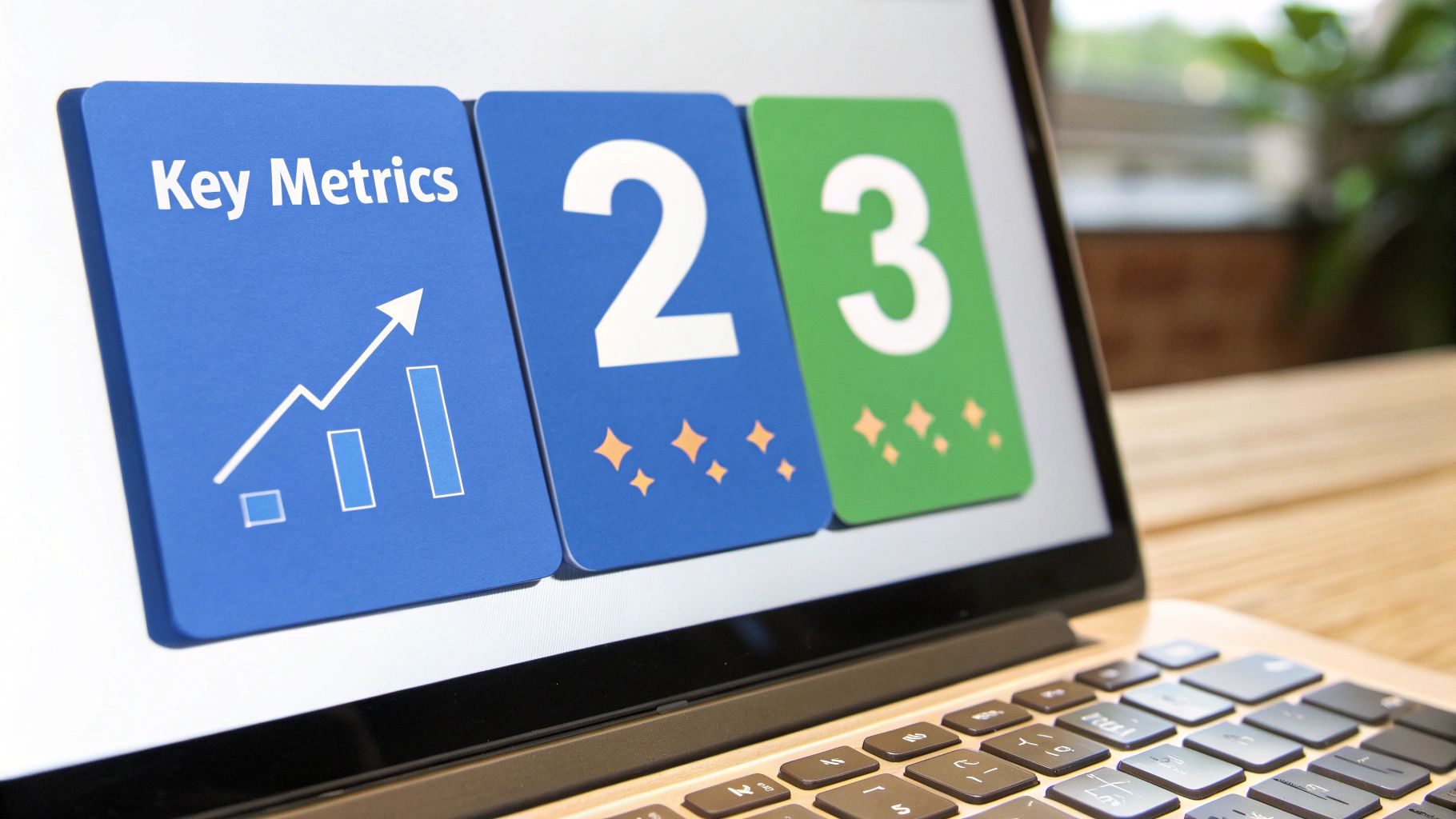
KPI cards are compact, focused visualizations that display a single primary metric alongside crucial context, such as a comparison to a previous period, a trend indicator arrow, and a percentage change. They serve as the atomic unit of executive dashboards and scorecards, providing an at-a-glance understanding of business health without requiring deep analysis.
This format is one of the best data visualisation examples because it distills complex performance data into a single, digestible snapshot. Modern tools like Stripe’s internal dashboards for payment volume or Datadog’s status pages for service health use these cards to communicate critical information quickly and effectively, enabling rapid decision-making.
Why It Works
KPI cards excel at delivering high-density information with low cognitive load. By combining a large primary number with smaller contextual cues (e.g., a green up-arrow and "+5% WoW"), they immediately tell a story about performance. This allows executives and operational teams to scan a dashboard and instantly identify which metrics are on track, which need attention, and the magnitude of any changes.
Key Takeaway: The power of a KPI card is its ability to answer three questions in under three seconds: What is the number? Is that good or bad? And how significant is the change? This efficiency makes them indispensable for high-level monitoring.
Common Pitfalls to Avoid
Missing Context: A card showing "2.5M Users" is meaningless without a comparison. Is that up from last week? Down from last month? Without a trend or period comparison, the number lacks any actionable insight.
Vague Definitions: Failing to clearly label the metric (e.g., "Revenue" instead of "Monthly Recurring Revenue ($M)") can lead to serious misinterpretation.
Inappropriate Timeframes: Comparing a volatile daily metric to the previous day might create unnecessary noise, while a year-over-year comparison might hide recent critical trends.
How to Implement It
To build effective KPI cards, start by defining the single most important metric for that business area. Then, add layers of context that support rapid comprehension.
Establish Visual Hierarchy: Make the primary metric the largest element. The comparison value and percentage change should be smaller, with trend indicators (arrows or color) providing an instant visual cue.
Use Intentional Color Coding: Apply colors like green for positive trends, red for negative, and grey for neutral. Base these thresholds on business goals, not arbitrary values.
Group Logically: Arrange related KPI cards together to tell a coherent story. For example, place "New Users," "Activation Rate," and "DAU" next to each other to show the entire user acquisition and engagement funnel.
Be Explicit with Labels: Clearly state the metric, its units (e.g., "$M," "k," "%"), and the comparison period (e.g., "vs. last week," "vs. last 30 days").
Top 10 Data Visualization Examples Comparison
Visualization | 🔄 Implementation Complexity | ⚡ Resource / Performance | ⭐ Expected Outcomes | 📊 Ideal Use Cases | 💡 Key Advantages / Tips |
|---|---|---|---|---|---|
Interactive Dashboards | High — integrations, data governance, embedding | High — real-time pipelines and UI compute | ⭐⭐⭐⭐ — centralized decision-making, faster insights | Executive/operational BI, embedded product analytics | Self-serve analytics; follow dashboard hierarchy (1–2 primaries) |
Time Series Line Charts | Low — straightforward plotting of time-indexed data | Low — simple aggregations, fast rendering | ⭐⭐⭐⭐ — excellent for trend & anomaly detection | Revenue trends, engagement over time, A/B cohort trends | Limit to 4–5 lines; use annotations and range selectors |
Funnel Charts | Medium — requires event sequencing & consistent stage definitions | Medium — event storage and cohort processing | ⭐⭐⭐ — clear conversion visibility, identifies drop-offs | Onboarding flows, conversion funnels, sales pipelines | Define stages clearly; compare cohorts and measure time-between-stages |
Heatmaps | Medium — need normalization and matrix prep | Medium — supports large matrices but needs color scaling | ⭐⭐⭐ — reveals correlations, clusters, temporal patterns | Correlation matrices, activity calendars, click maps | Use colorblind-safe palettes and include legends/values |
Scatter Plots w/ Regression | Medium — numeric prep and optional statistical calculations | Low–Medium — regression compute; may require aggregation for big data | ⭐⭐⭐⭐ — strong for correlation, outlier and hypothesis testing | Correlation analysis, multi-dim relationships, feature validation | Use transparency for overplotting; show R² and consider hexbins for 10k+ points |
Cohort Retention Tables | Medium — cohort definitions and historical joins required | Medium–High — needs historical user-level data | ⭐⭐⭐⭐ — essential for retention and product-market fit signals | SaaS/mobile retention, onboarding impact, acquisition channel analysis | Define cohorts by meaningful segments; control for seasonality |
Geographic / Map Visualizations | Medium — geospatial joins, boundary data, layering | Medium — map tiles and spatial queries can be heavier | ⭐⭐⭐ — reveals regional patterns and expansion opportunities | Market expansion, regional performance, localization planning | Always normalize (per-capita); enable progressive drill-down |
Waterfall Charts | Low — requires ordered contributions/variance breakdown | Low — simple aggregations | ⭐⭐⭐ — excellent for explaining variance and component impacts | Financial variance analysis, budget reviews, forecasting | Order segments for clarity; label absolute & percentage changes |
Segment Comparison Bar Charts | Low — standard aggregations and sorting | Low — efficient to compute and render | ⭐⭐⭐⭐ — ideal for ranking and comparative insights | Segment ranking, channel performance, departmental metrics | Sort by value; limit categories to 8–10 and add value labels |
KPI Cards w/ Trend Indicators | Low — single-metric fetch with simple visual elements | Low — lightweight, real-time optional | ⭐⭐⭐⭐ — instant at-a-glance status for decision-makers | Executive scorecards, daily ops dashboards, mobile summaries | Choose actionable KPIs; set context-aware thresholds and update windows |
From Visualization to Value: Your Next Steps
We've explored a powerful gallery of some of the best data visualisation examples, moving from the high-level overview of KPI cards to the granular detail of cohort retention tables. Each example serves as more than just a template; it's a strategic blueprint for answering critical business questions. You've seen how a well-designed funnel chart can pinpoint conversion drop-offs for a product team, and how a waterfall chart can provide a finance leader with a clear, sequential story of revenue changes.
The common thread woven through these diverse examples is the transformation of raw data into actionable intelligence. Effective visualization isn't about artistic flair. It's about clarity, context, and a relentless focus on the end-user's decision-making process. The most impactful charts are those that require minimal interpretation and lead directly to a specific action or a deeper, more insightful question.
Key Insights: Beyond the Chart Itself
As you reflect on the visualizations showcased, three core principles should stand out:
Context is King: A KPI card with a trend indicator is infinitely more valuable than a static number. A scatter plot with a regression line tells a more complete story than a cloud of disconnected dots. Always provide context to help your audience understand not just the 'what', but the 'so what'.
Interactivity Drives Discovery: The best analytics experiences are not passive. The power of the interactive dashboards and filterable geographic maps we examined lies in their ability to empower users to explore, segment, and drill down. This fosters a culture of self-serve analytics where teams can answer their own follow-up questions without creating a new data ticket.
Audience Determines Design: A busy executive needs at-a-glance KPI cards and high-level trends. An operations manager might need a detailed heatmap to identify bottlenecks. A product manager requires a cohort table to understand user retention. Tailoring the visualization type and its complexity to the specific audience is non-negotiable for driving adoption and action.
Actionable Next Steps: Building Your Analytics Engine
Moving from inspiration to implementation is the most critical step. Don't try to boil the ocean. Instead, focus on building incremental value and momentum within your organization. Here’s a practical, three-step plan to get started:
Identify One High-Impact Question: Start small. What is one recurring, high-value question your team struggles to answer efficiently? Is it "Which marketing channels have the best lead-to-customer conversion rate?" (Funnel Chart) or "How is our monthly recurring revenue changing over the quarter?" (Waterfall Chart). Pick one.
Select the Right Visual Tool: Refer back to the examples in this guide. Choose the single visualization type that most directly and clearly answers your chosen question. Resisting the urge to combine multiple, unfocused charts into a cluttered dashboard is a sign of strategic maturity.
Embed and Empower: The ultimate goal is to bring these insights directly into the workflows where decisions are made. This could mean embedding a customer health dashboard directly into your CRM for the success team or surfacing product usage heatmaps within your internal product management portal. The closer the data is to the point of action, the more valuable it becomes.
Ultimately, mastering the art of data visualization is about accelerating your organization's OODA loop: Observe, Orient, Decide, and Act. The best data visualisation examples are those that compress this cycle, enabling teams to move from observation to action in minutes, not weeks. By fostering an environment where data is accessible, intuitive, and seamlessly integrated into daily operations, you build a durable competitive advantage. This is how you transition from simply reporting on the past to actively shaping a more profitable and efficient future.
Ready to empower your entire team with instant, AI-driven visualizations without writing a single line of SQL? Querio enables anyone to ask questions in plain English and get back beautiful, accurate charts and dashboards in seconds. Embed powerful analytics into your own application or centralize your internal reporting by visiting Querio to see how it works.